
In this post we will review the best practices for installing, configuring and managing Veeam Plugin for Oracle RMAN, drawing on the experience of many installations and assessments across companies of different sizes. This covers both simple architectures and complex, highly available architectures running Oracle RAC on a range of platforms: x86, SPARC and Power. The goal of this post is to establish a standard configuration and a set of tasks that keep the environment in ideal shape for protecting Oracle data. In addition, this post includes a guide for upgrading to the new backup file format generated by the Plugin in its latest release.
Introduction#
This post is based on hands-on experience with many customers in Latin America running their Oracle database solution in high availability through Oracle RAC, and on reviewing different Veeam Backup & Replication architectures that use Veeam Plugin for Oracle RMAN. The aim is to provide a baseline review of the requirements and configurations, and to explain how Veeam Plugin for Oracle RMAN behaves in Oracle RAC environments, so that you can achieve correct operation aligned with the configurations required to run it.
This document applies to Veeam Backup & Replication v11 and to Veeam Plugin for Oracle RMAN v11. That said, several of the recommendations described here also apply to the earlier version (v10).
Good practices for Veeam Plugin for Oracle RMAN#
One of the most widely adopted enterprise database solutions is Oracle, where you will find different types of installations built to achieve high availability. More often than not you will come across Oracle Real Application Cluster (RAC), which hosts and runs the most critical highly available databases, if not the very core of the business for those who rely on Oracle.
Because it is such an important solution for companies, Veeam naturally developed an integration between Oracle and Veeam. To be more specific, the integration is with Oracle Recovery Manager (RMAN), which lets database administrators keep following their data protection procedures through RMAN. Remember that RMAN is Oracle’s native tool for backing up Oracle databases, but in this case we will use Veeam Plugin for Oracle RMAN so that we can store those backups in Veeam Backup & Replication repositories.
Keep in mind that, technically, Veeam Plugin for Oracle is an SBT-type library for Oracle RMAN. It allows us to expose Veeam Backup & Replication repository space to Oracle RMAN so that backups taken natively from RMAN can be stored there.
One of the major advantages of Veeam Plugin for Oracle RMAN is that it lets you recover Oracle databases either from the command line or through Veeam Explorers, which greatly simplifies disaster recovery. There is also an integration with Oracle when the databases run on virtual machines protected by image-level backup, including support for Oracle Automatic Storage Management (ASM). This also covers automated backup of Archive Logs for granular recovery and, of course, instant Oracle database recovery. For more information, see the following link:
https://helpcenter.veeam.com/docs/backup/vsphere/oracle_backup.html?ver=110
As we know, Veeam Backup & Replication maintains several Veeam Explorers, such as Veeam Explorer for Active Directory, Veeam Explorer for Exchange, Veeam Explorer for SharePoint, Veeam Explorer for SQL Server, Veeam Explorer for OneDrive (Veeam Office 365), Veeam Explorer for Microsoft Teams (Veeam Office 365) and, of course, Veeam Explorer for Oracle. For more information, see the following link:
https://helpcenter.veeam.com/docs/backup/explorers/explorers_introduction.html?ver=110
For this reason, it makes sense to integrate Veeam and Oracle through Veeam Plugin for Oracle. In this post we will focus exclusively on some good practices for using Veeam Plugin for Oracle RMAN, based on direct experience across different companies.
Installation#
The main good practice for installation is to use the build that matches the operating system and Oracle platform where you are installing Veeam Plugin for Oracle RMAN. The recommendation is always to install Veeam Plugin for Oracle RMAN on every Oracle RAC node. Remember that Veeam Backup & Replication ships the following versions of the Plugin:
- Veeam Plugin for Oracle RMAN on AIX ppc64
- Veeam Plugin for Oracle RMAN on Linux x86 and x64
- Veeam Plugin for Oracle RMAN on Solaris x86 and SPARC
- Veeam Plugin for Oracle RMAN on Windows
** https://helpcenter.veeam.com/docs/backup/plugins/rman_plugin.html?ver=110 **
In most cases you will find Oracle RAC running on Linux, so we will focus on good practices for this type of environment. That does not mean they do not apply to other versions or operating systems.
Depending on the version you install, the first good practice is:
- Install as the “root” user
- Configure as the user that owns the Oracle installation, usually the “oracle” user
And this is where it is essential that the user who owns the Oracle installation holds the necessary permissions, whether at the level of files, folders or group memberships of the Oracle installation, including Oracle Grid, as described in:
https://helpcenter.veeam.com/docs/backup/plugins/rman_plugin_permissions.html?ver=110
There is even a post on the blog dealing with permissions, and with the error that appears during configuration when the appropriate permissions are missing:
/solucion-veeam-oracle-permission-denied/
Oracle Temp Tablespace#
A very good practice in Oracle databases is to always keep space available in temporary tables, commonly known as the Temp Tablespace, both for normal database operations and to store temporary data for the instances that are currently active.
What is the interaction between temporary tables and RMAN backups run through Veeam Plugin for Oracle RMAN? Oracle RMAN uses space in this temporary table to store statistical data about backup sessions, as well as resource utilization data used to decide which servers with free resources should run the backups. For example, Oracle RMAN uses this temporary table to store metadata about recovered objects so it can order them correctly.
Likewise, Veeam Plugin for Oracle RMAN queries statistics from Oracle RMAN processes. That is why you must make sure there is always space available in the temporary table, so that no unexpected errors occur before or during execution on the platform.
Configuration#
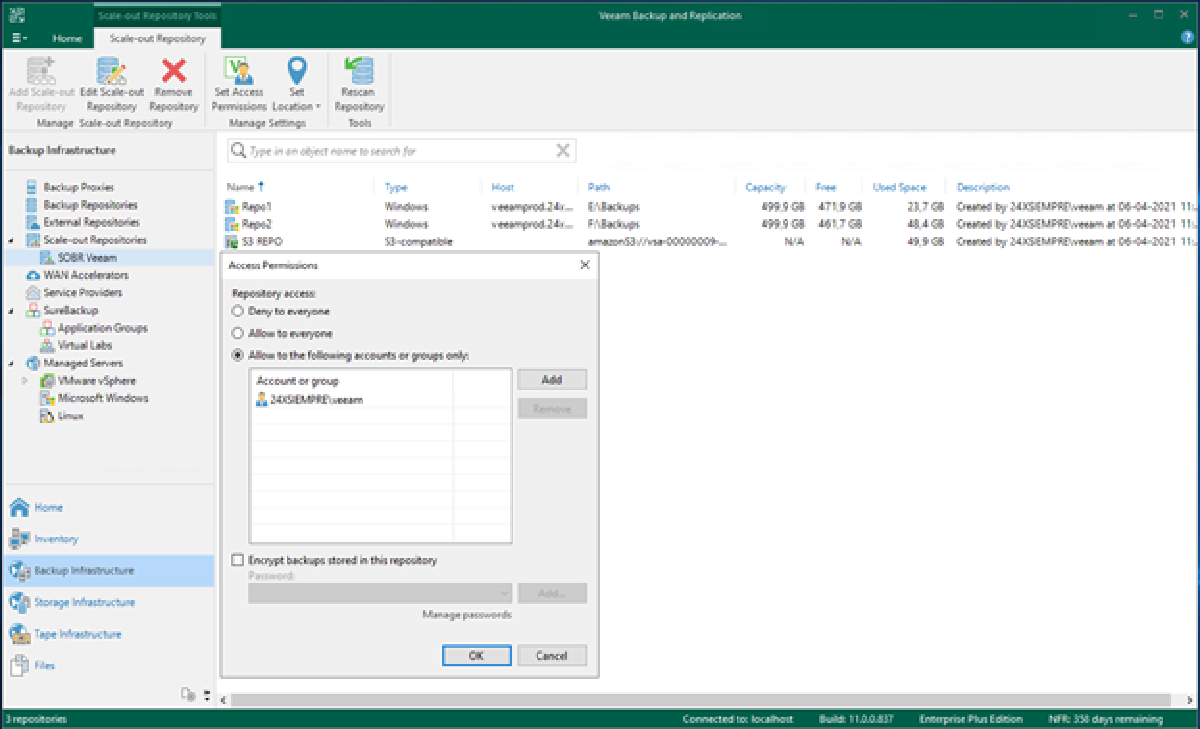
Before any configuration on Oracle RAC, we first need to prepare a dedicated repository for Oracle RMAN backups taken through Veeam Plugin for Oracle RMAN. After creating the repository using ReFS or XFS, whether Simple or Scale-Out (SOBR), you must add the user that will have permissions to use the repository together with the Veeam Plugin. To do this, add the user under “Access Permissions”.

Of course, when configuring our repositories to receive Oracle RMAN backups, we need to keep the concurrent tasks correctly configured so that there are no bottlenecks or process queues when writing data to the repository. In fact, we will review the requirements for Oracle RMAN channels and Veeam Backup & Replication tasks later on. Once this is done, we can move on to the Plugin configuration.
As we saw in the Installation section, the configuration must be performed by the user that owns the Oracle installation, generally the “oracle” user. Here you must run the command shown at the end of the Plugin installation, “ OracleRMANConfigTool –wizard”:

When you run the command, Veeam Plugin for Oracle RMAN examines and analyzes the entire configuration of the existing instances in the Oracle installation. It reviews the Oracle configuration files that hold information about the instances and, in turn, runs a number of commands to validate the identification of the database instances, along with queries against the instances to identify ASM and to validate the CONTROLFILE, SPFILE, and so on. Some of the files and commands it reviews are:
- /etc/oratab
- /u01/app/oraInventory/ContentsXML/inventory.xml
- /u01/app/oracle/product/[version]/db_1/oraInst.loc
- srvctl status home
- srvctl config database -d [DB Name]
- srvctl status instance -d [DB Name] -n [Oracle Server]
Because of this, the permissions and the Oracle installation group memberships held by the user that owns the application (generally “oracle”) are very important for detecting and configuring the environment for Veeam Plugin for Oracle RMAN.
Veeam Plugin for Oracle RMAN will prompt you for certain information that you need to enter, such as the Veeam server address, the default port and the user credentials you added under “Access Permissions” to access the backup repository. It will then display the repository you have configured, which you select by the number that precedes the repository name.
At this point you can configure the Plugin to use multiple Veeam Backup & Replication backup repositories; simply add the repositories by number, separated by a space.
The next question, “ Enter the number of data streams (From 1 to 254) to run in parallel for each repository (RMAN DEVICE PARALLELISM value). Channel count per device [4]:”, is where it becomes very important to know how many channels or streams we will use when running the backup. To decide this, we need to consider the following:
- 1 CPU core and 200 MB of RAM for each channel used on the Oracle server or RAC node
- 1 CPU core and 1 GB of RAM for every 5 channels used for the Veeam Backup repository
Therefore, when configuring this option, you must account for the hardware requirements of both the Oracle servers and the Veeam Backup & Replication repository; otherwise you could run into some kind of bottleneck.
This point almost always raises questions, such as: how does it work? We know Oracle RMAN can use multiple channels ( up to a maximum of 255 channels, with each channel able to read 64 files in parallel) in order to improve performance and parallelism when running the backup natively. In this case, however, what Veeam Plugin for Oracle RMAN does is set the default number of channels used in every backup globally. Of course, this type of global configuration can always be overridden in the backup task or script maintained by the database or Oracle administrators.
It is worth stressing, as noted above, that Veeam Plugin for Oracle RMAN must be installed on every server that makes up the Oracle RAC, since Oracle RMAN can use any available node with free resources to run its tasks. This brings us to a very important Oracle table.
How many channels should you use? It depends on the available resources, but 4 channels is a good starting point. Naturally, the number of channels will always be limited by the resources available in the Oracle cluster. In general, users provision excellent hardware resources for this type of solution, so whenever the resources are there it is worth raising the number of channels to improve performance.
And since we are talking about the resources and channels RMAN will use, it is of course advisable to use a 10 GB network, because the more channels are used, the more bandwidth Oracle RMAN and Veeam Plugin for Oracle RMAN will consume to transfer backups to the Veeam Backup & Replication repository.
Finally, if you want to allocate channels manually, refer to the following link:
https://helpcenter.veeam.com/docs/backup/plugins/rman_allocation_backup.html?ver=110
After understanding and entering the channels that Oracle RMAN will use through Veeam Plugin for Oracle RMAN, the solution asks the following question: Do you want to use Veeam compression? (y/n). Once again, this is a matter of resources, as well as a decision on whether or not it is necessary to enable Veeam Backup & Replication compression. The following link details the compression that Veeam Backup & Replication performs and the resources it requires:
https://helpcenter.veeam.com/docs/backup/vsphere/compression_deduplication.html?ver=110
Since we are discussing good practices based on user experience, the initial recommendation is not to keep both Oracle and Veeam compression enabled, as this will demand resources and hurt the overall performance of the backup processes.
And as a general recommendation, initially do not use Veeam compression unless there are spare resources to run compression on the Oracle data.
When you choose not to run compression, Veeam Plugin for Oracle RMAN will report the instances it detected on the operating system and, of course, the configuration that will be applied globally to Oracle RMAN.
Then there are 3 options that let you decide whether to apply the changes to Oracle RMAN, export the configuration to apply it manually, or, finally, not apply any changes at all.
Backup Operation and Execution#
Generally, for operating and running backups with Oracle RMAN, teams use scripts already developed by the database administrators with the desired retention configuration, along with additional parameters that match the business requirements.
At this point, one of the most important recommendations for protecting instances is to keep the backup scripts as simple as possible and to rely on the global Oracle RMAN configuration applied when you set up Veeam Plugin for Oracle RMAN, without needing to declare the SBT library or the channels used in the backup scripts.
The same applies to the Archive Logs backup, where it is recommended that execution use the global RMAN variables.
This does not mean you cannot override the settings from the script. It simply means that, based on the configurations we have reviewed, this has proven to be the best option for standardizing scripts and keeping them maintainable.
Another very important point: you should always end execution by exiting the script using the EXIT command. If Oracle RMAN cannot release the session, it will stay held and the process will keep running until the RMAN process is cancelled manually. In Veeam Backup & Replication, you will see the statistics window running indefinitely, waiting for the Oracle RMAN session to finish.
Additional Files to Back Up#
Beyond the database files and archive logs that Oracle RMAN protects through Veeam Plugin for Oracle RMAN, you should always back up the Oracle configuration files, typically the home directories ($ORACLE_HOME) of the Oracle and Grid users.
In addition, you need to back up the Veeam Plugin for Oracle RMAN configuration files generated on the operating system.
To back up these folders, you can use Veeam Agent for Linux configured for file-level backup without snapshots:
https://helpcenter.veeam.com/docs/agentforlinux/userguide/file_backup_snapshotless.html?ver=50
Generally, the paths to back up, with all their recursive contents, are:
- /etc/oratab
- /u01/
- /opt/veeam
Of course, if the installation paths differ, you need to add them.
Add any other paths required by the database administrators or for disaster recovery.
Interoperability and Updates#
For customers who already run Veeam Plugin for Oracle RMAN since Veeam Backup & Replication 9.5 and have been updating to the latest version of Veeam Backup & Replication (V11 as of the date of this document), it has always been important to validate version interoperability, which is as follows:
- Veeam Plug-in for Oracle RMAN 9.5 Update 4 supports integration with Veeam Backup & Replication version 9.5 Update 4, 9.5 Update 4a, 9.5 Update 4b, and 10.
- Veeam Plug-in for Oracle RMAN 10 (10.0.1.4854) supports integration only with Veeam Backup & Replication version 10.
- Veeam Plug-in for Oracle RMAN 10.0.1.4854 (10a Cumulative Patch 20201202) supports integration with Veeam Backup & Replication version 10 and 11.
- Veeam Plug-in for Oracle RMAN 11 supports integration only with Veeam Backup & Replication version 11.
It is important to highlight this interoperability, because teams often update only the Veeam Backup & Replication version and do not update Veeam Plugin for Oracle RMAN, which leads to unexpected errors. Therefore, it is always recommended to update every component involved in the Veeam Backup & Replication deployment.
As of version 11, Veeam Plugin for Oracle RMAN uses a new format for backup files. Instead of using a single metadata file for all backup files, as previous versions did, version 11 now maintains a separate metadata file for each backup file. This helps improve the productivity of backup and recovery operations.

Updating Veeam Plugin for Oracle RMAN is very easy: depending on the operating system, download the new version of the installation package as explained in the following documentation:
https://helpcenter.veeam.com/docs/backup/plugins/update_rman_plugin.html?ver=110
Since v11 introduces new backup and metadata files, you need to upgrade any backups taken with previous versions of Veeam Plugin for Oracle RMAN. For example, in the following image we see a backup taken with version 10 of Veeam Plugin for Oracle RMAN, which shows:
“Backup metadata is not up to date. Please upgrade the backup “

The message indicates that the metadata must be updated. To perform this recommended action, first of all you must have Veeam Backup & Replication updated to the latest V11 and, of course, Veeam Plugin for Oracle RMAN updated to the latest V11. Then open the Veeam Backup & Replication console, go to the “Backups” menu, select “Disk” to find the Oracle RMAN backup, and right-click on it:

Here you will see a new “Upgrade” function that always appears on backups from versions prior to v11, which lets you upgrade the backup files and metadata from earlier versions of Veeam Plugin for Oracle RMAN. When you click “Upgrade”, Veeam Backup & Replication will indicate that the backup jobs need to be disabled in order to perform the upgrade.

We simply need to open the Veeam Backup & Replication job management by clicking “Jobs” and then “Backup”, identify the Veeam Plugin for Oracle RMAN backup job, and disable it.

With the backup job disabled, we return to “Backups”, then “Disk”, and select the Oracle RMAN backup again to run the “Upgrade”, where the message is displayed.

It checks whether all components are updated to the latest version, that is, Veeam Backup & Replication v11 (at its latest update) as well as Veeam Plugin for Oracle RMAN at its latest version. Selecting “Yes” will show the status of the operation.

How long this operation takes always depends on the number of Oracle backup files, the type of repository and, of course, the workload on the file system. If the files are stored on a deduplication device, it may take longer, depending on that device’s own operations, since it must rehydrate the data so that Veeam Backup & Replication can update the files and metadata.
Configuration Files and Logs#
In certain cases it is always useful to know the location of the various configuration files, in case you need to edit them manually, support asks you to make a change, and, of course, to know where the log files live in case you need to review misbehaving behavior or collect the files to update a support case.
The default location of the Veeam Plugin for Oracle RMAN configuration files:
- Linux, Solaris, AIX: /opt/veeam/VeeamPluginforOracleRMAN
- Windows: C:\Program Files\Veeam\VeeamPluginforOracleRMAN
These configuration files should be edited according to Veeam technical support guidelines.
And when you need to review log files or send logs to support, the path to these files:
- Linux, Solaris, AIX: /tmp/veeam_plugin_logs/
- Windows: %ProgramData%\Veeam\Backup\RmanPluginLogs
Or refer to the KB:
General considerations#
A general recommendation is that the operating systems involved in protecting Oracle databases should always be kept up to date, as long as operations allow it. For the Veeam Backup & Replication roles, specifically the repositories, it is also worth keeping the network device drivers current, since in some cases updating both the operating system and the network interface drivers improved data backup considerably.
On the other hand, it is always recommended that every service, server and system involved use DNS-FQDN addresses, so that the configuration is as complete as possible.
That is all. I have tried to make this as complete and detailed as possible; as always, additional ideas or comments are welcome.