Data protection, Kubernetes, cybersecurity and AI. Hands-on guides from the trenches: Veeam, Kasten, VMware, Oracle, cloud, and whatever I’m breaking in the homelab this week.
Table of ContentsTable of Contents
NFS is one of the most common targets companies use to store their backups. In this guide, we will walk through configuring an NFS Location Profile for Kasten K10, following the best practices outlined in the Kasten documentation.
Before anything else, we should always review the documentation for the technologies we are going to use to reach our goal. In this case we will use Kasten K10 and the NFS Subdir External Provisioner. You can find the official information here:
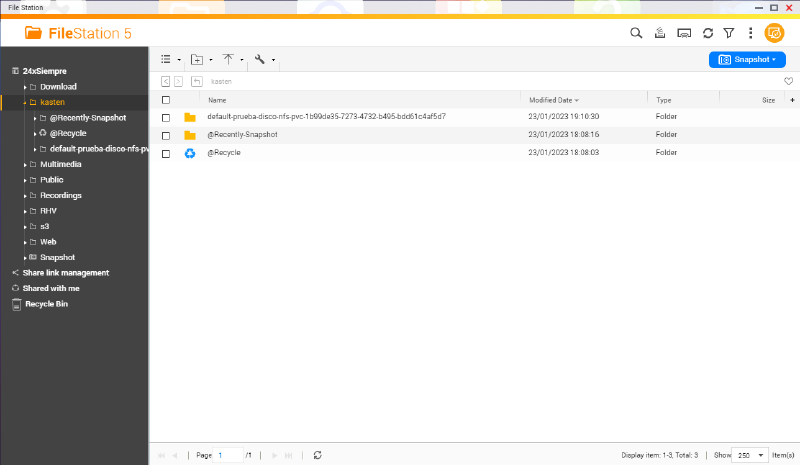
As with any NFS server, you need to create a folder (or use an existing one) to store the backups, always with its corresponding access configuration, whether by authentication or by allowing access per HOST in NFS. For example, on my QNAP I have configured the following:
Once this is configured, we will move on to installing and configuring the NFS Subdir External Provisioner.
Again, following the solution’s documentation, the first thing we need to do is set up the Helm repository, so we run the following command:
helm repo add nfs-subdir-external-provisioner https://kubernetes-sigs.github.io/nfs-subdir-external-provisioner/
```bash
Then we install it with Helm, passing the details of the NFS server we want to use:
Validate the installation with:
```bash
kubectl get pods
```bash
## Storage Class ConfigurationTo meet the Kasten K10 requirements, we need a StorageClass. In fact, when installing and configuring with Helm, the StorageClass is created automatically:
```bash
kubectl get sc
```yaml
## Creating a Persistent Disk using NFSNow that we have everything in place, let's test creating a PVC with our new StorageClass. To do that, we run the following (adjust the size and name if necessary):
```yaml
kind: PersistentVolumeClaim
apiVersion: v1
metadata:
name: prueba-disco-nfs
spec:
storageClassName: nfs-client
accessModes:
- ReadWriteMany
resources:
requests:
storage: 100Gi
```bash
Validate the configuration in Kubernetes and also in our NFS shared folder:
We will now delete this disk to prepare the one needed for Kasten K10:
```bash
kubectl delete pvc prueba-disco-nfs
```bash
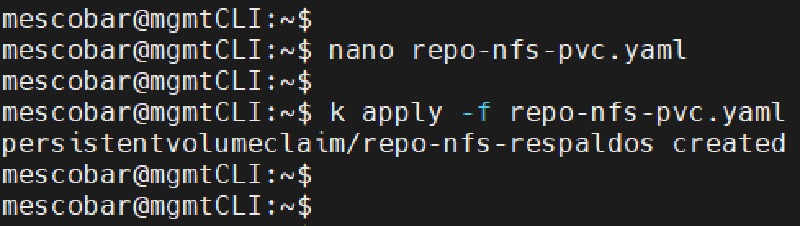
Now we will create the disk that Kasten K10 needs in its own namespace, using the following file:
```bash
kind: PersistentVolumeClaim
apiVersion: v1
metadata:
name: repo-nfs-respaldos
namespace: kasten-io
spec:
storageClassName: nfs-client
accessModes:
- ReadWriteMany
resources:
requests:
storage: 100Gi
```bash
If we list the PVCs without specifying a namespace, we will see that none exist:
```bash
kubectl get pvc
```bash
Now, if we list the PVCs in the kasten-io namespace, we will see our new disk:
```bash
kubectl get pvc -n kasten-io
Configuring the NFS Location Profile in Kasten K10#
Now we will open the Kasten K10 console on the cluster where we configured our NFS and enter the name of the PVC:
We validate the configuration:
Now we will test a backup to this new NFS profile used to store the backups.