Data protection, Kubernetes, cybersecurity and AI. Hands-on guides from the trenches: Veeam, Kasten, VMware, Oracle, cloud, and whatever I’m breaking in the homelab this week.
Table of ContentsTable of Contents
According to the latest surveys from cncf.io and other organizations, Google Kubernetes Engine (GKE) is one of the most widely used services. As you would expect, protecting the applications that run on these platforms is a constant requirement, along with using Google’s own infrastructure to store the backups. In this guide we will look at how to install Kasten K10 to protect applications running on GKE and how to integrate it with K10 Multi-Cluster Manager.
After reading the documentation you will see how straightforward it is to install Kasten K10 on Google Kubernetes Engine. The recommendation is to install it using a service account, since Kasten needs two types of service accounts: one to access Google’s infrastructure (for example, storage) and another to access the Kubernetes resources. We will use a dedicated service account for each purpose, as this is the recommended practice for protecting applications on GKE.
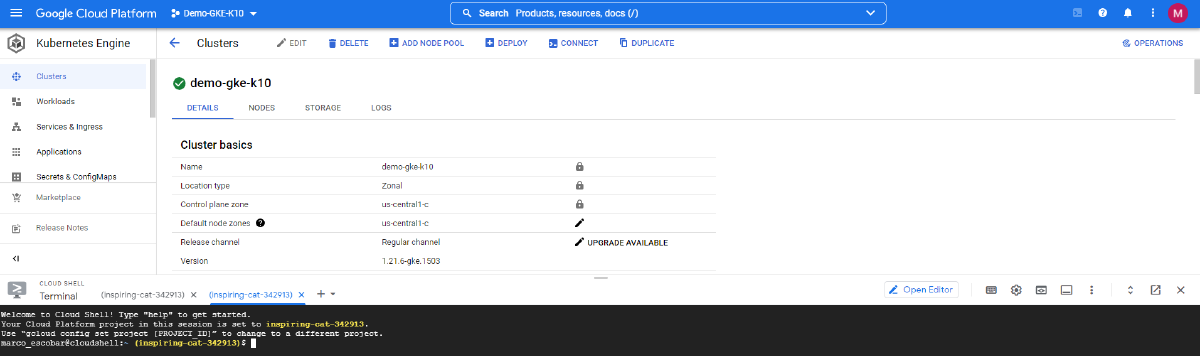
First, let’s make sure we are in the Google Cloud console and that we have access to the GKE cluster:
Next, open Google’s “Cloud Shell” by clicking the “Prompt” icon, located to the left of the question mark in the upper right corner of the Google console:
Then run the following command to connect to the GKE cluster:
gcloud container clusters get-credentials NombreMiClusterGKE --zone ZonaGoogle
```bash
Here you should enter the name of your GKE cluster and the zone where you configured it. In this example, the cluster name is "demo-gke-k10" and the zone is "us-central1-c":
This sets up the kubeconfig file in .kube/config so you can manage the cluster with kubectl. If we run the following command, we will see the nodes running in GKE:
```bash
kubectl get nodes -o wide
```bash
We are now ready to create the service account. Note that the permissions we will need to add to the service account are:
- roles/compute.storageAdmin for access to Google infrastructure
- roles/storage.admin for access to the buckets used for backups in Google Cloud Storage
\\*\\*\\* Depending on your company's security policies, you can scope the storage.admin permissions more narrowly \*\*\*
So, as indicated in the Kasten documentation, we will run the following commands in Google Cloud Shell:
```bash
myproject=$(gcloud config get-value core/project)
gcloud iam service-accounts create k10-sa --display-name "K10 Service Account"
k10saemail=$(gcloud iam service-accounts list --filter "k10-sa" --format="value(email)")
gcloud iam service-accounts keys create --iam-account=${k10saemail} k10-sa-key.json
gcloud projects add-iam-policy-binding ${myproject} --member serviceAccount:${k10saemail} --role roles/compute.storageAdmin
```bash
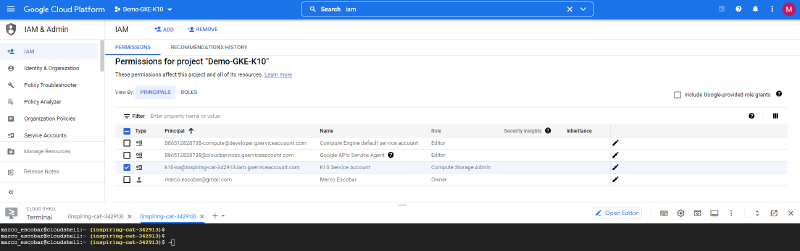
Next, we will add the permissions for bucket access. This could be the same service account or a separate one used exclusively to access Google Cloud Storage buckets. To verify, we can go to "IAM" in the Google Cloud console and confirm that the service account was created:
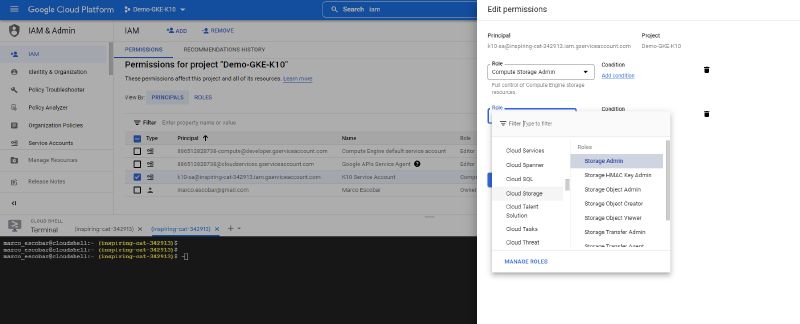
As you can see in the previous image, the account "[email protected]" is the service account we created earlier with the commands we ran. We will now edit it, in this case so that it can also access Google Cloud Storage, by adding the Storage.Admin role to the service account:
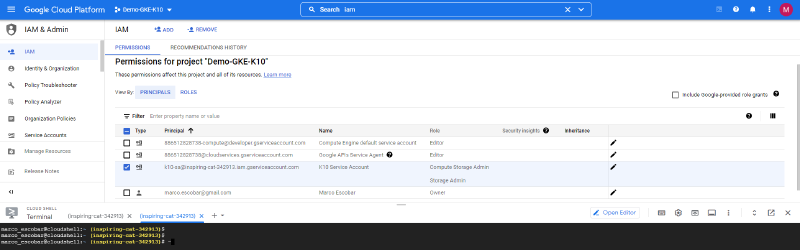
And we can confirm that the required role has been assigned:
## Installation of Kasten K10
Following the Kasten K10 documentation for the installation, we should always review the prerequisites mentioned at the beginning of this post. We will add the helm repository and create the namespace for Kasten, named "kasten-io", with the following commands:
```bash
helm repo add kasten https://charts.kasten.io/
kubectl create namespace kasten-io
```bash
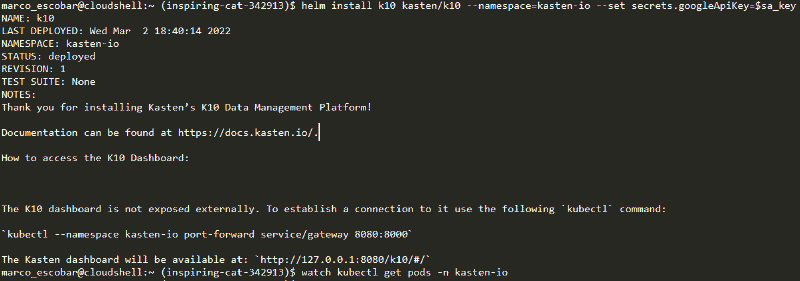
With the above in place, we proceed to install Kasten K10 using the service account we created earlier along with its key, using the following commands:
```bash
sa_key=$(base64 -w0 k10-sa-key.json)
helm install k10 kasten/k10 --namespace=kasten-io --set secrets.googleApiKey=$sa_key
```bash
Finally, we check that all the pods in the namespace are "RUNNING":
```bash
kubectl get pods -n kasten-io
```bash
Now we need to access the Kasten web console. As we have configured several times on this blog, we only need to run the command:
```bash
helm upgrade k10 kasten/k10 --namespace=kasten-io \
--reuse-values \
--set externalGateway.create=true \
--set auth.tokenAuth.enabled=true
```bash
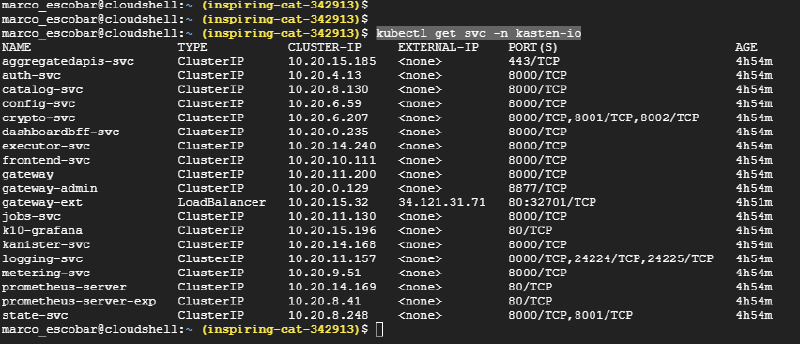
Again we confirm that the pods in the Kasten namespace are "RUNNING", and then we check the service that was created to access the console with the following command:
```bash
kubectl get svc -n kasten-io
```bash
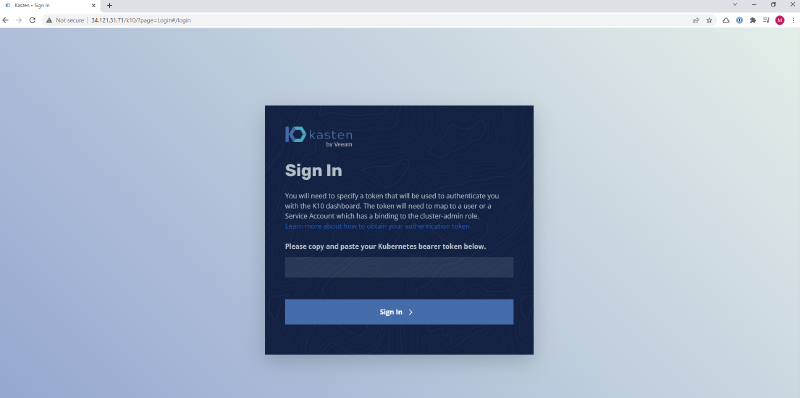
In this case, the IP 34.121.31.71 has been assigned as the "LoadBalancer", so we will open the web console at http://34.121.31.71/k10/#/
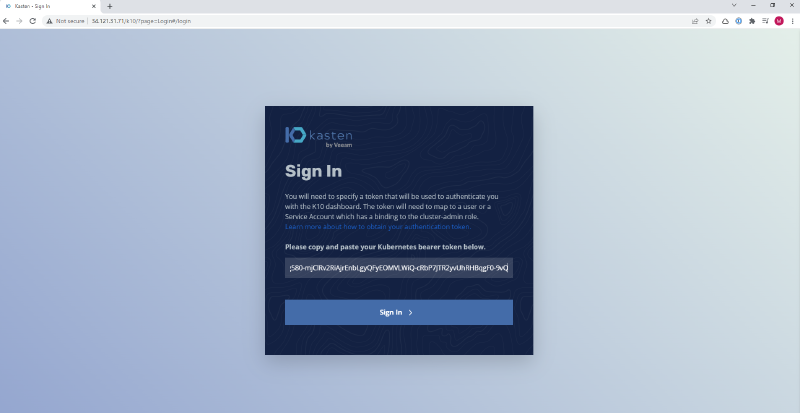
The credential is obtained from the token. As we saw in a previous post on this blog, we just have to run:
```bash
sa_secret=$(kubectl get serviceaccount k10-k10 -o jsonpath="{.secrets[0].name}" --namespace kasten-io)
kubectl get secret $sa_secret --namespace kasten-io -ojsonpath="{.data.token}{'\n'}" | base64 --decode
```bash
This will display the token for logging in:
## Google Infrastructure Configuration
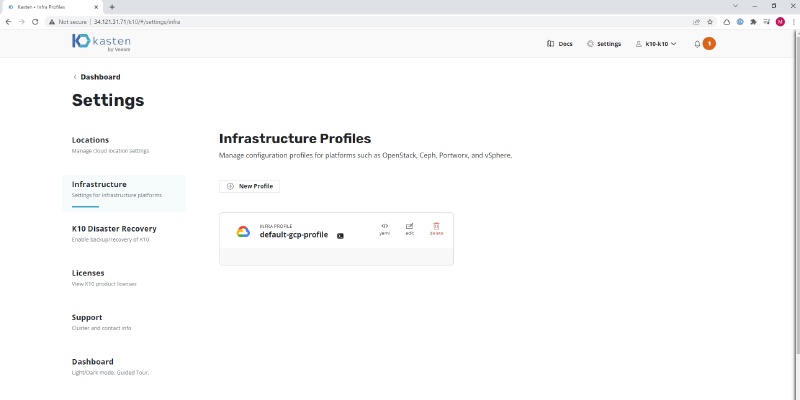
As mentioned earlier, Kasten needs access to Google's infrastructure as well as to Google Cloud Storage to store the backups. Because we configured it with the service account, the infrastructure profile is generated in Kasten automatically. To verify this, we can view it in the Kasten cluster configurationunder "Settings" and then "Infrastructure":
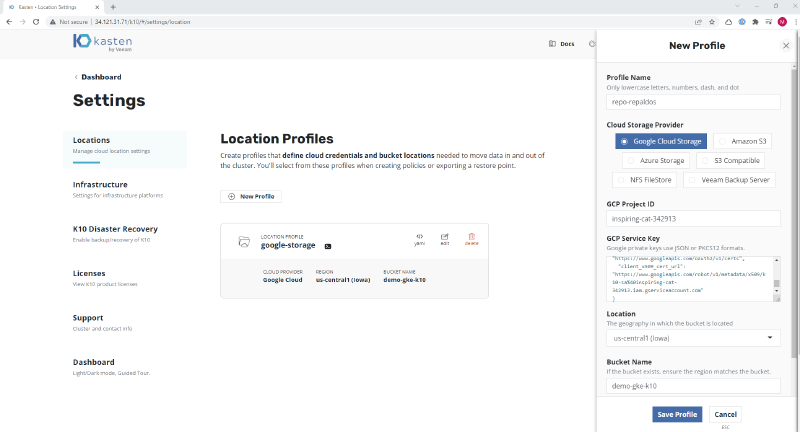
All that is left is to add the backup repository with a Google Cloud Storage bucket. We will create the Google bucket in the standard way and then enter the following details in Kasten:
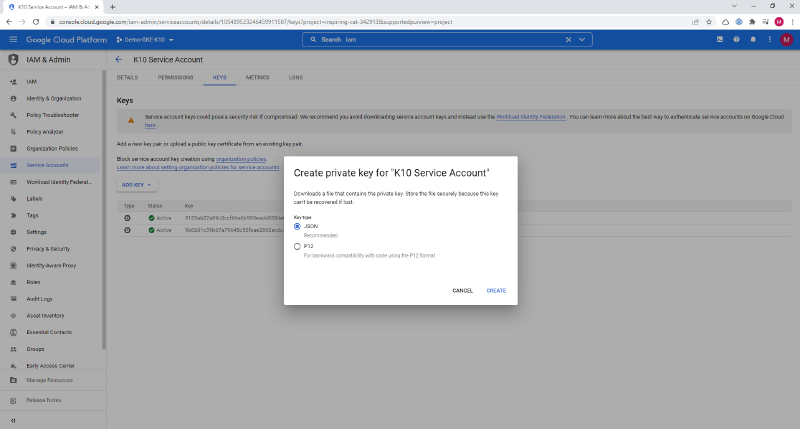
To generate the service key, go to "IAM", then "Service Accounts", select the Kasten service account we created ("k10-sa"), click "Keys", and generate one in JSON format:
Where:
- Profile Name: The name of the profile
- Cloud Storage Provider: Select Google Cloud Storage
- GCP Project ID: The Google project ID, in this case "inspiring-cat-342913"- GCP Service key: Paste the contents of the JSON we generated earlier
- Location: The bucket location, set when it was created, which you can also find in the bucket properties
- Bucket Name: The name of the previously created bucket
And now we are ready to run backups.
## Integration with K10 Multi-Cluster ManagerIn the next post we will look at how to integrate our GKE cluster with K10 Multi-Cluster Manager. If you need to install K10 Multi-Cluster:
[Install Kasten Multi-Cluster Manager](/en/posts/install-kasten-multi-cluster-manager/)
In this case, for Google, we must run k10multicluster to modify the cluster's kubeconfig. To copy the GKE cluster's kubeconfig, run the following in the "Cloud Shell":
```text
cat .kube/config
```bash
Now go to our primary Kubernetes cluster for Kasten and change into the directory:
```text
cd
cd .kube/
```text
Then create a file with nano named google and paste the contents of the kubeconfig:
```text
nano google
```bash
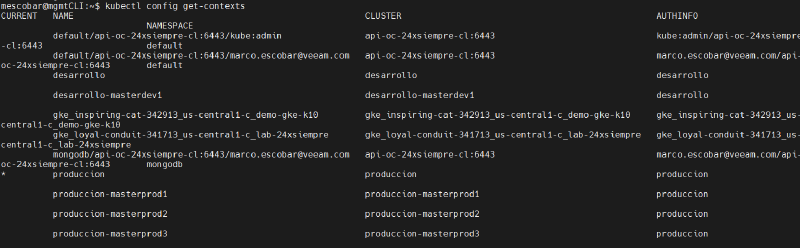
Set it as an environment variable in your profile, and you can then list the Kubernetes contexts:
```bash
kubectl config get-contexts```json
We focus on the Google context, in this case gke\_inspiring-cat-342913\_us-central1-c\_demo-gke-k10, and run the following command (remember to use your own cluster's context):
```text
k10multicluster kubeconfig prepare --context gke_inspiring-cat-342913_us-central1-c_demo-gke-k10
Copy the contents of the generated file into our K10 Multi-Cluster:
Cluster Display Name: The name we want to display for the cluster
Ingress URL: The address of the Kasten console on GKE
K10 Namespace: The name of the namespace where Kasten was installed
Helm release name: k10
Insecure TLS: If you are using http, disable it; otherwise use SSL with a valid certificate.
And now we have our Google GKE cluster managed centrally.
As always, security comes first: allow access only from trusted addresses, apply RBAC to access via Multi-Cluster Manager, and, where necessary, grant service accounts the least privilege required to operate.