Data protection, Kubernetes, cybersecurity and AI. Hands-on guides from the trenches: Veeam, Kasten, VMware, Oracle, cloud, and whatever I’m breaking in the homelab this week.
Table of ContentsTable of Contents
One question we keep getting lately is how to configure the vSphere CSI driver on OpenShift 4.x without relying on the operator VMware already built, which is only supported for production as of OpenShift 4.10. In this guide we walk through installing and configuring the driver on versions earlier than 4.10 without using the VMware operator.
As is widely known, you can install the vSphere CSI driver to provision volumes directly as First Class Disks using the datastores configured in the vSphere environment. On top of that, as of version 4.8 there is an OpenShift operator in Preview for installing the CSI driver, which is fully supported for production environments in the latest release, OpenShift 4.10.
OpenShift users generally do not upgrade automatically to the latest OpenShift releases until their applications and the new OpenShift features or versions have a compatible, supported upgrade path. For that reason, this guide covers installing the vSphere CSI driver from the command line.
This guide assumes the reader is familiar with the OpenShift environment and knows how to connect via the command line. In this case we are using OpenShift 4.8.39.
We will create two files, csi-vsphere.conf and vsphere.conf, which hold the vSphere access credentials:
csi-vsphere.conf
[Global]# Para conseguir el ID del cluster se debe ejecutar el siguiente comando# oc get clusterversion -o jsonpath='{.items[].spec.clusterID}{"\n"}'cluster-id ="5341dc3e-4ea8-4de6-a4fd-f2715c75a0b8"[VirtualCenter "vcenter.24xsiempre.cl"]insecure-flag ="true"user="SuperUserdevSphere"password="SuperDuperPassword"port="443"datacenters="24xSiempre"```bash
Fill in the details of your vSphere environment in the fields above:
- cluster-id: the OpenShift cluster ID; run the command noted in the file to obtain it
- VirtualCenter: the vCenter FQDN address
- User: the vCenter user used with OpenShift
- Password: the password for the vCenter user
- Datacenters: the name of the vCenter datacenter
Next we will create the following file:
vsphere.conf
```bash
[Global]# Para conseguir el ID del cluster se debe ejecutar el siguiente comando# oc get clusterversion -o jsonpath='{.items[].spec.clusterID}{"\n"}'cluster-id ="5341dc3e-4ea8-4de6-a4fd-f2715c75a0b8"[VirtualCenter "vcenter.24xsiempre.cl"]insecure-flag ="true"user="SuperUserdevSphere"password="SuperDuperPassword"port="443"datacenters="24xSiempre"```bash
Fill in the details of your vSphere environment in the fields above:
- cluster-id: the OpenShift cluster ID; run the command noted in the file to obtain it
- VirtualCenter: the vCenter FQDN address
- User: the vCenter user used with OpenShift
- Password: the password for the vCenter user
- Datacenters: the name of the vCenter datacenter
Once the files are generated, we will create the secrets from them by running the following commands:
```bash
oc create secret generic vsphere-config-secret --from-file=csi-vsphere.conf --namespace=kube-system
oc create configmap cloud-config --from-file=vsphere.conf --namespace=kube-system
```json
And to check that they were created correctly, run:
```bash
oc get secret vsphere-config-secret --namespace=kube-system
oc get configmap cloud-config --namespace=kube-system
```bash
Now we will taint all the nodes with the following command:
```bash
kubectl taint nodes --all 'node.cloudprovider.kubernetes.io/uninitialized=true:NoSchedule'```json
Then we apply the following YAML files:
```bash
oc apply -f https://raw.githubusercontent.com/kubernetes/cloud-provider-vsphere/master/manifests/controller-manager/cloud-controller-manager-roles.yaml
oc apply -f https://raw.githubusercontent.com/kubernetes/cloud-provider-vsphere/master/manifests/controller-manager/cloud-controller-manager-role-bindings.yaml
oc apply -f https://github.com/kubernetes/cloud-provider-vsphere/raw/master/manifests/controller-manager/vsphere-cloud-controller-manager-ds.yaml
```json
And to confirm the files above were applied correctly, run:
```bash
oc describe nodes | grep "ProviderID"```json
## vSphere-CSI InstallationNow we will install the driver by applying the following files:
```bash
oc apply -f https://raw.githubusercontent.com/kubernetes-sigs/vsphere-csi-driver/v2.1.1/manifests/v2.1.1/vsphere-7.0u1/vanilla/rbac/vsphere-csi-controller-rbac.yaml
oc apply -f https://raw.githubusercontent.com/kubernetes-sigs/vsphere-csi-driver/v2.1.1/manifests/v2.1.1/vsphere-7.0u1/vanilla/deploy/vsphere-csi-node-ds.yaml
oc apply -f https://raw.githubusercontent.com/kubernetes-sigs/vsphere-csi-driver/v2.1.1/manifests/v2.1.1/vsphere-7.0u1/vanilla/deploy/vsphere-csi-controller-deployment.yaml
```json
Run the following command:
```bash
oc get deployments --namespace=kube-system
```text
And waituntil READY reaches the 1/1 state:
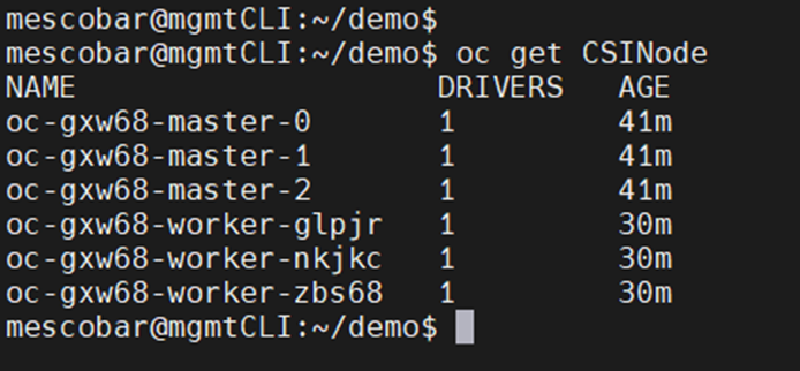
And we will verify the driver installation on the nodes with the following command:
```bash
oc get CSINode
```bash
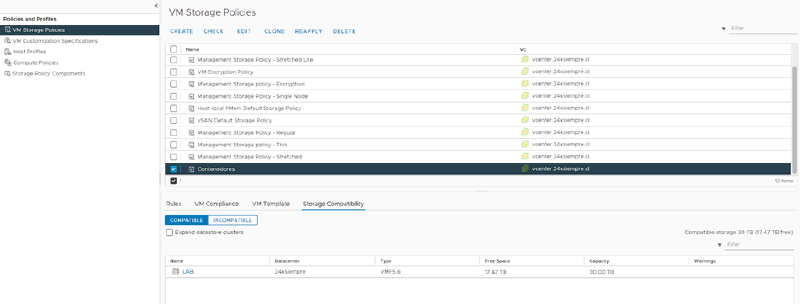
## Creating the StorageClassNow we move on to configuring the StorageClass so it uses the vSphere CSI driver. First, in vCenter we create a storage policy, in this case named "Contenedores", which must be associated with the datastore we will use to host our persistent disks:
Then we edit the following file:
```bash
cat << EOF | kubectl apply -f -
kind: StorageClass
apiVersion: storage.k8s.io/v1
metadata:
name: sc-csi-vsphere
annotations:
storageclass.kubernetes.io/is-default-class: "false"
provisioner: csi.vsphere.vmware.com
parameters:
StoragePolicyName: "Contenedores"
datastoreURL: "ds:///vmfs/volumes/60634600-6fcc5d36-bd83-dcfe07e145f9/"
EOF
Where we need to change the following parameters:
name: the name we want for the StorageClass.
StoragePolicyName: the name of the storage policy we created earlier.
datastoreURL: the URL of the vCenter datastore. The info is shown in the image below.
After applying the changes to the file, we run it in the console and it shows us:
And we can also verify it in the OpenShift console:
We will create a persistent disk from the OpenShift console to validate disk creation and deletion with the new StorageClass. In the OpenShift console, go to Storage, PersistentVolumeClaims and click “Create PersistentVolumeClaim”:
Select the StorageClass we created with vSphere CSI
Enter the volume name
Enter the size
Click “Create”
And we will see the disk created in OpenShift:
On the configured datastore:
Now we will delete the disk to confirm everything works correctly:
In the OpenShift console, go to Storage and click “StorageClasses”, where we will see:
As you can see in the image above, the default StorageClass is “thin”, which is created automatically when OpenShift is installed. We select “thin”, then “Edit Annotations”, change the parameter “storageclass.kubernetes.io/is-default-class” to “false”, and save:
And finally, we select our StorageClass that uses the vSphere CSI driver, in this case “sc-csi-vsphere”, click “Edit Annotations”, change the parameter “storageclass.kubernetes.io/is-default-class” to “true”, and save:
Now we can see that our StorageClass is the default one, and every new persistent disk will use it:
So all that is left now is to install Kasten K10 to protect all your applications on OpenShift; this blog has several guides for installing and configuring Kasten K10.