Data protection, Kubernetes, cybersecurity and AI. Hands-on guides from the trenches: Veeam, Kasten, VMware, Oracle, cloud, and whatever I’m breaking in the homelab this week.
Table of ContentsTable of Contents
In this post, we will walk through configuring Kasten K10 installed via the Operator for Red Hat OpenShift to integrate Microsoft Active Directory authentication for accessing the K10 console with Dex.
One of the most common integrations in enterprise environments for authentication and centralized access is Microsoft Active Directory paired with various solutions. In this case, we will look at how to access the Kasten K10 console installed from the Operator through its corresponding “route”.
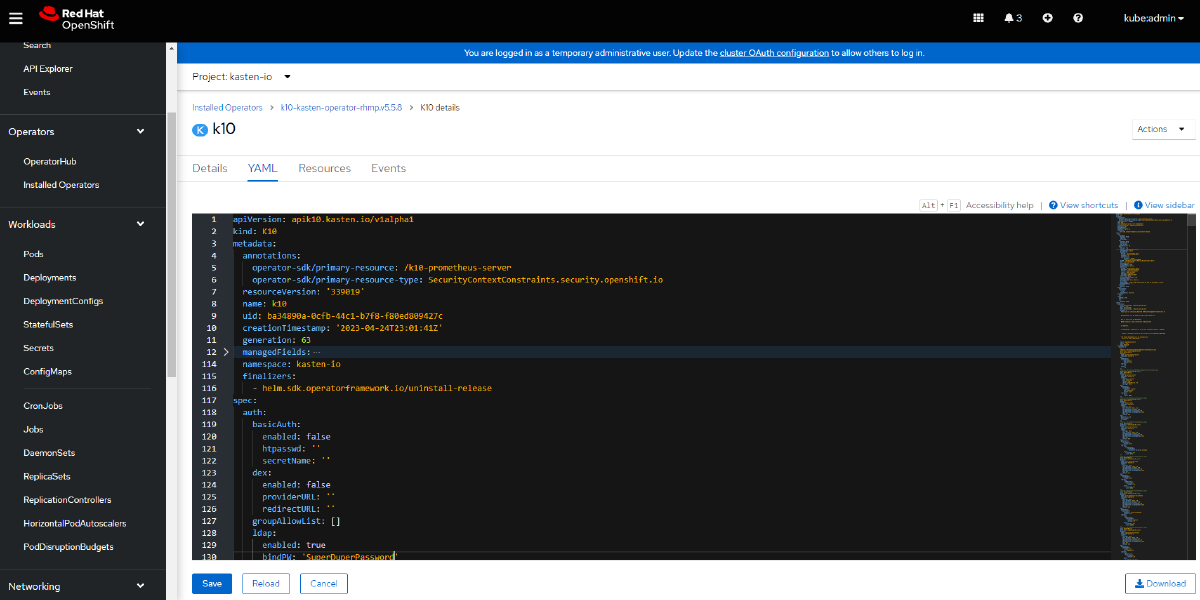
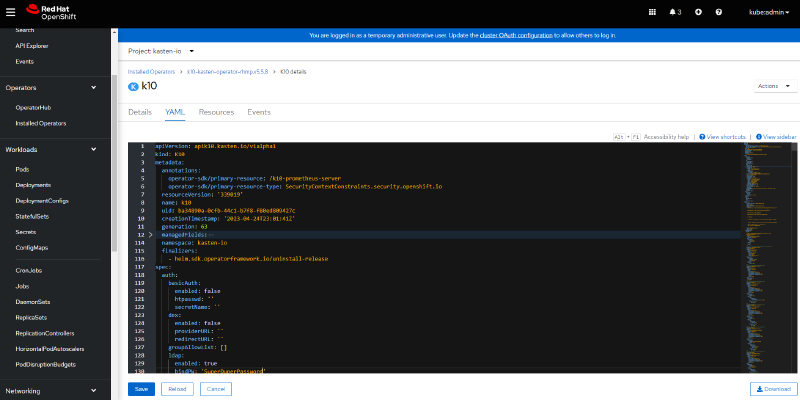
When it is installed from the Operator, changes must be made in the YAML configuration file, which can be accessed from the OpenShift console:
Using user groups to manage access across different platforms is always a good practice, so here we will use user groups as well. The first thing to create is a user group in Active Directory with a name tied to the Kasten K10 Cluster Roles:
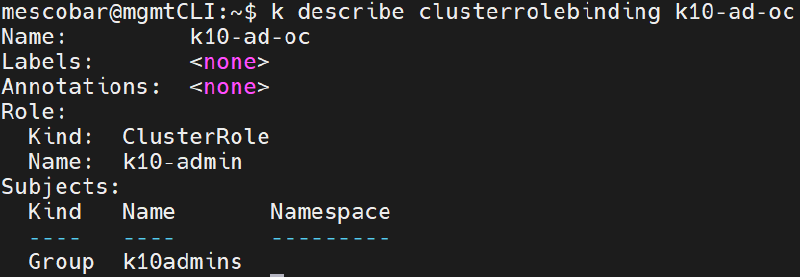
We will add the users who need access to Kasten K10 and then create the Cluster Role Binding and Role Binding that Kasten K10 requires so that users belonging to the “k10admins” group can authenticate. The first ClusterRoleBinding required is the following:
kubectl create clusterrolebinding k10-ad-oc --clusterrole=k10-admin --group=k10admins
```bash
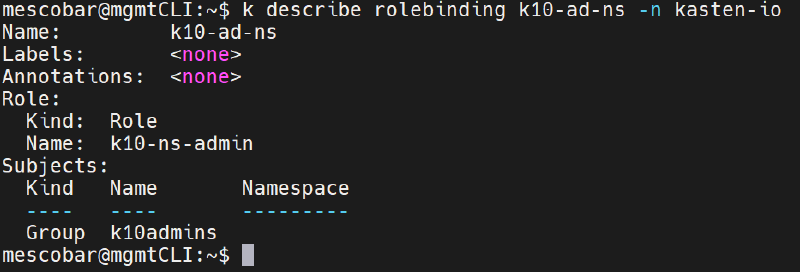
The following RoleBinding is created in the "kasten-io" namespace with the k10-ns-admin role:
```bash
kubectl create rolebinding k10-ad-ns --role=k10-ns-admin \
--namespace=kasten-io \
--group=k10admins
```bash
With these prerequisites in place, we will proceed to configure Kasten K10.
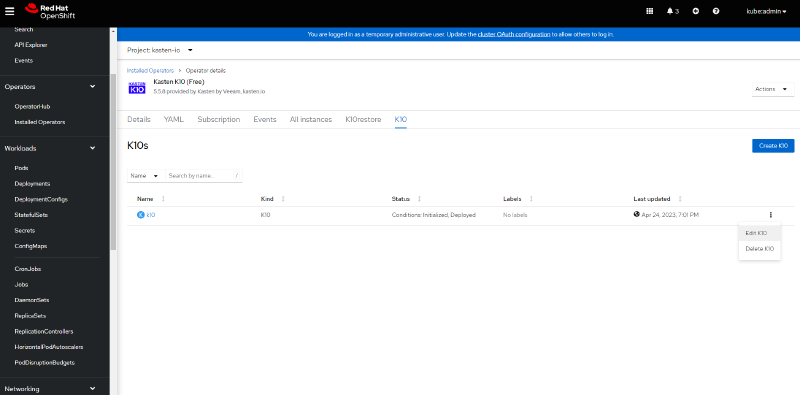
## Configuring Kasten K10 and Microsoft Active DirectoryWe just need to open the Red Hat OpenShift Operator configuration and then the installed K10 instance to reach the YAML file:
It is very important to be careful when editing this file, because if any of the configuration or its conditions are not met, OpenShift will re-apply the previously working YAML file and the changes will not be reflected. Inside the YAML file there is an "auth" variable with its corresponding settings; you should add the block after the last existing configuration or replace the entire block with:
```bash
ldap:
enabled: true bindPW: 'SuperDuperPassword' usernameClaim: email
groupSearch:
baseDN: 'DC=24xsiempre,DC=cl' filter: (objectClass=group) nameAttr: cn
userMatchers:
- groupAttr: member
userAttr: distinguishedName
bindDN: 'CN=administrator,CN=Users,DC=24xsiempre,DC=cl' host: 'ad.24xsiempre.cl:389' usernamePrefix: '-' insecureNoSSL: true groupnameClaim: groups
userSearch:
baseDN: 'DC=24xsiempre,DC=cl' emailAttr: userPrincipalName
filter: (objectClass=user) idAttr: sAMAccountName
nameAttr: givenName
username: sAMAccountName
restartPod: false insecureSkipVerifySSL: true startTLS: false usernamePrompt: Email Address
secretName: '' dashboardURL: 'http://k10-route-kasten-io.apps.oc.24xsiempre.cl/k10/' groupnamePrefix: '-' tokenAuth:
enabled: false```bash
As shown in the data above, you need to change the following variables with the values for your environment:
- bindPW \| The password to authenticate against AD, or use a secret
- baseDN \| The domain of your environment, DC=24xsiempre,DC=cl
- bindDN \| The service account that authenticates against AD, CN=administrator,CN=Users,DC=24xsiempre,DC=cl
- host \| DNS name or IP of the AD server
- baseDN \| The domain of your environment, DC=24xsiempre,DC=cl
- dashboardURL \| The route generated in OpenShift, `http://k10-route-kasten-io.apps.oc.24xsiempre.cl/k10/`Then be sure to click "Save" to apply the configuration. From here you have two options: perform a rollout restart, or simply delete all of the Kasten pods and waituntil they are all back in "Running". To delete all of the kasten-io pods so they are recreated automatically:
```bash
kubectl delete pods -all -n kasten-io
```bash
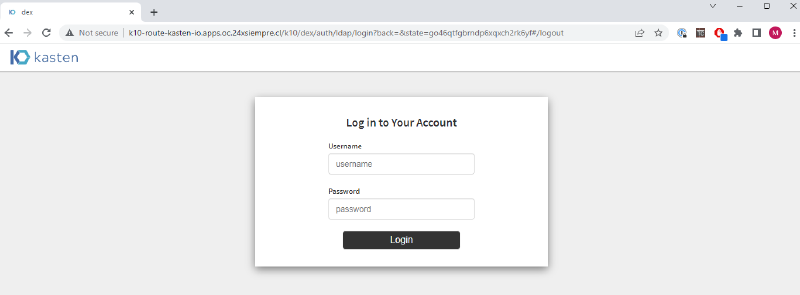
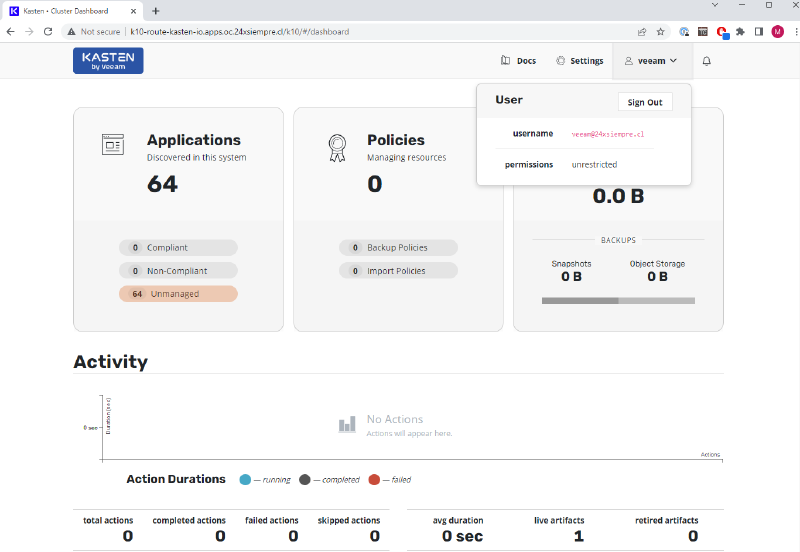
After that, browse to the OpenShift route you created and verify authentication.
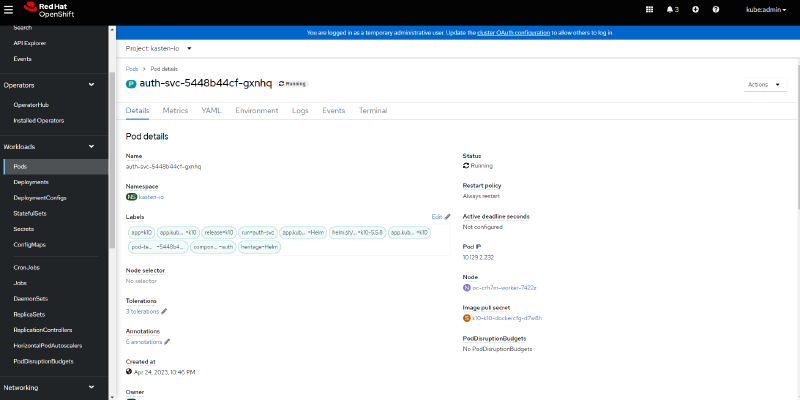
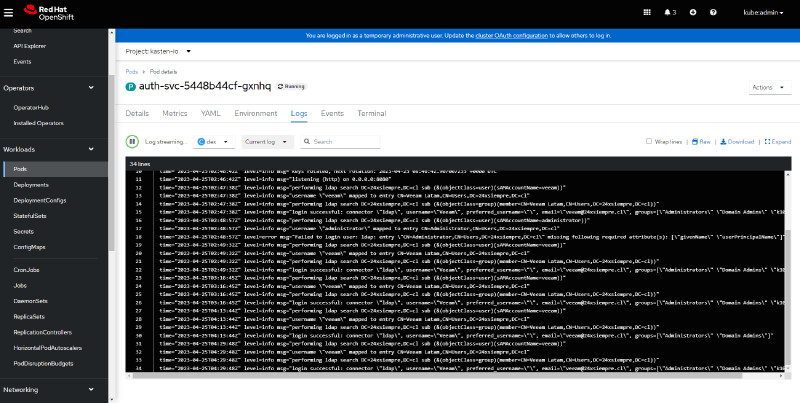
## Log ReviewIf you run into any problem with authentication to Microsoft Active Directory, it is important to review the "Dex" logs. Dex is the component that connects to Active Directory and looks up the users associated with the groups that will authenticate in the Kasten K10 console. To view the logs from the OpenShift console, go to "Workloads", "Pods", within the "kasten-io" project or namespace, and select the "auth-svc-" pod:
Then click "Logs" and, finally, next to "Log Streaming"select"dex":
## Searching Attributes in Active DirectoryIf you see errors where Dex or the authentication reports that it cannot find the users or groups, you need to validate the attribute lookups in the domain. One of the most widely used tools on Linux is "ldapsearch". For example, on Ubuntu 22.04.2 you install it as follows:
```bash
sudo apt-get install ldap-utils
```text
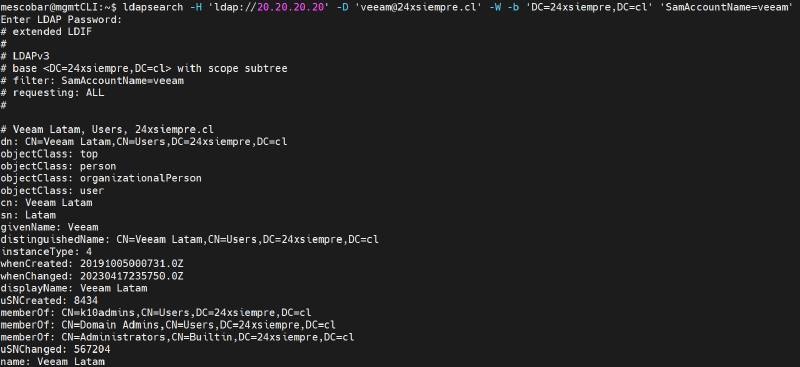
You can then use the ldapsearch commands to correctly look up the users and groups that need to be configured under the " **baseDN**" path. For example, the following command validates the "userPrincipalName" attribute:
```text
ldapsearch -H 'ldap://20.20.20.20' -D '[email protected]' -W -b 'DC=24xsiempre,DC=cl''SamAccountName=veeam'```bash
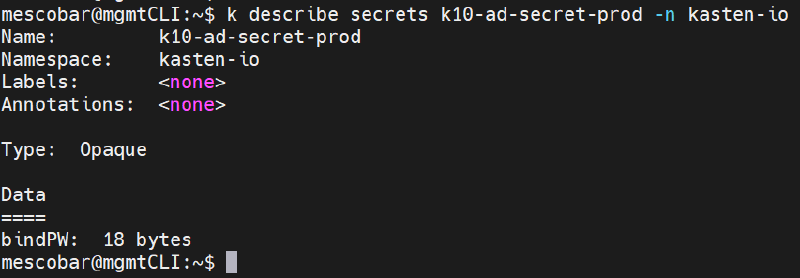
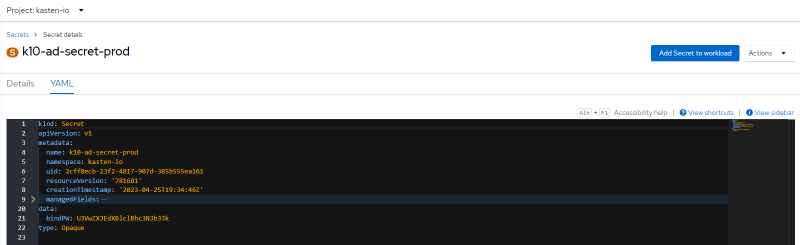
## Using a Secret to Authenticate with Active DirectoryFor environments where storing the password directly in the YAML is not allowed, you can supply the password through a secret. The command to create the secret is the following:
```bash
kubectl create secret generic k10-ad-secret-prod --from-literal=bindPW=SuperDuperPassword -n kasten-io
```bash
With the password of the user that authenticates against Active Directory now stored in the secret, all that is left is to configure the YAML of the K10 instance created in the Kasten Operator on Red Hat OpenShift:
```bash
ldap:
enabled: true usernameClaim: email
groupSearch:
baseDN: 'DC=24xsiempre,DC=cl' filter: (objectClass=group) nameAttr: cn
userMatchers:
- groupAttr: member
userAttr: distinguishedName
bindDN: 'CN=administrator,CN=Users,DC=24xsiempre,DC=cl' host: 'ad.24xsiempre.cl:389' usernamePrefix: '-' insecureNoSSL: true groupnameClaim: groups
userSearch:
baseDN: 'DC=24xsiempre,DC=cl' emailAttr: userPrincipalName
filter: (objectClass=user) idAttr: sAMAccountName
nameAttr: givenName
username: sAMAccountName
restartPod: false insecureSkipVerifySSL: true startTLS: false usernamePrompt: Email Address
secretName: '' dashboardURL: 'http://k10-route-kasten-io.apps.oc.24xsiempre.cl/k10/' groupnamePrefix: '-' bindPWSecretName: k10-ad-secret
tokenAuth:
enabled: false```bash
The configuration above introduces the variable:
- bindPWSecretName
This is tied to the name of the secret that holds the user's password used to authenticate.
Now all that remains is to waitfor the pods to restart, or delete all of the pods with the command:
```bash
kubectl delete pods --all -n kasten-io
After that, you will again be able to authenticate with Active Directory and Kasten K10.