Data protection, Kubernetes, cybersecurity and AI. Hands-on guides from the trenches: Veeam, Kasten, VMware, Oracle, cloud, and whatever I’m breaking in the homelab this week.
Table of ContentsTable of Contents
In this guide we walk through how to install Kasten Multi-Cluster Manager to manage and protect containers across multiple Kubernetes clusters in different environments, all from a single, centralized point of resource administration. Most companies with application development teams run several types of environments (Development, QA and Production), while others also maintain Pre-Production, Staging, UAT and more. It all depends heavily on the development lifecycle and each company’s architecture, which is exactly why Kasten Multi-Cluster Manager lets you protect multiple environments and Kubernetes clusters at once.
As I mentioned earlier, protecting your data is essential regardless of where it lives or the type of workload it runs. In the event of a disaster, a malware attack or any other incident, data can be lost, and the risk is even greater today, when we handle data across many environments, geographically dispersed and in need of centralized resource management and protection.
That is why Kasten by Veeam built Kasten Multi-Cluster Manager, which lets us centrally manage backup resources as well as policy-based data protection across clusters. As always, we will refer to the official documentation:
For this guide I have two Kubernetes clusters integrated with vSphere through vSphere-CSI, each with 3 Worker nodes and 1 Master, plus an Ubuntu Linux machine that I use to administer Kubernetes. The clusters also have MongoDB, MySQL and WordPress containers installed so we can validate backups of environments running real applications, on top of all the services associated with the cluster.
You must have Kasten K10 installed on each Kubernetes cluster or Kubernetes distribution. If you have not installed it yet, you can follow the guide that applies to any version of Kasten K10:
An important consideration is to define which cluster will be your Primary and which will be your Secondary cluster(s). In this case I will designate my cluster named “production” as the primary and “development” as the secondary. This decision is key to the Kasten Multi-Cluster configuration.
In short, Kubernetes contexts let us manage multiple Kubernetes clusters centrally and natively from a single machine that holds the configuration or connection files, commonly known as KUBECONFIG. So let’s start by copying them to the administration machine:
scp /home/mescobar/.kube/config mescobar@mgmtCLI:/home/mescobar/.kube/produccion
scp /home/mescobar/.kube/config mescobar@mgmtCLI:/home/mescobar/.kube/desarrollo
```text
In the commands above I am copying the config file from my **MASTER** servers, where you will usually find it at $HOME/.kube/config, or inside the hidden .kube folder in the home directory of the user you are working with, to my administration server (mgmtCLI). If for some reason you cannot find the configuration file, you can copy the following file from this path to your administration server:
```bash
sudo scp /etc/kubernetes/admin.conf mescobar@mgmtCLI:/home/mescobar/.kube/produccion
```bash
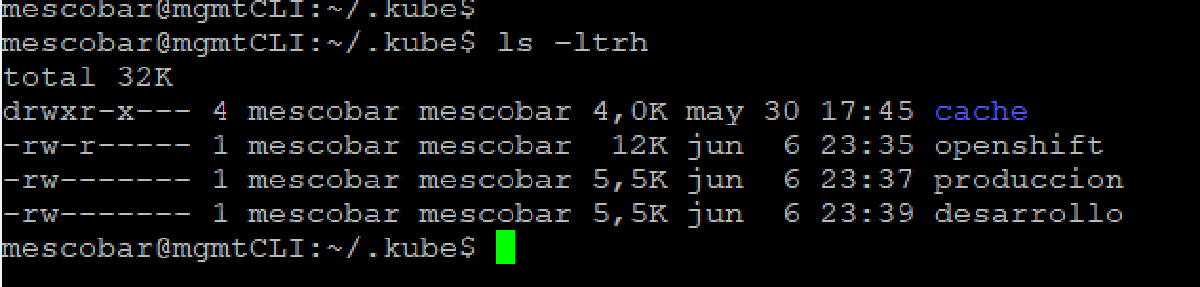
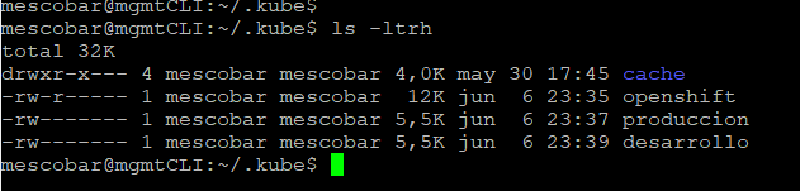
Now, if we list the directory, we can see the different cluster files:
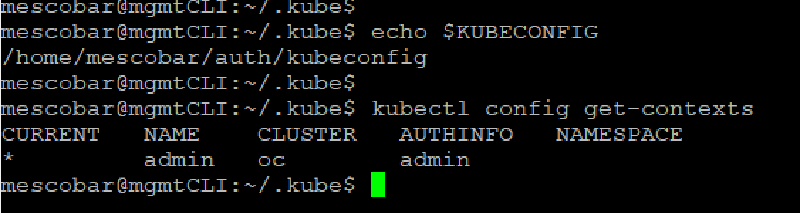
And with the following command we check which configuration file is loaded:
```bash
echo$KUBECONFIGkubectl config get-contexts
```json
As shown in the previous image, I have another configuration file loaded in the context, so we are going to set the KUBECONFIG environment variable to load the clusters every time we log in to the administration server with our user. To do this, we run the following:
```text
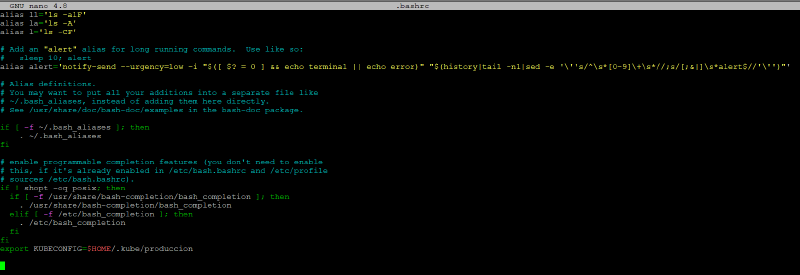
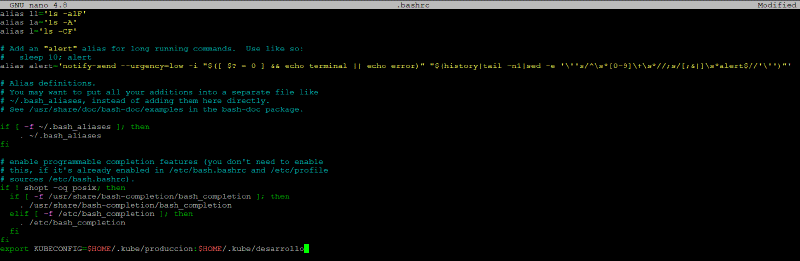
cd$HOMEnano .bashrc
```text
Then we go to the last line and add:
```bash
exportKUBECONFIG=$HOME/.kube/produccion
```json
We save the file and run the following command to load the environment variable:
```text
. .bashrc
```bash
With that, we can verify again whether the file we need is loaded:
```bash
echo$KUBECONFIGkubectl config get-contexts
```bash
### Context configurationAs we can see in the previous image, our cluster is named "kubernetes-admin@kubernetes" by default, which can make it confusing to tell which cluster we are managing. That is why we are going to rename it to something clearer with the following command:
```bash
kubectl config rename-context kubernetes-admin@kubernetes produccion
```json
Now that the cluster is identified, we will add the development cluster. As we saw in a previous step, we add the path to the development configuration file in the .bashrc file and run the command to load that new variable (use the file name that corresponds to your own clusters):
```bash
exportKUBECONFIG=$HOME/.kube/produccion:$HOME/.kube/desarrollo
```bash
We run the commands to load the variable and view the contexts:
And again we change the default name to identify the development environment:
```bash
kubectl config rename-context kubernetes-admin@kubernetes desarrollo
```bash
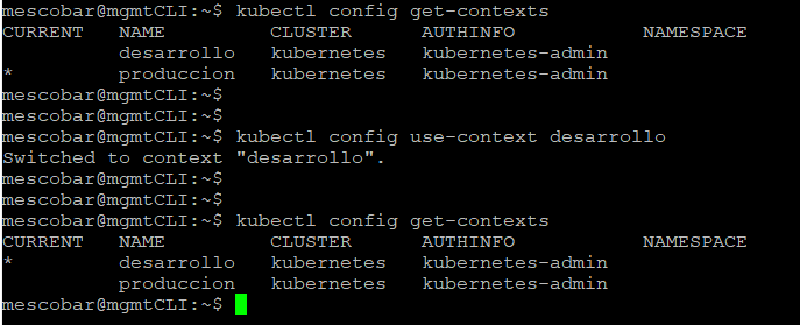
Why do we do this? Simply because when Kubernetes clusters are set up with default settings, the context name is always kubernetes-admin@kubernetes and the cluster name is always kubernetes. Renaming the context matters so we know exactly which cluster we are connecting to. Finally, to switch between clusters or contexts we use the following command:
```bash
kubectl config use-context desarrollo
```bash
As you can see in the previous image, or in your own session, the context change is confirmed in the " **CURRENT**" column, where the **\*** marks the cluster you are currently managing. As a **recommendation**, you can also rename the cluster inside the **configuration files** to be even more certain about which cluster you are using. There is plenty of information online covering this configuration.
## Configuration KastenAs you will recall, we previously defined our primary and secondary clusters. Kasten Multi-Cluster requires Kasten K10 to be installed on all of them, and another requirement we must meet is that authentication on the Kasten **K10 instances installed on each** of the **SECONDARY** clusters must use tokens. You can use whatever authentication method you like on the primary cluster, but token authentication is always mandatory on the secondary clusters. For more information:
[https://docs.kasten.io/latest/access/authentication.html#token-authentication](https://docs.kasten.io/latest/access/authentication.html#token-authentication)Now, on our secondary clusters, we configure token authentication by running the following command in the context of the secondary cluster, or directly on the master server of the **SECONDARY CLUSTER**:
```bash
helm upgrade k10 kasten/k10 --namespace=kasten-io \
> --reuse-values \
> --set externalGateway.create=true\
> --set auth.tokenAuth.enabled=true```bash
The command above, **run on the SECONDARY cluster(s)**, ensures they authenticate via token. The **PRIMARY** cluster can use whatever authentication method it needs. In this case, on the **PRIMARY** cluster, we will use basic authentication. To configure it, run the following (username and password "kasten"):
```bash
helm upgrade k10 kasten/k10 --namespace=kasten-io \
--set auth.basicAuth.enabled=true\
--set auth.basicAuth.htpasswd='kasten:$apr1$twc26zga$AA47exHs1a3uNq/4lDKxD.'\
--set externalGateway.create=true```bash
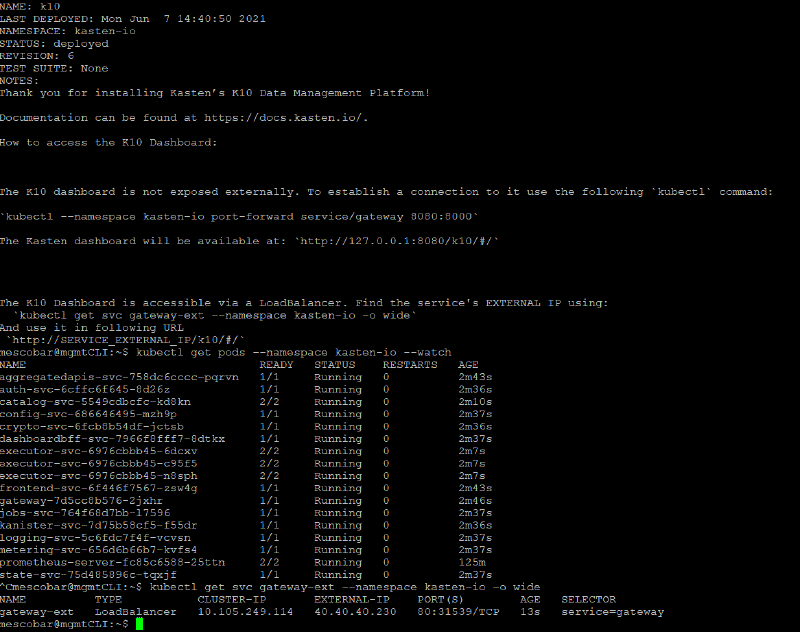
Then, to find the IP address this access will use, run the command:
```bash
kubectl get svc gateway-ext --namespace kasten-io -o wide
```bash
The " **EXTERNAL-IP**" column shows the IP address assigned by MetalLB, which you can of course map to a DNS name. In my case I will use kasten.24xsiempre.cl and kastendev.24xsiempre.cl to access the clusters.
## Configuration Kasten Multi Cluster ManagerNow that our clusters are configured to meet the Kasten Multi-Cluster requirements, we will download the solution onto our administration server, or onto the server you use as MASTER to manage the clusters. To download Kasten Multi-Cluster Manager, use the following address (at the time of writing, we will download version 4.0.3):
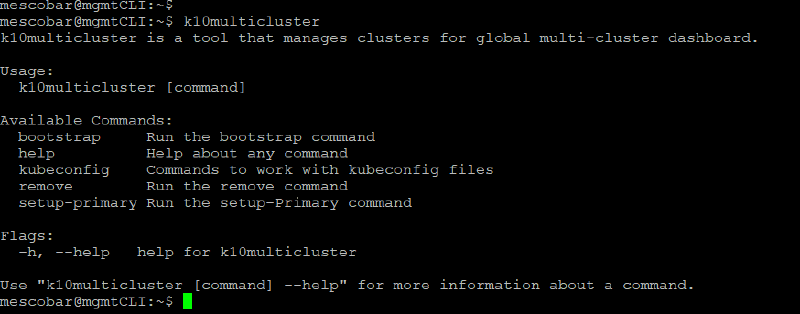
[https://github.com/kastenhq/external-tools/releases/download/4.0.3/k10multicluster\_4.0.3\_linux\_amd64](https://github.com/kastenhq/external-tools/releases/download/4.0.3/k10multicluster_4.0.3_linux_amd64)To download it directly from the command line, grant execute permissions, and move it to an executable directory:
```bash
wget https://github.com/kastenhq/external-tools/releases/download/4.0.3/k10multicluster_4.0.3_linux_amd64
chmod +x k10multicluster_4.0.3_linux_amd64
sudo mv k10multicluster_4.0.3_linux_amd64 /usr/local/bin/k10multicluster
k10multicluster
```bash
Now we will make sure we are in the context of the primary server we defined earlier, using the command:
```bash
kubectl config get-contexts
```json
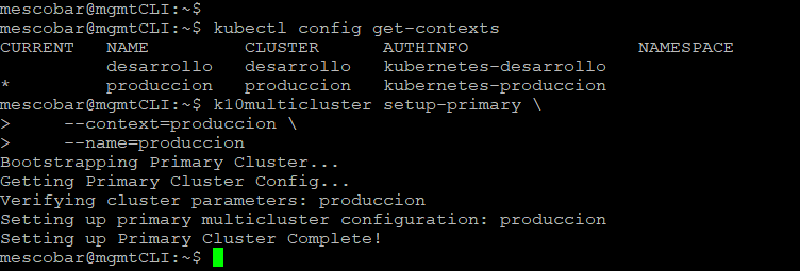
We confirm the context of my primary cluster, in this case production, and proceed to configure K10 Multi-Cluster Manager. The following command configures the **PRIMARY** cluster:
```text
k10multicluster setup-primary \
--context=produccion \
--name=produccion
```bash
Here, **context** is the name of the context in the Kubernetes configuration, and **name** is the name that will appear in the interface.
Now we add the **SECONDARY** cluster with the following command:
```bash
k10multicluster bootstrap \
--primary-context=produccion \
--primary-name=produccion \
--secondary-context=desarrollo \
--secondary-name=desarrollo \
--secondary-cluster-ingress=http://kastendev.24xsiempre.cl/k10/
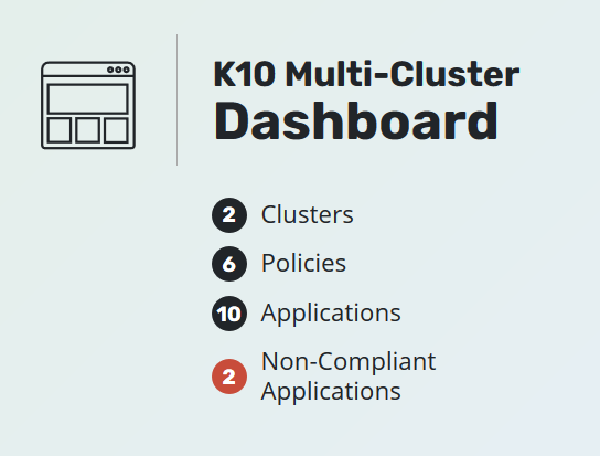
After the steps above, you may see a 503 or 400 error in the Kasten Multi-Cluster interface. This is likely because the account lacks management permissions. To fix it, go to RBAC Entry and add the user or users you will use to manage data protection. In my case I added the k10-admin user, which then gave me access to the full management interface.
Finally, we need to configure all the global resources as well as any global policies we need. For details on how to do this, check out a post I wrote earlier:
One of the great advantages this solution provides is centralized management of the resources you assign, whether by application, by cluster, or according to the needs of the workloads you are protecting. It is worth noting that Kasten Multi-Cluster Manager lets you add clusters from different Kubernetes distributions, such as Red Hat OpenShift, Rancher, EKS, AKS or vanilla Kubernetes. As long as the necessary requirements are met, such as installing Kasten K10 on each of the clusters, it gives us a single, centralized point of access for container protection.