Data protection, Kubernetes, cybersecurity and AI. Hands-on guides from the trenches: Veeam, Kasten, VMware, Oracle, cloud, and whatever I’m breaking in the homelab this week.
Table of ContentsTable of Contents
In this guide we will walk through the installation and configuration of a Kubernetes cluster on Ubuntu 20.04 with containerd and Calico, integrated with vSphere CSI (Container Storage Interface) to provide persistent volumes for the containers running in the cluster. We will also use MetalLB as a load balancer to expose our services.
If you have made it this far, chances are you are just getting started with Kubernetes (k8s) or already know what it is, what it is for, and what its core function is. Either way, it is always worth checking the official documentation to stay current on the latest versions, features, and support for Kubernetes, containerd, Calico, MetalLB, and the CSI drivers. In this case, we will use vSphere CSI to take advantage of everything this integration has to offer.
For the cluster installation we will use 4 virtual machines running a default install of the Ubuntu Server 20.04.2 image. It is worth noting that this is a lab environment. If you plan to move to production, you should always run at least 3 master nodes to achieve the high availability that Kubernetes management requires.
For this guide, we will use the following requirements and machines:
Name
CPU
RAM
Disk
HW version
Advanced
IP
masterprd
4 vCPU
8 GB
30 GB
15 or higher
disk.EnableUUID = TRUE
40.40.40.206
workerprd01
2 vCPU
4 GB
30 GB
15 or higher
disk.EnableUUID = TRUE
40.40.40.204
workerprd02
2 vCPU
4 GB
30 GB
15 or higher
disk.EnableUUID = TRUE
40.40.40.203
workerprd03
2 vCPU
4 GB
30 GB
15 or higher
disk.EnableUUID = TRUE
40.40.40.202
For the names, always use DNS or, failing that, add them to the host table on each server. For this guide I use my internal DNS for name resolution. As for the virtual hardware version, it must be at least version 15, which corresponds to vSphere 6.7 U2 or higher. In this case I will configure it with hardware version 18, since I have vSphere 7U2 installed. Finally, and very importantly, each virtual machine must be configured with the advanced parameter disk.EnableUUID, as these are the prerequisites for using vSphere CSI. They must also have internet access.
On ALL servers, we verify that they are fully up to date after installation.
sudo apt update
sudo apt -y upgrade && sudo reboot
```bash
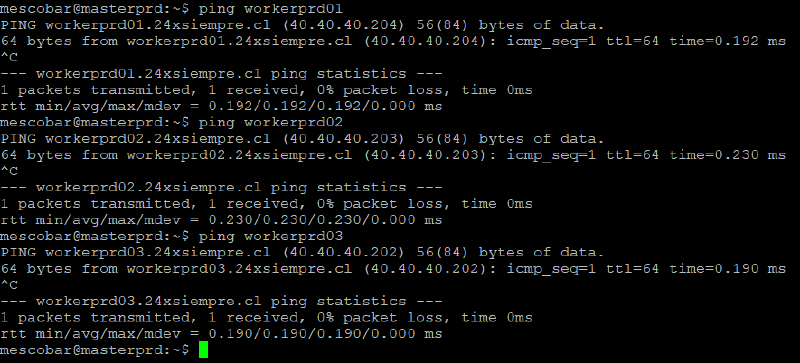
We reconnect to our servers over SSH and confirm they resolve through DNS.
Next, we install a few required packages, configure the apt repository, and then refresh the apt repositories.
```bash
sudo apt -y install curl apt-transport-https
curl -s https://packages.cloud.google.com/apt/doc/apt-key.gpg | sudo apt-key add -
echo"deb https://apt.kubernetes.io/ kubernetes-xenial main" | sudo tee /etc/apt/sources.list.d/kubernetes.list
sudo apt update
```bash
Now we install the packages needed to configure and manage Kubernetes.
```bash
sudo apt -y install vim git curl wget kubelet kubeadm kubectl containerd
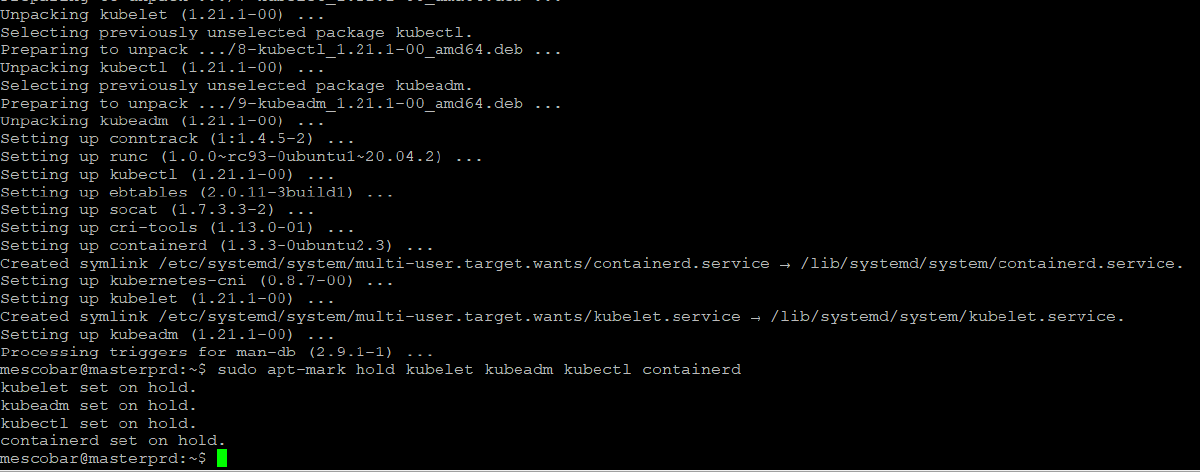
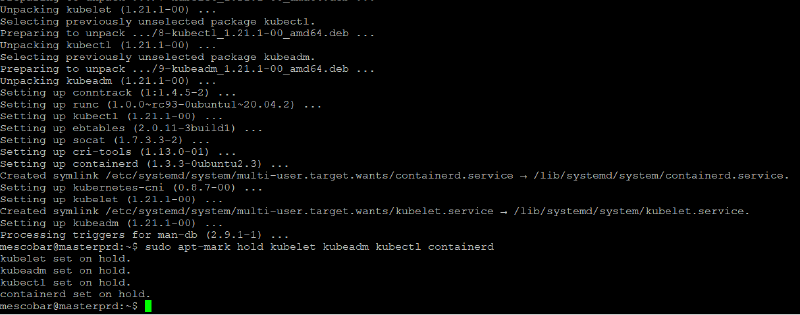
sudo apt-mark hold kubelet kubeadm kubectl containerd
```bash
sudo apt-mark hold prevents these packages from being automatically removed or upgraded.
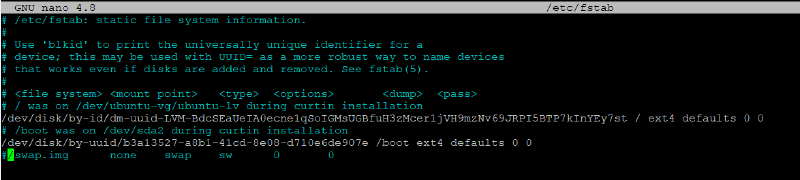
## Disable swapKubernetes requires swap to be disabled, so we do that with the following commands.
```bash
sudo swapoff -a
sudo nano /etc/fstab
```text
The first command disables swap, and in the second we comment out the swap line in fstab so it is not re-enabled on reboot. It should end up looking like this.
## containerd ConfigurationNow we need to configure a few modules required for containerd to work.
```bash
cat <<EOF | sudo tee /etc/modules-load.d/containerd.conf
overlay
br_netfilter
EOF```text
The command above creates the containerd.conf file at that path so the overlay and br\_netfilter modules are loaded. Next, we apply the changes with the following commands:
```bash
sudo modprobe overlay
sudo modprobe br_netfilter
```text
We can verify the configuration with this command.
```bash
lsmod | grep br_netfilter
```json
Next, following containerd's requirements, we apply a few kernel parameters needed for it to work correctly.
```bash
cat <<EOF | sudo tee /etc/sysctl.d/99-kubernetes-cri.conf
net.bridge.bridge-nf-call-iptables = 1
net.bridge.bridge-nf-call-ip6tables = 1
net.ipv4.ip_forward = 1
EOF
```text
And we apply the changes with the following command.
```bash
sudo sysctl --system
```bash
Finally, we complete the containerd configuration.
```bash
sudo mkdir -p /etc/containerd
containerd config default | sudo tee /etc/containerd/config.toml
sudo systemctl restart containerd
```bash
The first command creates the directory, the second writes the configuration file to that path, and finally we restart the service and make sure it starts at boot.
## Master Node Configuration
At this stage we run the commands **ONLY** on the **MASTER** node to begin the required configuration. So, with the following command on the master node, we initialize Kubernetes.
```bash
sudo kubeadm init
```bash
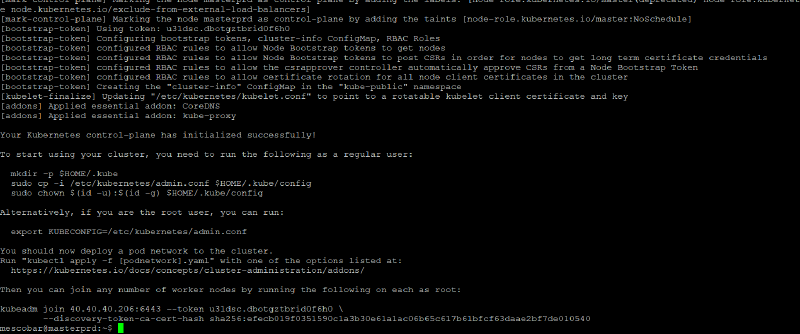
This command can take a while, so you have time to go make a coffee. When it finishes, it shows the following:
Note that the tool now asks us to complete the following steps:
```bash
To start using your cluster, you need to run the following as a regular user:
mkdir -p $HOME/.kube
sudo cp -i /etc/kubernetes/admin.conf $HOME/.kube/config
sudo chown $(id -u):$(id -g) $HOME/.kube/config
Alternatively, if you are the root user, you can run:
export KUBECONFIG=/etc/kubernetes/admin.conf
You should now deploy a pod network to the cluster.
Run "kubectl apply -f [podnetwork].yaml" with one of the options listed at:
https://kubernetes.io/docs/concepts/cluster-administration/addons/
Then you can join any number of worker nodes by running the following on each as root:
kubeadm join 40.40.40.206:6443 --token u31dsc.dbotgztbrid0f6h0 \
--discovery-token-ca-cert-hash sha256:efecb019f0351590c1a3b30e61a1ac06b65c617b61bfcf63daae2bf7de010540
```bash
The first part creates a hidden folder in the user's home directory to store the Kubernetes configuration file we connect with, and the export leaves that config file as an environment variable so we can connect easily. Last, and very important, is the kubeadm join command, which is used to add the worker nodes to the master.
To make this configuration persistent, we do the following:
```text
nano .bashrc
```text
And we add the following line at the end of the file.
```bash
exportKUBECONFIG=$HOME/.kube/config
```bash
That way, every time we log in to the server over SSH, the environment variable is already set and ready to connect.
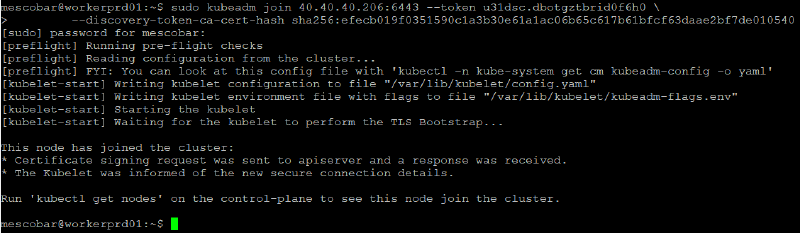
## Worker Node ConfigurationAt this stage, the commands should be run only on the **worker nodes**. As we saw earlier, we run the command shown on screen, which is unique to each cluster. In my case:
```bash
sudo kubeadm join 40.40.40.206:6443 --token u31dsc.dbotgztbrid0f6h0 \
--discovery-token-ca-cert-hash
```bash
When you run it on each of the worker nodes, you will see the following result:
## Cluster Configuration ReviewNow we go back to the SSH session on the master node, or reconnect to it, and run the following command.
```bash
kubectl get nodes -o wide
```bash
This shows us whether the worker nodes were added to the cluster, along with their status:
As we can see in the image above, we have all the cluster information. The only difference is that the node status shows "NotReady". This is because we have not yet configured the Kubernetes cluster network, for which we will use Project Calico in this case.
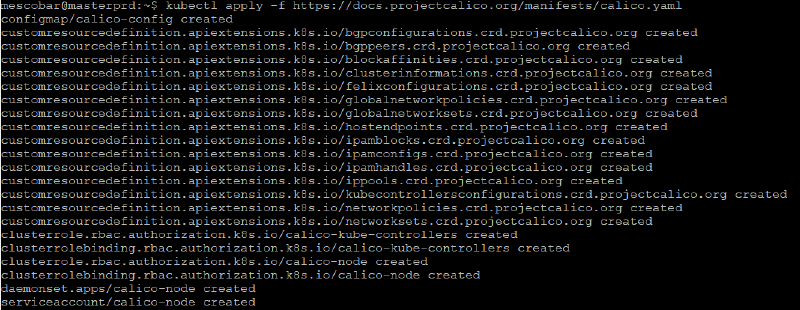
## Calico Cluster Network ConfigurationTo install Calico on our Kubernetes cluster, we simply run the following command on **our MASTER node**.
```bash
kubectl apply -f https://docs.projectcalico.org/manifests/calico.yaml
```bash
Then we check the cluster again with the command to validate the status.
```bash
kubectl get nodes -o wide
```bash
And the status is now "Ready".
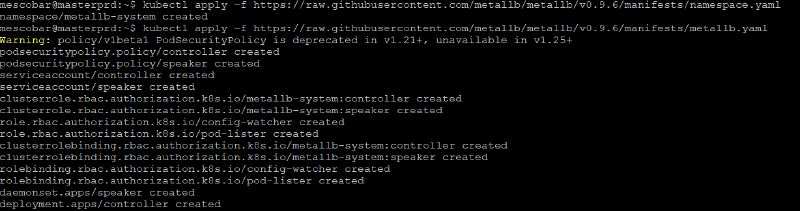
## MetalLB Balancer ConfigurationTo install MetalLB on our Kubernetes cluster, we simply run the following commands on **our MASTER node**.
```bash
kubectl apply -f https://raw.githubusercontent.com/metallb/metallb/v0.9.6/manifests/namespace.yaml
kubectl apply -f https://raw.githubusercontent.com/metallb/metallb/v0.9.6/manifests/metallb.yaml
```bash
The first command creates the MetalLB namespace and the second creates everything needed for it to run.
Next, we generate a random password to encrypt the communications.
```bash
kubectl create secret generic -n metallb-system memberlist --from-literal=secretkey="$(openssl rand -base64 128)"```bash
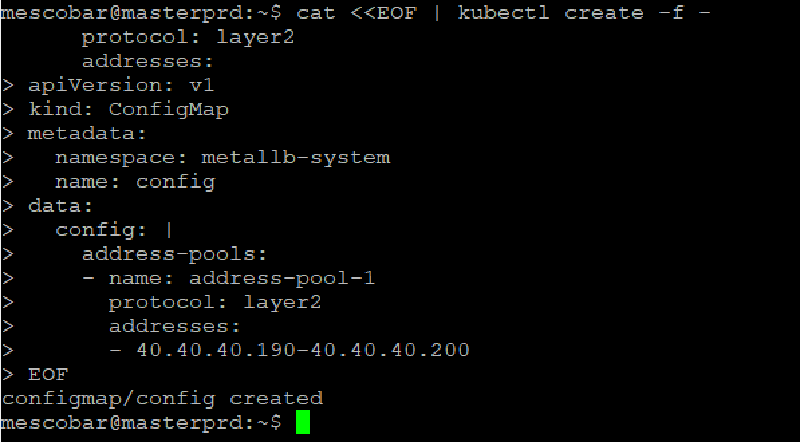
Finally, we configure the range of IP addresses that MetalLB will assign so services can be reached from the network. To do this, we use the following configuration.
```bash
cat <<EOF | kubectl create -f -
apiVersion: v1
kind: ConfigMap
metadata:
namespace: metallb-system
name: config
data:
config: |
address-pools:
- name: address-pool-1
protocol: layer2
addresses:
- 40.40.40.190-40.40.40.200
EOF```text
As we can see in the command above, in my case I am using a range of 10 IP addresses from my network. If you like, you can add the entire /24 network, but you must make sure the **IP addresses are available**. Then run it on your **MASTER** server.
## vSphere CSI ConfigurationTo start configuring vSphere CSI, we need to create two files with the configuration required to connect to vCenter:
csi-vsphere.conf
```ini
[Global]cluster-id ="kubernetes"#[NetPermissions "A"]#ips = "*"#permissions = "READ_WRITE"#rootsquash = false#[NetPermissions "B"]#ips = "10.20.20.0/24"#permissions = "READ_ONLY"#rootsquash = true[VirtualCenter "vcenter.24xsiempre.cl"]insecure-flag ="true"user="[email protected]"password="PASSWORD"port="443"datacenters="24xSiempre"# Opcional cuando configures con VSAN File Services#targetvSANFileShareDatastoreURLs = "ds:///vmfs/volumes/vsan:52635b9067079319-95a7473222c4c9cd/"```text
vsphere.conf
```ini
[Global]cluster-id ="kubernetes"[VirtualCenter "vcenter.24xsiempre.cl"]insecure-flag ="true"user="[email protected]"password="PASSWORD"port="443"datacenters="24xSiempre"```bash
You might be wondering why we are creating two files with the same content but different names. The first one is meant to be used as a "secret" to store the authentication data, as well as any additional configuration you may want to add (for VSAN, for example), and the second file is used to create the "configmap" that stores these variables and makes them available to the cluster. So, we create these files on the **MASTER** server.
```text
nano csi-vsphere.conf
nano vsphere.conf
```bash
Save the files and we will apply them on the MASTER server.
```bash
kubectl create secret generic vsphere-config-secret --from-file=csi-vsphere.conf --namespace=kube-system
kubectl create configmap cloud-config --from-file=vsphere.conf --namespace=kube-system
```bash
Now that we have the credentials and variables configured, we set up the CSI to first obtain the "ProviderID". To start, we need to taint the nodes, so we run the following on the **MASTER**.
```bash
kubectl taint nodes --all 'node.cloudprovider.kubernetes.io/uninitialized=true:NoSchedule'```bash
Then run the following to configure it.
```bash
kubectl apply -f https://raw.githubusercontent.com/kubernetes/cloud-provider-vsphere/master/manifests/controller-manager/cloud-controller-manager-roles.yaml
kubectl apply -f https://raw.githubusercontent.com/kubernetes/cloud-provider-vsphere/master/manifests/controller-manager/cloud-controller-manager-role-bindings.yaml
kubectl apply -f https://github.com/kubernetes/cloud-provider-vsphere/raw/master/manifests/controller-manager/vsphere-cloud-controller-manager-ds.yaml
```bash
We then verify that the configuration is applied and that we get the "ProviderID", using this command.
```bash
kubectl describe nodes | grep "ProviderID"```bash
Now we install the CSI driver version 2.1.1 with the following.
```bash
kubectl apply -f https://raw.githubusercontent.com/kubernetes-sigs/vsphere-csi-driver/v2.1.1/manifests/v2.1.1/vsphere-7.0u1/vanilla/rbac/vsphere-csi-controller-rbac.yaml
kubectl apply -f https://raw.githubusercontent.com/kubernetes-sigs/vsphere-csi-driver/v2.1.1/manifests/v2.1.1/vsphere-7.0u1/vanilla/deploy/vsphere-csi-node-ds.yaml
kubectl apply -f https://raw.githubusercontent.com/kubernetes-sigs/vsphere-csi-driver/v2.1.1/manifests/v2.1.1/vsphere-7.0u1/vanilla/deploy/vsphere-csi-controller-deployment.yaml
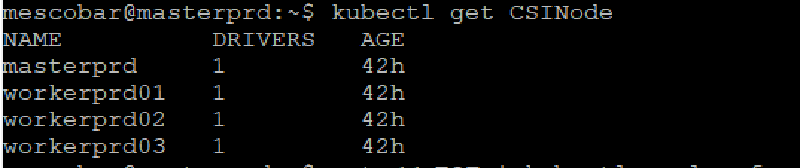
kubectl get CSINode
```bash
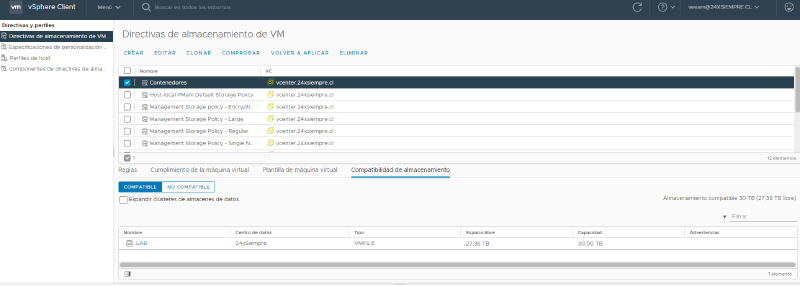
With our driver installed, we need to create the StorageClass to use our vSphere datastore and provision the volumes, or First Class Disks. Before that, we must create a Storage Policy Name in vCenter associated with the datastore we will use to host the persistent volumes.
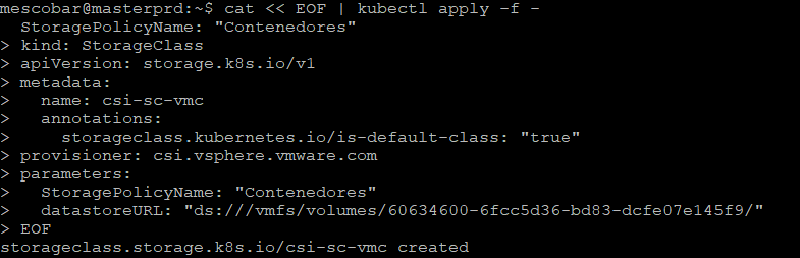
Then we create the StorageClass.
```bash
cat << EOF | kubectl apply -f -
kind: StorageClass
apiVersion: storage.k8s.io/v1
metadata:
name: csi-sc-vmc
annotations:
storageclass.kubernetes.io/is-default-class: "true"
provisioner: csi.vsphere.vmware.com
parameters:
StoragePolicyName: "Contenedores"
datastoreURL: "ds:///vmfs/volumes/60634600-6fcc5d36-bd83-dcfe07e145f9/"
EOF```bash
For datastoreURL, enter the address found in the datastore summary in vCenter.
And you will get the result.
Now we will confirm that the StorageClass is correct and create a test disk.
```bash
kubectl get sc
```bash
Now we create a 5 gigabyte disk.
```bash
cat << EOF | kubectl apply -f -
apiVersion: v1
kind: PersistentVolumeClaim
metadata:
name: pruebasc
spec:
accessModes:
- ReadWriteOnce
resources:
requests:
storage: 5Gi
storageClassName: csi-sc-vmc
EOF
After running the above, we can see the disk being created in vCenter.
And with that, you have a Kubernetes cluster using the vSphere platform as storage for persistent volumes, ready to be backed up with Kasten. In a future post we will look at how to back up multiple clusters using Kasten multi-cluster.