Data protection, Kubernetes, cybersecurity and AI. Hands-on guides from the trenches: Veeam, Kasten, VMware, Oracle, cloud, and whatever I’m breaking in the homelab this week.
Table of ContentsTable of Contents
We’re back with this excellent topic. In the previous post we covered everything related to configuring clusterroles, roles, and bindings for Kasten K10, creating cluster roles for Administrators and for Operators of a specific cluster. In this final post we’ll look at configuring roles, clusterroles, and bindings with Kasten K10 Multi-Cluster Manager, and of course with Keycloak for managing Users and Groups.
Configuring Kasten K10 Multi-Cluster with Keycloak#
\\\* The goal of this series is to explain how to generate the groups, roles, clusterroles, and other resources tied to RBAC without having to modify user permissions directly on the Kubernetes cluster over time, so that all user creation, group management, and group assignment is handled in Keycloak. ***
***The OpenID configuration for Kasten K10 Multi-Cluster Manager is almost identical to the one for Kasten K10, since the same steps are required to enable authentication. I’ll repeat them in this post in case you landed here directly.***
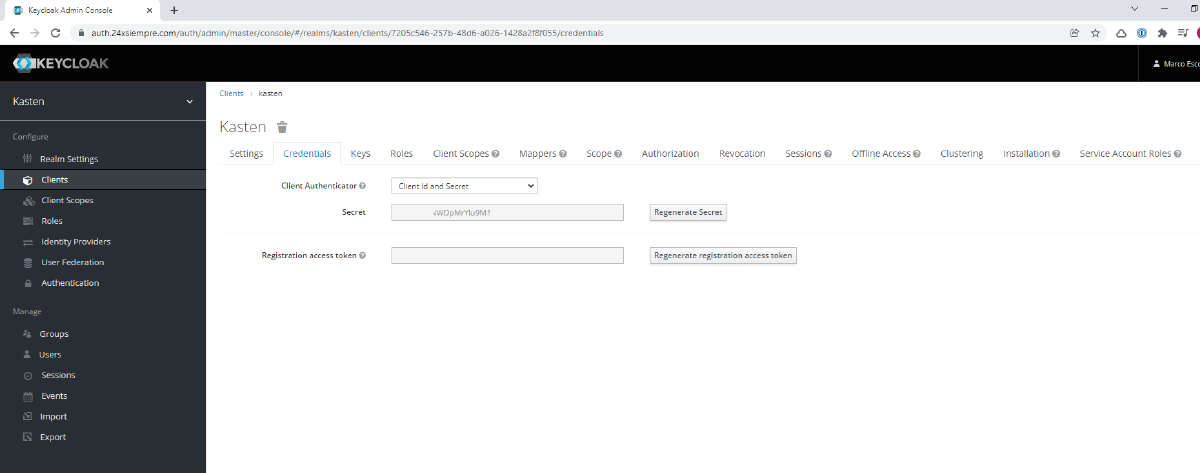
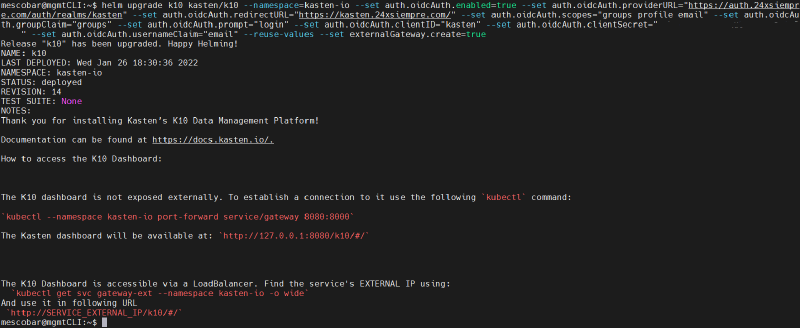
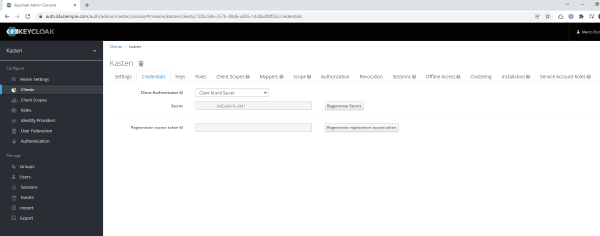
We need to connect to the primary Kubernetes cluster where Kasten K10 Multi-Cluster Manager is installed and proceed with the authentication configuration against Keycloak. But first, we need to extract the “Secret” from our kasten “Client” under the “Credentials” menu and set it in the “auth.oidcAuth.clientSecret” variable (replacing SuperDuperClientSecret), and of course replacing the values with your own DNS or IP details, by running the following command (for security I’ve trimmed part of the secret):
helm upgrade k10 kasten/k10 --namespace=kasten-io --set auth.oidcAuth.enabled=true --set auth.oidcAuth.providerURL="https://auth.24xsiempre.com/auth/realms/kasten" --set auth.oidcAuth.redirectURL="https://kasten.24xsiempre.com/" --set auth.oidcAuth.scopes="groups profile email" --set auth.oidcAuth.groupClaim="groups" --set auth.oidcAuth.prompt="login" --set auth.oidcAuth.clientID="kasten" --set auth.oidcAuth.clientSecret="SuperDuperClientSecret" --set auth.oidcAuth.usernameClaim="email" --reuse-values --set externalGateway.create=true```bash
Now let's go over what each of these variables means:
- **--set auth.oidcAuth.enabled=true** / Enables OpenID authentication
- **--set auth.oidcAuth.providerURL="https://auth.24xsiempre.com/auth/realms/kasten"** / URL used to authenticate
- **--set auth.oidcAuth.redirectURL="https://kasten.24xsiempre.com/"** / K10 application URL
- **--set auth.oidcAuth.scopes="groups profile email"** / Client Scopes to validate
- **--set auth.oidcAuth.groupClaim="groups"** / Client Scope group name
- **--set auth.oidcAuth.prompt="login"** / Login prompt
- **--set auth.oidcAuth.clientID="kasten"** / Name of the Client in the Realm you created
- **--set auth.oidcAuth.clientSecret="SuperDuperClientSecret"** / Client secret
- **--set auth.oidcAuth.usernameClaim="email"** / Used when authenticating by email
- **--reuse-values** / Reuses values already configured
- **--set externalGateway.create=true** / Reconfigures the K10 gateway service for remote access
One important note: if you already have an authentication method configured for Kasten, it's best to disable it first and then run the command above, in case you hit an error.
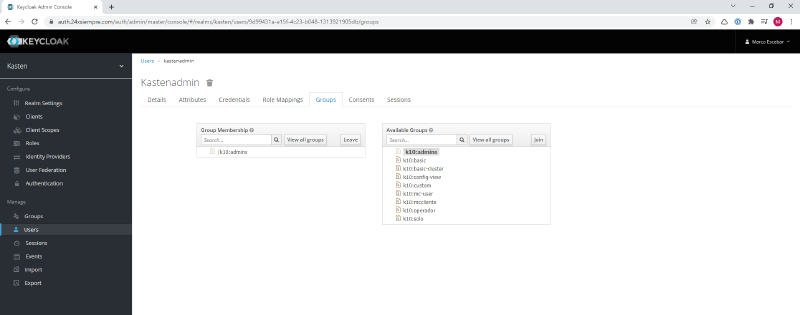
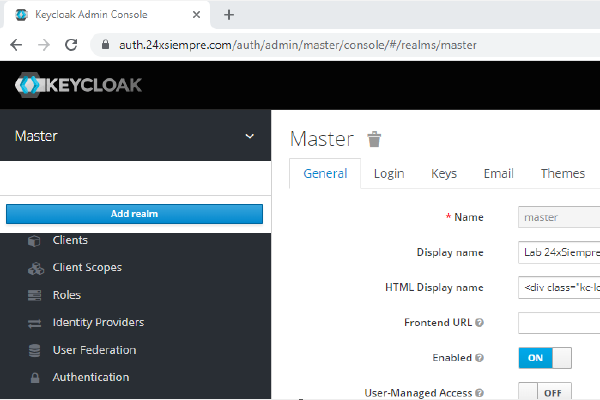
## User AccessSince we already have everything configured, and we created the user in the previous post, all that's left is to open the Keycloak web interface and make sure the user has these permissions:
- User: kastenadmin
- Password: SuperDuperPassword, or whatever you set
- Group: k10:admins
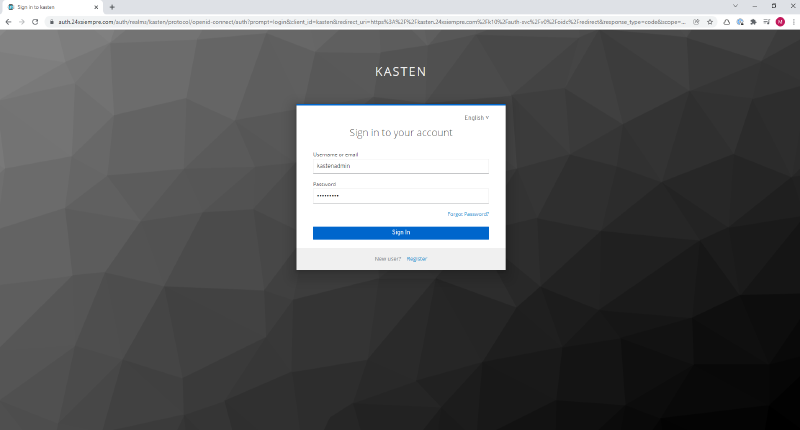
Then we just browse to the Kasten URL, in my case https://kasten.24xsiempre.com/k10/#/, and it redirects us to the Keycloak login form in the Kasten realm, where we enter the credentials:
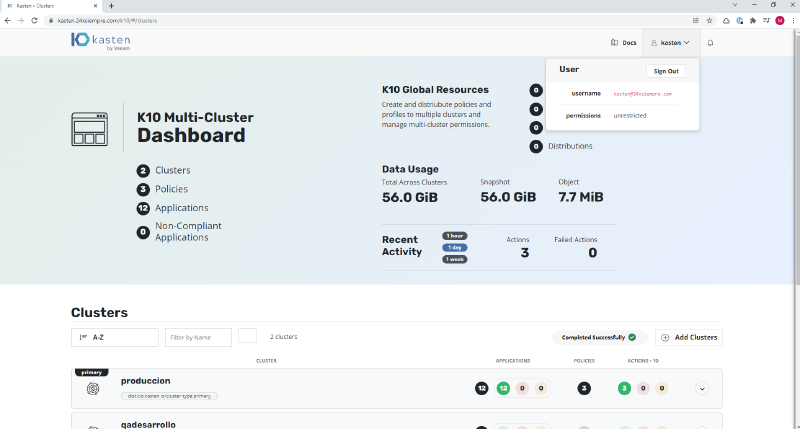
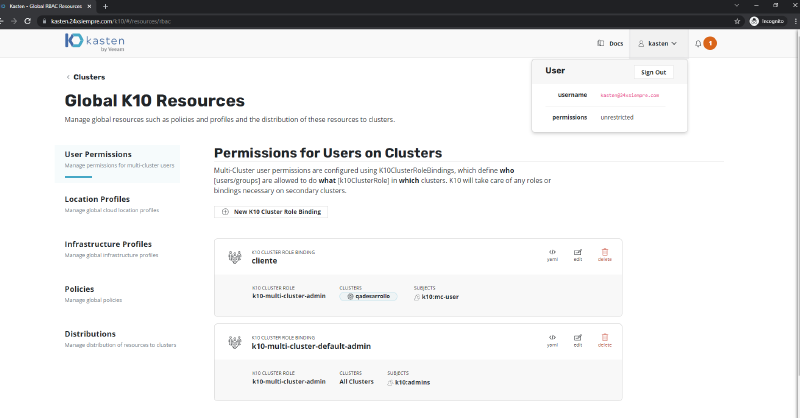
And we can see that we log in successfully with full permissions, since we belong to the "k10:admins" group and we didn't have to edit any ClusterRole or Role.
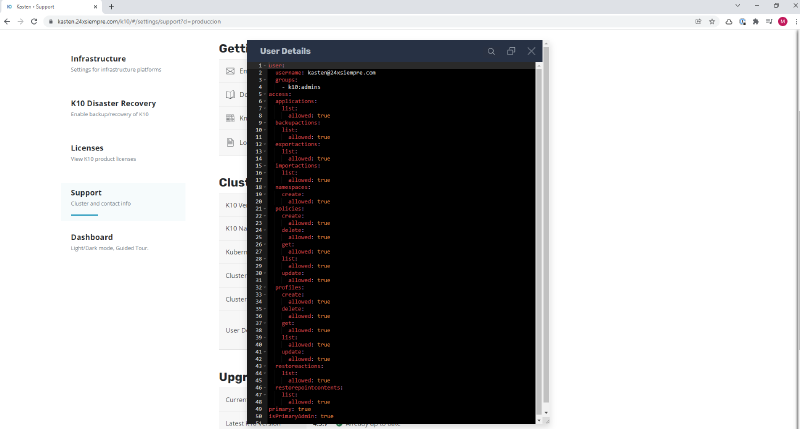
To confirm the permissions, you can validate them visually, either by viewing "permissions" as "unrestricted", or by entering the primary cluster, then"Cluster Settings", then"Support", and finally clicking "View Current User Details", where you can see all of that user's permissions and the group they belong to:
## Creating Access Roles in Kasten K10 Multi-Cluster Manager
As we saw earlier, we have the primary Kasten K10 cluster configured. Now we'll configure the roles, tied to groups, that are needed to access Kasten K10 Multi-Cluster Manager.
### Administrator UserIt's worth pointing out that K10 Multi-Cluster Manager is intended for administrators only. You can grant access to a regular user without administration permissions on Multi-Cluster Manager, and even so, as we saw in the previous post, you can give a user full access to a cluster protected by K10 even when it's using Multi-Cluster Manager resources or distributions.
When using Multi-Cluster Manager you can manage users with Keycloak. As I mentioned earlier, administration requires belonging to the "k10:admins" group.
And when we check access:
Now I need access to K10 Multi-Cluster Manager as a user, without the ability to modify global settings.
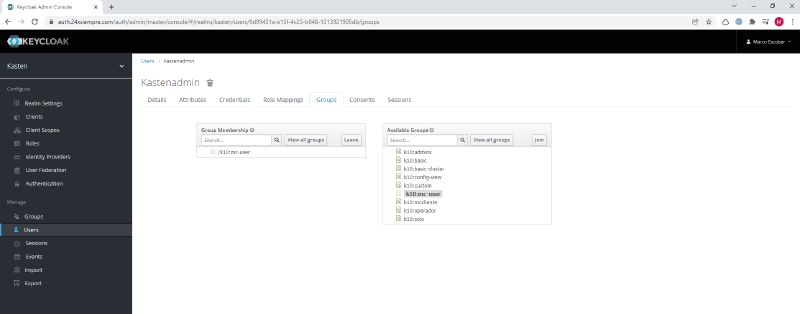
### Operator UserIn general, you always need a user with limited permissions at the K10 Multi-Cluster Manager level, keeping in mind that you can assign an operation role directly to a group of users for Kasten K10 without needing access to Multi-Cluster Manager. So in Keycloak we'll change the "kastenadmin" user's group to "k10:mc-user".
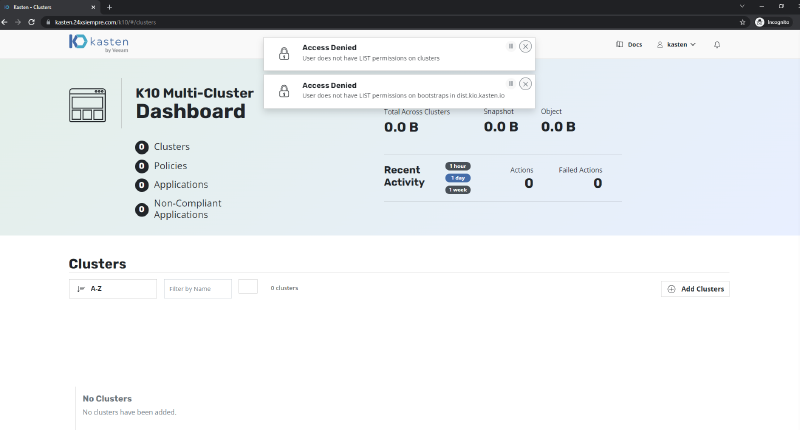
When we check access, we get the following error:
That error happens because no RoleBinding has been created for the "k10:mc-user" group, so we'll create it as follows:
```bash
kubectl create rolebinding k10-mc-user-demo --clusterrole=k10-mc-user \
--namespace=kasten-io-mc \
--group=k10:mc-user
```bash
Let's validate that the RoleBinding was created:
```bash
kubectl get rolebindings -n kasten-io-mc
And we check access to Kasten:
As we can see in the image above, the user doesn’t have access to the “qadesarrollo” cluster, and can’t view the primary cluster’s resources either. When granting access to K10 Multi-Cluster Manager, it’s good practice to restrict administration of the primary cluster, since that cluster holds the centralized configuration for all resources.
Assigning K10ClusterRoles in Multi-Cluster Manager#
Since we already bound the group at the clusterrole level, we now need to give the user access to administer a specific cluster. So, using an administrator user that belongs to the “k10:admins” group, we’ll add the “kastenadmin” user to a K10ClusterRole so they can manage a cluster.
When creating the K10ClusterRole, we make the user an administrator of the “qadesarrollo” cluster. Remember there are 3 K10ClusterRoles you can assign to the user: “k10-multi-cluster-admin”, “k10-multi-cluster-basic”, and “k10-multi-cluster-config-view”. If we check access again, we can see the user now has the necessary permissions:
As we saw across this 3-post series, you can use RBAC end to end to gain granular access to Kasten K10 and Kasten K10 Multi-Cluster Manager resources. Even when clusters are managed centrally, you can grant a Kasten client or user direct access to a specific cluster without needing access to Multi-Cluster. That’s why using an SSO solution is always recommended, in this case Keycloak or whichever you prefer, since the OpenID protocol is standard. As a recommendation, always apply the principle of least privilege and grant permissions according to what the operation actually needs, and define specific ClusterRoles up front so that later you only need to add user groups.
If for any reason you want to try out this kind of access, I’ve left the platform running in the lab, so any user can register, access K10 Multi-Cluster Manager, and play around with the test environment. To register and get access, just go to: