Data protection, Kubernetes, cybersecurity and AI. Hands-on guides from the trenches: Veeam, Kasten, VMware, Oracle, cloud, and whatever I’m breaking in the homelab this week.
Table of ContentsTable of Contents
In this post we will look at configuring Role Based Access Control (RBAC) together with Kasten K10 to control access to one or more clusters protected by Kasten. It is aimed both at customers who run one or more clusters on any Kubernetes distribution supported by K10, and at service providers (SP or MSP) that offer Kubernetes container backup with Kasten K10, with the goal of providing controlled access to users and customers according to the granular roles required for each cluster or operation. We will also use a Single Sign-On (SSO) solution based on OpenID, in this case Keycloak, for centralized management of access credentials for both users and groups.
The idea behind this series is to explain how to create the groups, roles, clusterroles and other RBAC-related resources without having to keep modifying the Kubernetes cluster directly over time, so that all user creation, group management and group assignment is handled in Keycloak.
As always on this blog, we should refer to the official documentation for whatever we are about to install, configure or apply, since we want to stay as close as possible to the best practices and guidelines set by the creators of the solutions we will use.
We will not go deep into installing the products in this post, since the following links walk you step by step through installing Kasten K10 and the Kasten Multi-Cluster Manager:
As for installing Keycloak, it is very simple via Helm, or you can follow one of the many guides on the internet to install it as a container or as an application on a server. (Leave a comment if you need a step-by-step guide.)
Let’s now go over a summary of the existing roles and clusterroles used to build granular permissions.
When we review the documentation, we see that there is RBAC for a standalone installation of Kasten K10, following Kubernetes standards, as well as RBAC for multi-cluster installations using the Multi-Cluster Manager.
In this case we will look at applying Roles, RoleBindings, ClusterRoles and ClusterRoleBindings to Kasten K10 to obtain granular access to our K10 deployment based on operational needs. Reviewing the documentation, we find the default ClusterRoles that are created when K10 is installed, of which there are 3:
k10-admin / Full access to the Kasten K10 deployment
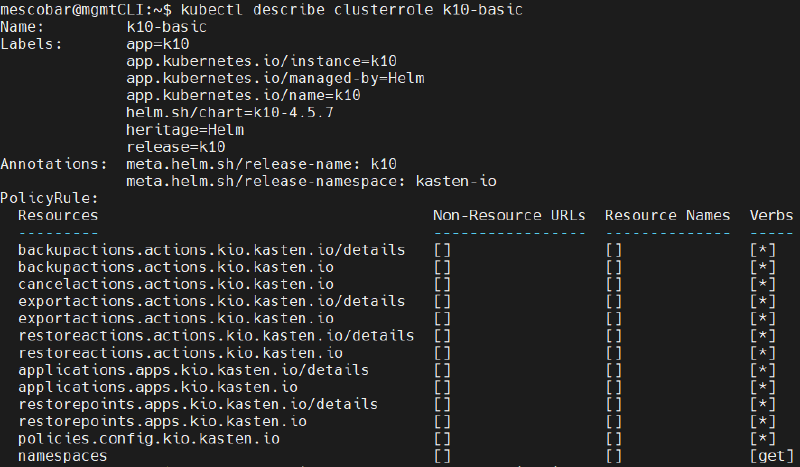
k10-basic / Operational access for users on specific resources
k10-config-view / Access to configuration without permission to create or modify
You can list them with the following command:
kubectl get clusterrole | grep k10
```bash
In fact, if you review the permissions in detail by inspecting each clusterrole, for example:
```bash
kubectl describe clusterrole k10-admin
```bash
You can see all the permissions, resources and verbs (what each one can do)for every clusterrole, which form the basis for building granular access permissions to K10. You can use them as a starting point to later create ClusterRoleBindings tied to users or user groups that will authenticate via OpenID.
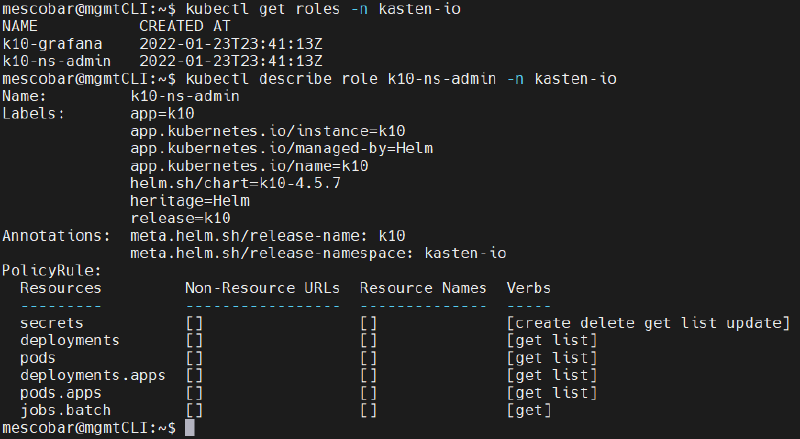
Another important role that also exists within the K10 installation is **k10-ns-admin**, which grants access to secrets and lets you view service status directly from the K10 console. To list the role, you must include the **kasten-io** namespace:
```bash
kubectl get roles -n kasten-io
```bash
## K10 Multi-Cluster Manager RBACAs with the above, when you configure the K10 Multi-Cluster Manager from the primary cluster, 2 clusterroles are created by default, along with K10-specific clusterroles:
- k10-mc-admin / Grants full access to manage multiple clusters and resources
- k10-mc-user / Grants access to the cluster but not to management resources
```bash
kubectl get clusterrole | grep k10-mc
```bash
K10-specific clusterroles for managing RBAC within K10 Multi-Cluster:
- k10-multi-cluster-admin / Grants full access to manage multiple clusters and resources
- k10-multi-cluster-basic / Grants access to the cluster but not to management resources
- k10-multi-cluster-config-view / Grants access to the cluster and to the configuration view
```bash
kubectl get k10clusterrole -n kasten-io-mc
Why are there two types of clusterroles? The first roles are associated with Kubernetes resources and clusters, while the k10clusterroles are tied to the internal management of the Multi-Cluster Manager, with the aim of providing access via RBAC within K10.
In this guide we will configure specific clusterroles and roles according to the access and operational needs, using the resources Kasten K10 provides, but first let’s move on to configuring Keycloak.
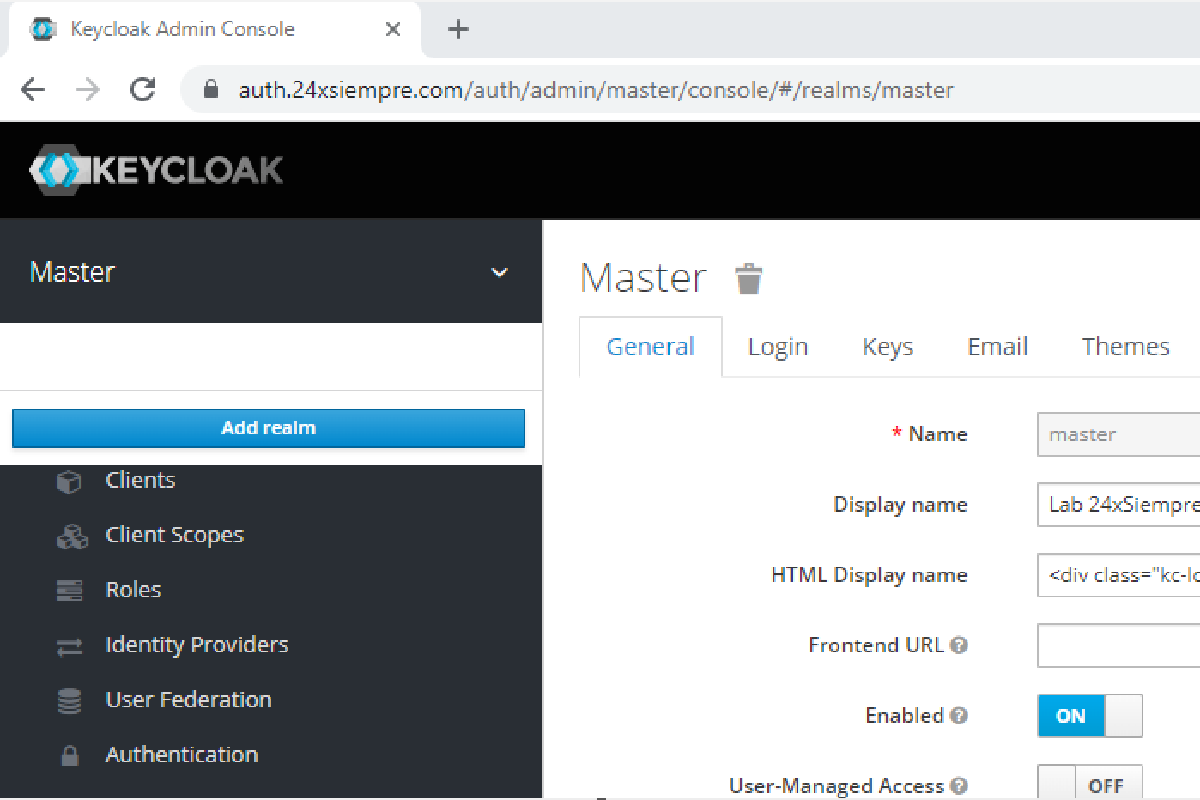
After installing Keycloak, you can access the “master” domain or realm through the web with the user you configured. For example, in my case I use auth.24xsiempre.com and log in to the administration console:
You can keep the default settings, or at least enable brute force detection in the “Security Defenses” menu.
Now we will create a new realm dedicated to Kasten K10. To do so, we select the “master” realm in the main menu, click on “Add Realm”, enter the name of the new realm, and finally click “create”:
Within “Realm Settings” there are several options, as shown in the Keycloak menu. In this case we will enable brute force detection in “Security Defenses” (optional, but recommended) and, most importantly, the following options in the “Login” menu:
It is best to use these options. For “Forgot password” and “Verify Email” to work, you need SMTP configured in Keycloak, where it is very easy to enter the address, username and password of the SMTP server in the “Email” menu.
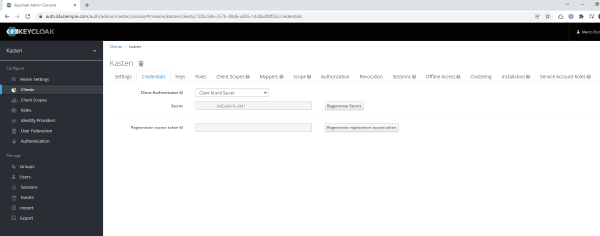
We now have the Keycloak basics in place, so let’s dive into configuring a client in Keycloak to use OpenID together with K10. Click on “Clients” and then on “Create” to enter the name of the “Client ID” (in this case kasten), making sure the “Client Protocol” is “openid-connect”:
Then open the new client from the “Clients” menu.
Now we will configure the client in detail so that it uses OpenID and allows access to users or groups. The settings to apply are the following:
Next I will explain each of the configured fields:
Enabled = Enables the Keycloak client
Always Display in Console = Lets you see sessions in the Keycloak console
Login Theme = The graphical interface style
Client Protocol = Enables the openid-connect protocol we will use with K10
Access Type = Requires a credential to use the Keycloak client
Standard Flow Enabled = Enables OpenID redirects for authentication and authorization
Direct Access Grants Enabled = Username and password access, exchanged with Keycloak
Service Accounts Enabled = In case you use service accounts
OAuth 2.0 Device Authorization Grant Enabled = OAuth 2.0 support
Browser Flow = Will use browser-based authentication
Direct Grant Flow = Will issue the session directly
Now we will add a role so that it is associated with K10. Go to “Roles” within the same “Client” we just configured and add a new role named “k10”:
Now open the newly created role, go to “Composite Roles”, click on “Client Roles”, select “kasten”, and assign the new “k10” role under “Associated Roles”:
And finally we will set the new role as a default. Click on “Roles” and then on the “Default Roles” menu, select “kasten” under “Client Roles”, and add the new “k10” role to the default roles:
By default, Keycloak does not have groups configured in “Client Scopes”. This means that if we set up authentication tied to groups, it will not work, since Kasten or the application will not be able to read the groups created in Keycloak. So we click on “Client Scopes”, then on “Create”, enter the name “groups”, make sure the protocol is “openid-connect”, and save:
We open the newly created “groups” Client Scope and then click on “Mappers” to create a new mapping. Click on “Create”, enter the name “groups”, select the “Mapper Type”, which should be “Group Membership”, enter “groups” in “Token Claim Name”, turn off “Full group path”, leave the other options enabled, and save:
Then we click on “Scope”, select the “Client Roles”, which is “kasten”, to add the assigned “k10” role:
And finally we need to add the new “Client Scope” as a default so that Kasten can read it. Under “Client Scopes”, select the “Default Client Scopes” menu and move “groups” to the default assigned scopes:
An excellent way to manage users is to associate them with groups that already carry the required permissions or roles, making their administration much faster. As a best practice, use the same naming convention as Kasten when creating groups. Click on “Groups” and then on “New” to enter the group name, for example “k10:admins”, and save.
Then we select and edit the group to open the “Role Mappings” menu, and under “Client Roles” we select “kasten” and assign the “k10” role, as we can see in the following image:
You can create as many groups as needed and assign the role above to each of them, just as we did here.
Now we will create an administration user to manage Kasten K10, whether on a single cluster or using the Multi-Cluster Manager. To do so, we go to the “Users” menu and enter the required information and the associated group, in this case “k10:admins”. Remember that for email verification you must have the SMTP server configured. Otherwise, you simply enable it:
One important point: optionally, you can ask the customer to configure MFA for better security by adding it under “Required User Action”. Now we will assign a password to the user. Click on “Credentials”, enter the required “password”, turn off the “Temporary” option, and click “Set Password”:
We are now ready to start setting up Kasten K10 authentication with Keycloak. In the next post (Click Here) we will go through it step by step.
Which ClusterRoles does Kasten K10 create by default on installation?
Installing K10 creates 3 ClusterRoles: k10-admin, which grants full access to the deployment; k10-basic, which gives operational access for users on specific resources; and k10-config-view, which allows viewing the configuration without permission to create or modify it. You can list them with kubectl get clusterrole | grep k10 and use them as a starting point for building granular ClusterRoleBindings.
What is the difference between the clusterroles and the k10clusterroles in the Multi-Cluster Manager?
The clusterroles (for example k10-mc-admin and k10-mc-user) are associated with Kubernetes resources and clusters, while the k10clusterroles (such as k10-multi-cluster-admin, k10-multi-cluster-basic and k10-multi-cluster-config-view) are tied to the internal management of the Multi-Cluster Manager. Together they let you control access via RBAC within K10. You can list the k10clusterroles with kubectl get k10clusterrole -n kasten-io-mc.
What is the k10-ns-admin role for?
The k10-ns-admin role grants access to secrets and also lets you view service status directly from the K10 console. Unlike the ClusterRoles, it is scoped to a namespace, so to list it you must include the kasten-io namespace with kubectl get roles -n kasten-io.
Why do I need to create a Client Scope named "groups" in Keycloak?
By default Keycloak does not expose groups in the tokens, so if you set up group-based authentication, Kasten cannot read them and it will not work. You must create a “groups” Client Scope with the openid-connect protocol, add a Group Membership mapper with Token Claim Name “groups” (with Full group path turned off), and move it to the Default Client Scopes so Kasten can read it.
Which protocol and access type should the Keycloak client use for K10?
The client should use the openid-connect Client Protocol, which is the one we use with K10, and an Access Type that requires a credential to use the client. It is also a good idea to enable Standard Flow for the OpenID redirects, Direct Access Grants for the username and password exchange, and to define the application’s Valid Redirect URIs and Web Origins (CORS).
Do I need to configure SMTP in Keycloak?
You only need SMTP configured in Keycloak if you want to use the “Forgot password” and “Verify Email” options, since they rely on sending email. It is set up easily by entering the address, username and password of the server in the “Email” menu. If you do not configure it, you can still enable email verification, but the message will not be sent.