Ever since Broadcom bought VMware, the conversation in every infrastructure room changed its tone. Almost nobody asks “should we evaluate alternatives?” anymore. The question now is “when do we leave, and how do we do it without breaking anything?”. Renewals that multiplied, per-core licensing, bundles that force you to pay for what you do not use. The push to look toward Proxmox, oVirt or HPE VM Essentials is no longer technical, it is about budget survival.
And that is where the enthusiasm collides with reality: migrating hundreds or thousands of virtual machines from production is a months-long project. Maintenance windows negotiated by the hour, conversion agents running on live VMs, real risk to the environment that feeds the business. Leaving VMware, framed this way, is as scary as staying.
This post is about a different way to frame it. It is long on purpose: it starts with the “why” and ends in the technical kitchen (helpers, RBAC, ports, security), so you can decide with real criteria and not with a brochure.
If before picking a target you want to look at the underlying problem, the one about not getting locked in again, I wrote it separately in Make the hypervisor a replaceable part.
The question almost nobody asks#
Almost every migration project starts from the most expensive and most fragile place: production. You connect to vCenter, take the live VM, convert it, and pray the boot on the target goes well. You repeat for each workload. Every iteration touches the production environment, and every touch is a risk someone has to sign off on.
But there is a piece of data you already have and that almost nobody uses as a migration lever: for each of those VMs there is a consistent, verified copy on the safe side of the infrastructure. It is called a backup. If you already invested in Veeam, you already have, right now, a bootable image of every machine you want to move. The question almost nobody asks is: what if I migrate from there, instead of from production?
That is exactly the idea behind Moov.

What Moov is, and what it never touches#
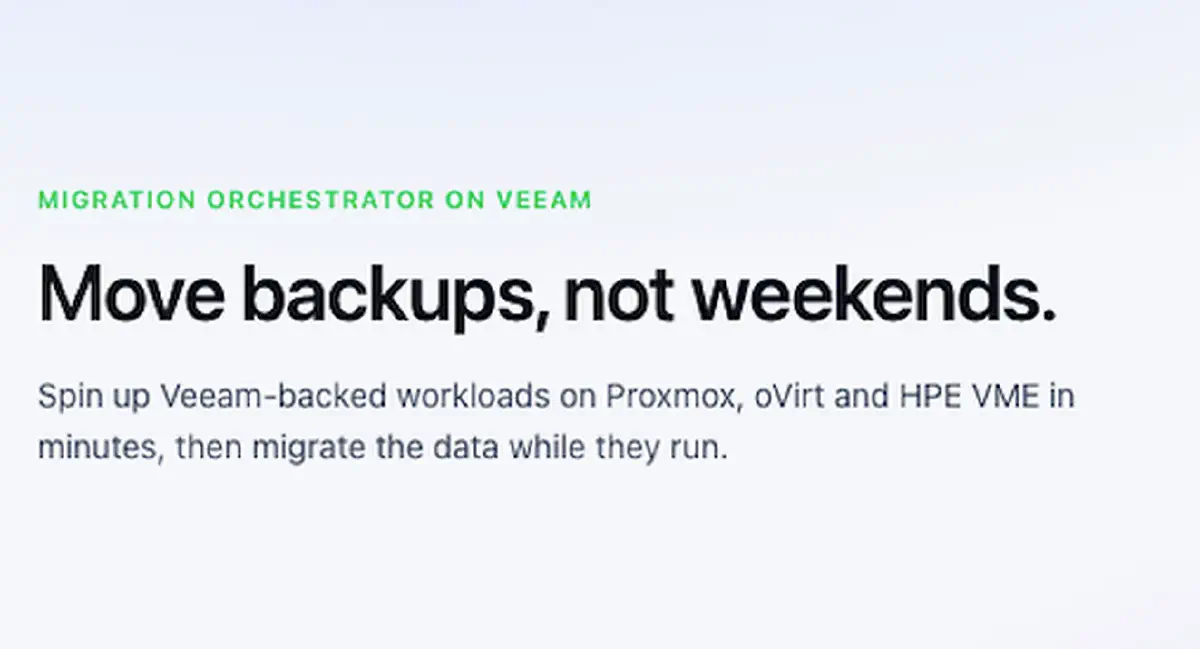
Moov is a virtual appliance that migrates virtual machines backed up by Veeam Backup & Replication V13 to KVM hypervisors: Proxmox VE, oVirt (including OLVM and RHV) and HPE VM Essentials (based on Morpheus). Its data source is always the Veeam repository. It reads the restore points in read-only mode, through the REST API and the Data Integration API, and never modifies them.
What matters is what it does not do. Moov does not connect to vCenter or the vSphere API, does not talk to the ESXi hosts, does not touch your VMFS or NFS datastores, and does not touch the VMs running on VMware. Your production never even notices there is a migration in progress.
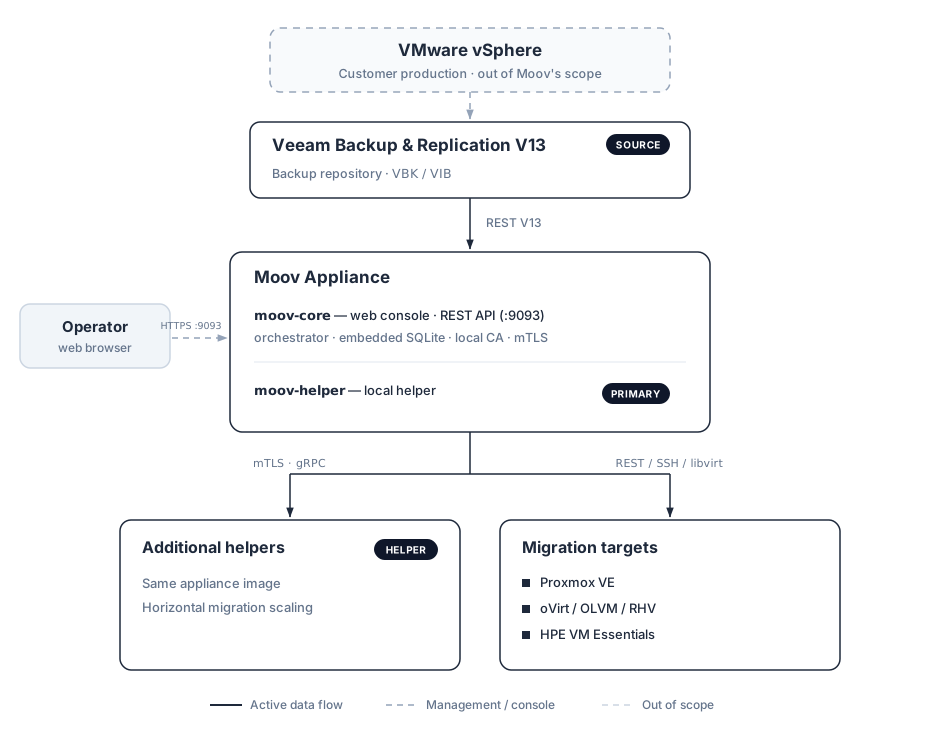
The implications of that boundary are what change the game. Zero impact on production during the migration. You can migrate VMs that are already powered off, or even decommissioned, as long as a backup exists. And your migration windows become completely independent of vSphere maintenance. You no longer negotiate with the production owner, you negotiate with your own repository.
The whole operation lives in a single web console. The Dashboard is the control center: global status of Veeam, targets, helpers and the Core itself, results of the latest migrations, capacity per target, and whatever needs attention. There is no desktop client and no configuration files to edit by hand.

Two ways to migrate, depending on what you need#
Moov offers two modes, and the difference between them is basically how long you can wait.
Instant VM Migration is for when you need to be operational right now. The VM boots immediately on the target, reading from the backup over iSCSI/NBD, while its disks migrate in the background. When the mirror finishes, Moov does a pivot and the VM ends up running 100% on the target’s local storage. The RTO the console shows is 60 seconds or less. It is the natural mode for a cutover with hot validation, or for a recovery scenario where time is what matters.
Cold Migration is for when you prefer certainty over speed. The helper fully restores and converts the disks, transfers them to the hypervisor, builds the VM and verifies it, all before powering it on. It takes between 15 and 60 minutes depending on size, and it is ideal for archiving, testing, or when you want the full materialization in hand before giving the boot signal.

In both modes the VM arrives ready to operate. The guest agent (QGA) installation and the VirtIO driver injection are enabled by default, and the disk bus is chosen by an evidence policy: virtio-scsi when there are confirmed drivers, SATA as a universal boot fallback when the operating system is unknown or evidence is missing. There are no manual post-migration steps for the machine to boot and talk to the network.
What it looks like in practice#
Before committing a single migration window, Moov lets you look first. The Preflight Inspector walks the Veeam repositories, cross-checks each VM against a specific target, and classifies it into a bucket: green (automatic, a candidate with no reservations), amber (warning, soft flags like a backup older than 7 days or target storage above 85% usage), red (manual, needs intervention) or gray (inconclusive, missing data only a helper can measure). All of this without touching the backup: it is read-only on the source.

If you want to go deeper, the disk analysis mounts the backup disks on a helper, read-only, and inspects the real guest: CPU, RAM, NICs, operating system family and VirtIO driver evidence. The key point is that the VM never powers on. Everything is extracted by reading the content of the mounted backup, without booting the guest or touching production. With that data, the inspector recalculates the bucket and pre-fills the migration placement values.
With a clear inventory, you launch a migration with a three-step wizard: you pick source and VMs, you pick target and mode, and you adjust the placement per VM (name, compute, storage and networks). You can save the selection as a draft to plan mass or wave migrations, and run them later without the pressure of the window.
And once you hit start, you are not flying blind. The live tracking shows, per VM, the chain of phases and an event log with what is actually happening.

What happens under the hood#
Let’s get into the details, because this is where you see why this does not touch production. An Instant Migration goes through ten visible steps, from T1 to T10: validate helper, publish the backup over iSCSI, wait for mount, connect the iSCSI, dispatch to the helper, wait for NBD, drive mirror, progress, pivot and finalize.
In detail: Moov publishes the Veeam restore point over iSCSI, using the Data Integration API. The helper connects those backup disks, prepares the guest and exposes each disk as an NBD export. The guest preparation is the elegant part: it detects the operating system, injects the VirtIO drivers, installs the agent, repairs the boot (BCD on Windows, initramfs on Linux via dracut/initramfs-tools with chroot over a writable overlay, keeping the source disk read-only), seeds the UEFI boot (ESP) and optimizes the disks with sparsify to discard zeroed blocks. All of this without an auxiliary appliance: it needs no nested virtualization (KVM) inside the helper and no nested conversion appliance per job, editing offline over an overlay that never modifies the original backup.
With the disks exposed, the VM boots from NBD, degraded until the pivot, and you can validate the guest right away. In parallel, the drive mirror materializes the blocks to the target storage, with per-disk progress. When the mirror finishes, the pivot happens and the VM ends up running on local storage. At the end, Moov unpublishes the backup on Veeam and cleans up the helper.
One architecture detail that matters: the heavy disk flow goes straight from the helper to the target hypervisor, it does not pass through the core. That is why you scale by adding helpers, and a single helper migrates several VMs in parallel within a wave.
The appliance from the inside: Primary, Helpers and a console without SSH#
Moov ships as a single image (qcow2, ova, vhdx or raw), and the role is chosen at first boot. There are two:
- Primary: the controller. It serves the web console and the API, keeps state in an embedded SQLite database, issues the certificates for its own local CA and coordinates every migration. There is exactly one Primary per fleet. It also ships with a local helper, enough to get started.
- Helper: runs jobs dispatched by the Primary. As many as you need.
First boot does not ask you to edit files: tty1 shows moov-firstboot, a six-step text wizard (TUI): role, network (DHCP or static), hostname/FQDN, time zone and NTP, admin account (on the Primary) and a review screen before applying. On confirmation, the Primary bootstraps the Core: it generates the local CA, the database, the master key and the admin account.
The final screen shows, only once, the console URL, the admin email, the password (if you chose to auto-generate it), the CA fingerprint and a recovery code. That code deserves its own paragraph.
The recovery code is the readable master key. Moov encrypts all the backend credentials (Veeam, Proxmox, oVirt, Morpheus, SMTP) in the database with AES-256-GCM. The recovery code is that same master key encoded in Base32-Crockford. If the appliance is lost or corrupted, without that code the credentials are unrecoverable by design and you have to recreate every connection. Keep it off the appliance: a password manager, a secrets vault, or a sealed envelope.
After first boot, tty1 does not go back to a plain shell: it stays on moov-info, a status console designed to be operated from the hypervisor console, without needing SSH. It shows services, CPU/RAM usage, network, access details, helpers and targets, and lets you view logs, open a local shell protected by password, reboot or power off (with a two-step confirmation). Look at the detail in the screenshot: ssh shows up stopped. It is not an oversight, it is the model.

And it is not only the Primary that has a console: each helper brings its own TUI on the hypervisor screen, where you see its status, its registration against the Core and the jobs it has in progress. The same philosophy of operating from the hypervisor, without opening SSH.

Helpers: how a fleet migration parallelizes#
A helper is a Linux appliance that does the low-level work of each migration: it connects over iSCSI to the backup published by Veeam, converts disks (virt-v2v, qemu-img), prepares the guest and exposes the disks over NBD so the target hypervisor consumes them directly. It is stateless: it exposes no console and stores no persistent secrets beyond its mTLS certificate. All the state lives in the Core; if the helper reboots, it re-registers on its own.
Each helper talks to the Core over gRPC with mTLS and sends continuous heartbeats. If about 30 seconds go by without a pulse, the Core marks it Stale and stops assigning it jobs. In the console you see them as Active, Stale, Paused, Deploying, Unreachable or Upgradable, so you always know who can get work.
The deployment is a single step and auto-provisioned via the target hypervisor’s API, across the three targets, all of them download directly from the primary the helper appliance (qcow2) that contains all the executables needed to run the migrations.

The default sizing of an auto-deployed helper is 8 vCPU / 16 GB of RAM / 50 GB of disk, the same across the three hypervisors. It is not a random number: qemu-img, virt-v2v and sparsify work on full disks and are memory-intensive, and these values keep conversions from dragging out or hitting an OOM on large disks. When you edit a helper, Moov validates against the real node: it refuses to assign more vCPU or RAM than the node has, and warns if you ask for more than 90%.
Parallelism has two axes. One, a single helper migrates several VMs in parallel within a wave: the split is 1:1 by resources, roughly 1 vCPU and 2 GiB of RAM per VM, so a helper with the default 8 vCPU / 16 GB runs about 8 VMs at a time. Two, you add helpers and the work is distributed across the whole fleet: the preflight and the migration spread the VMs among the available helpers, and the global capacity is the sum of them all. The concurrency per Veeam connection is configurable, with the number of tasks per repository visible in the console, and the automatic migration prefers the helpers that are already on the target hypervisor. To bring compute closer to the repository or the target, deploy helpers where you need them; for Instant VM Migration the design rule is helper-to-hypervisor latency below 5 ms. The minimum best practice: keep at least one Active helper per target before launching, because step 1 of every migration validates the helper and fails if it is Stale or paused.

Who can do what: roles and RBAC#
Operator accounts are local to the appliance (password with a bcrypt hash, sessions with JWT), and each user maps to one of three roles:
- Admin: everything. Users, connections, credentials, settings, backup, notifications, diagnostics, and the permanent deletion of scans, migrations and helpers.
- Operator: launches, cancels and retries migrations, runs preflight and analysis, operates helpers and sees connections read-only. Does not edit credentials or settings.
- Auditor: read-only on reports and the audit log. Does not operate. It exists precisely for regulated customers that need separation of duties.

The detail that matters for a security audit: the matrix is enforced by the server on every API, not just the interface. A role without permission gets “permission denied” even if it builds the request by hand. And there are built-in protections: you cannot demote or delete the last Admin, or delete your own account.
Ports, network and SSH model#
For the network team, this is the part that goes to the firewall. The ports of the Primary (Core) appliance:
| Port | Protocol | Use |
|---|---|---|
| 9093 | HTTPS (TLS, local CA) | Web console + REST API + helper registration |
| 9094 | HTTPS | Helper provisioning (binary, CA, cert) |
| 9091 | gRPC with mTLS | Helper events and heartbeats to the Core |
| 80 / 443 | HTTP/HTTPS | 301 redirect to the console on :9093 |
The helpers listen on 9091 (control channel from the Core) and on 10809+ (one NBD port per disk, dynamic, that the target hypervisor pulls from directly). And these are the external ports Moov consumes:
| Destination | Port | Use |
|---|---|---|
| Veeam B&R V13 | 9419 | REST API (OAuth2) + Data Integration API |
| Veeam mount server → helper | 3260 (iSCSI) | Restore point disks toward the helper |
| Proxmox VE | 8006 | REST API |
| oVirt engine | 443 | REST API |
| Morpheus / HPE VME | 443 | REST API |
| Target nodes/hosts | 22 (SSH) | Core key: IVMR (QMP/virsh, drive-mirror, NBD pull) |
| SMTP | 25 / 465 / 587 | Email notifications |
On access to the target hosts, the model is key-based, not password-based. Moov generates and manages its own keypair (ed25519) at first boot; you do not upload your key. The host’s SSH password is used only once, from the console, to install Moov’s pubkey into authorized_keys, and it is never persisted. From there on everything goes over the Core private key, without a password. The anti-MITM verification uses host-key pinning (TOFU on the first connection, verification on the following ones): a host-key change aborts the connection until you re-pin from the console. And as you already saw, inbound SSH to the appliance is disabled: administration is web-only plus the console TUI.
Security and governance#
Migrating from the backup has a security benefit that is not always obvious at first glance: the source is sacred. The restore points are never modified, in any mode. But the rest of the appliance is designed with that same mindset too.
- Encrypted credentials. Veeam, hypervisors and SMTP are stored encrypted at rest with AES-256-GCM. The master key is shown only once (the recovery code) and is kept offline.
- TLS and mTLS. The console is served over TLS with its own local CA; communication between the Core and the helpers is mTLS. The CA can be installed into your trust store from an OS-guided page.
- Hardened sessions. A 15-minute access token in memory, a refresh token in an
HttpOnly/Secure/SameSite=Strictcookie with CSRF protection. The refresh rotates atomically on every renewal and, if reuse of an already-consumed token is detected, Moov revokes the entire session family (RFC 6819). The “Trust this device for 14 days” checkbox extends the window without re-entering the password, and it is audited. - Append-only audit. Every action is recorded in an append-only log, visible to Admin and Auditor.
- Anti-SSRF. Image ingestion (helper, templates) does not follow redirects, to avoid unwanted access to internal resources.
- Diagnostics without leaking secrets. The support bundle includes logs, config and recent audit data, but automatically redacts passwords, tokens, bcrypt hashes, JWTs and PEM blocks of private keys.
None of this is glamorous, but it is exactly what you want when the tool is going to touch your backups and create workloads on your new hypervisor. And the email notifications (SMTP with STARTTLS or implicit TLS) alert you to completed or failed migrations, helpers that stopped responding and finished preflight analyses, without having to live watching the console.
Frequently asked questions#
Does Moov modify my Veeam backups?
No. Moov reads the restore points in read-only mode, through Veeam’s REST API, and never modifies them. The source backup is always read-only, in every migration mode.
Do I need to touch or power off my VMware VMs to migrate?
No. Moov never connects to vCenter or the ESXi hosts: it migrates from the Veeam backup, so your production never notices. You can even migrate VMs that are already powered off or decommissioned, as long as a backup exists.
Which hypervisors can Moov migrate to?
Proxmox VE, oVirt (including OLVM and RHV) and HPE VM Essentials (based on Morpheus).
What is the difference between Instant VM Migration and Cold Migration?
Instant VM Migration boots the VM on the target in seconds from the backup (RTO of 60 seconds or less) and migrates the disks in the background until the pivot. Cold Migration fully restores and verifies the disks before powering the VM on, and takes between 15 and 60 minutes.
How does Moov scale to migrate many VMs at once?
With helpers: each helper runs several VMs in parallel (roughly 1 vCPU and 2 GiB of RAM per VM), and you add helpers to spread the work across the whole fleet. The global capacity is the sum of them all.
Where do I download Moov?
At moov.do, where the appliance images (qcow2 and OVA) are ready to download. It is in public beta, under an MIT license.
Try it#
Moov is in public beta (v1.0.40) and you can already download it from moov.do, with the appliance images ready to download. It is published under an MIT license and provided as-is, with no official Veeam support.
If you are in the middle of the conversation about leaving VMware, or you simply want to see what it feels like to migrate a VM from a backup instead of from production, it is a good moment to grab it and try it with a lab machine. Deploy the appliance, complete the TUI, connect your Veeam, add a target, deploy a helper and launch an Instant Migration: from the freshly imported appliance to a booted VM, in minutes.
Download it and get started here: moov.do
And if you try it, tell me how it went. The idea of using the backup as a migration lever, and not just as a safety net, is one of those that change how you think about the whole operation. Leaving VMware does not have to start from the riskiest place. It can start from the safest one you already have.