
In this post we will review the configuration of Veeam Backup & Replication and integration with Oracle KVM to protect virtual machines running on this platform. We will also see some important characteristics in relation to disks, types of disks in KVM and how to create disks to obtain Changed Block Tracking in incremental backups.
Introduction#
Recently Veeam has released support for a new hypervisor, in this case, Oracle KVM, which is not very different from RedHat Enterprise Virtualization, therefore, we will review the updated documentation of Veeam for KVM or oVirt:
oVirt KVM Plugin Installation Veeam#
We download from our customer portal or directly from the website veeam:
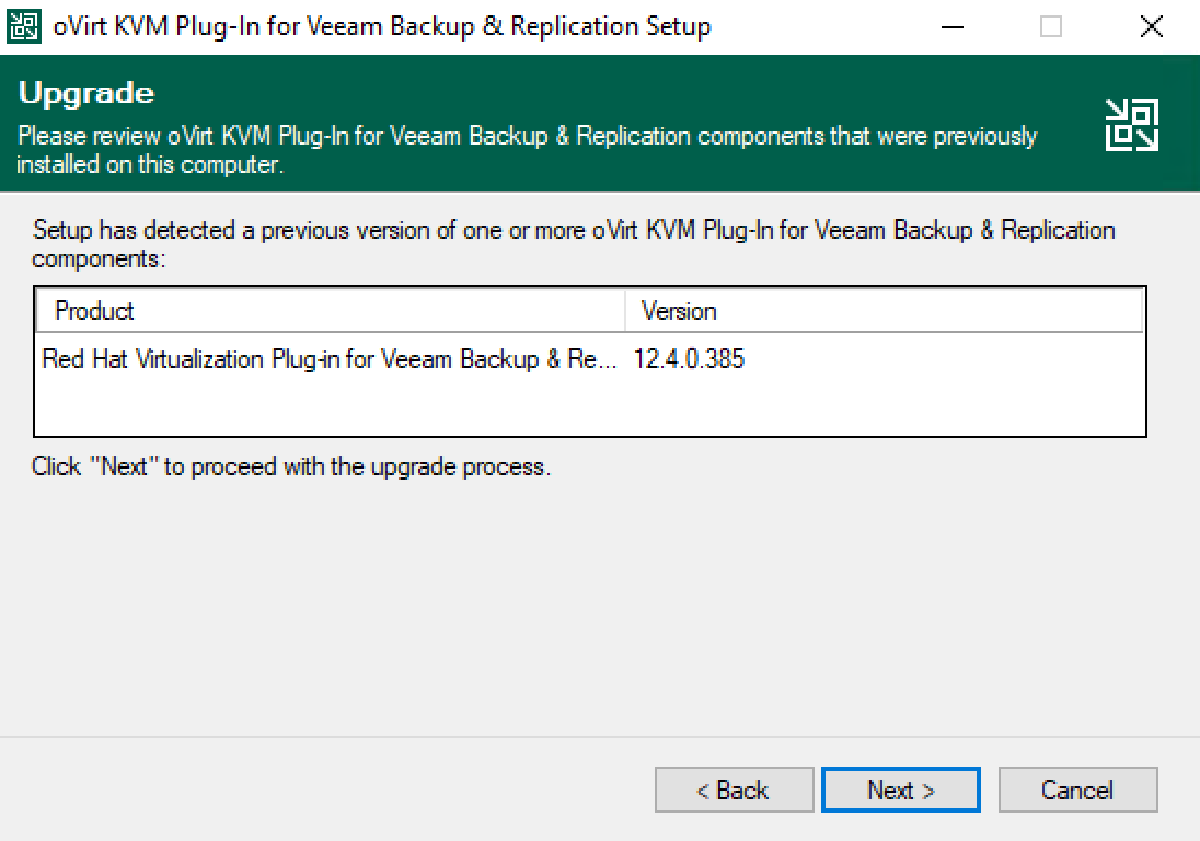
And unzip file on server Veeam Backup & Replication. Then run the installation, if the server does not meet the requirements, the following message will appear:
Just click “OK” and it will install the prerequisites and go to the installation wizard:


Add Oracle KVM to Veeam Backup & Replication#
Enter the console Veeam Backup & Replication, then in “Backup Infrastructure” right click on “Managed Servers” and then click on “Add Server”:

And we select “Oracle Linux KVM”, then we will enter the IP address or fqdn of the administration server, Oracle Virtualization Manager:

We enter the credentials (it is important to add the profile in this case @internal):

We accept and we will see that it was added successfully:

We finish and the assistant will ask us:

We select “Yes” and the proxy creation wizard will be executed:

We select the KVM cluster:

We enter a name and select the “Storage Domain”:

Then “next” and select the network where the proxy will be created:

It is possible to use DHCP or Fixed IP address, in my case I always use fixed:

Then we select an existing user or create one to generate it as a local user in the proxy:

Allow access to all repositories or just one in particular:

And while waiting for the process to finish, we can observe the creation of the proxy in the Oracle KVM console:

and we finish:

VM Backup on Oracle KVM#
Now we will create a Backup job for virtual machines in Oracle KVM

And we will see the correct execution:

Previously we selected a VM that has incremental backup enabled from Oracle KVM, to validate that it is enabled, it is only necessary to review the disks created in the VM:

By default when disks are created in the latest versions of oVirt KVM, “Enable Incremental Backup” is selected, if there are VMs that come from previous versions of oVirt, and this option is not enabled, when performing the backup task Veeam Backup will show:

Recovery#
Data recovery is just like any other backup. Veeam Backup & Replication: