
According to the latest news from Veeam, where support for Proxmox Virtual Environment (VE) was announced and before the update was released, I started reviewing how to put together a small lab to install Proxmox on physical machines and avoid doing nested virtualization in vSphere. In this post we will see what servers I am using and how this solution works.
Servers#
Searching for computers on the internet, I found some posts about the advantages of using certain Single Board Computers (SBC) to install hypervisors or operating systems to use as a server, so I ended up on the page https://www.zimaspace.com/ reviewing their products where I found the ZimaBlade which has in summary the following characteristics of ZimaBlade 7700:
- CPU: N3450 / J3455 / E3950 Quad Cores 1.1GHz / 1.5GHz / 1.6GHz base frequency 2.2 GHz / 2.3GHz / 2.0GHz Burst 2MB L2 cache
- RAM: 1x SODIMM Slot / Compatible with 16GB DDR3L
- Storage: eMMC 5.1 / 32 GB
- HDD: 2x SATA 6.0 Gb/s Ports
- LAN: 1x GbE LAN Port
- PCIe: 1x PCIe 2.0 x4
- TDP: 6W/10W
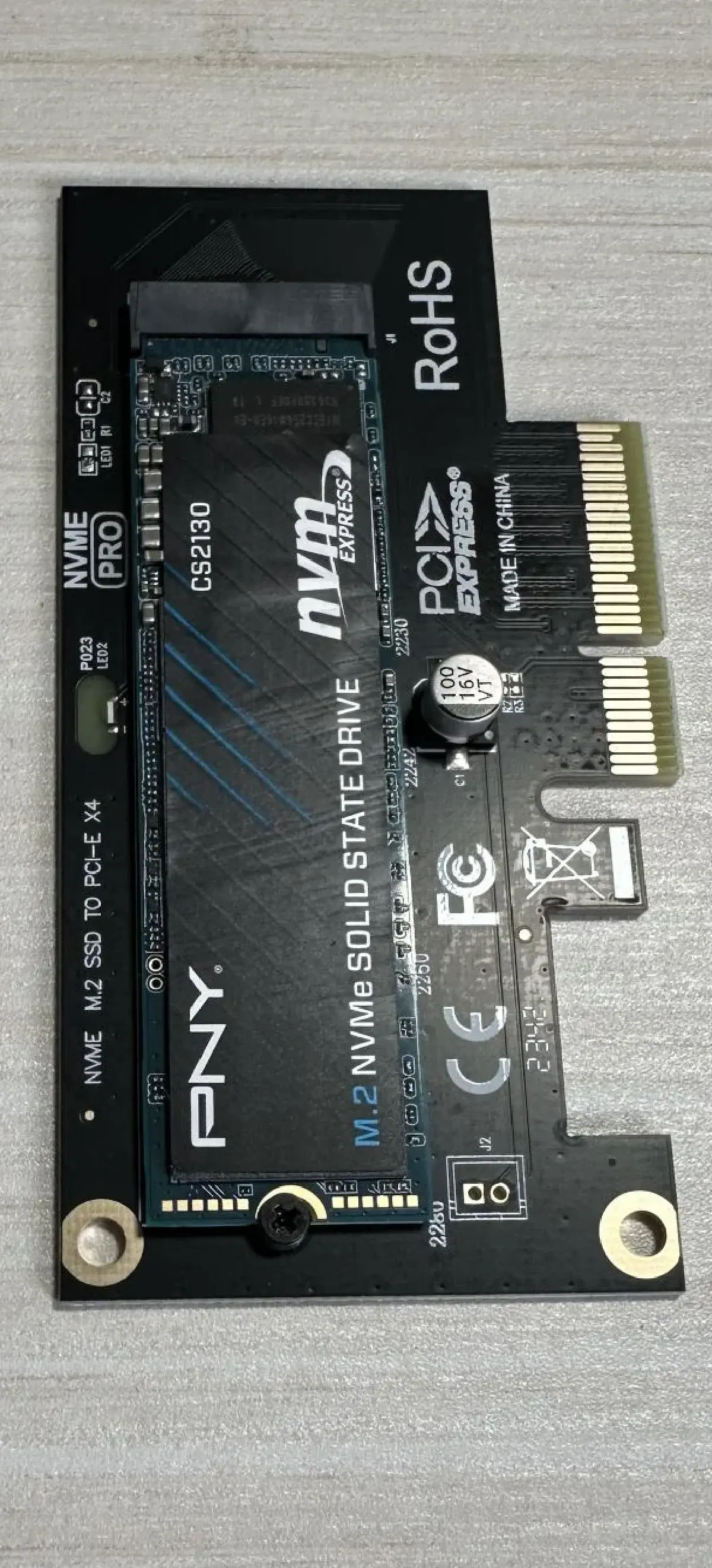
On the other hand, to improve performance and avoid changing the Proxmox VE installation parameters on an eMMC, I purchased 3 PCIe cards:
- M.2 NVME to PCIe 4.0/3.0

Proxmox VE#
After installing proxmox on one of the servers, we can see very good performance, I configured the storage with my current storage via iSCSI and the performance is going very well!
So the only thing missing would be the release of Veeam for Proxmox 🙂