
Great news: the new version of Veeam Backup for AWS v3 is out, and it adds the features you need to protect EC2 instances, VPC configuration, and Amazon RDS databases. In this post we’ll walk through upgrading to the latest version and running backups with the new capabilities.
Initial Steps#
As always, we’ll start by reviewing the official Veeam Backup for AWS v3 documentation, which you can find at:
https://helpcenter.veeam.com/docs/vbaws/guide/welcome.html?ver=30
First, let’s look at the new features this version brings:
- Support for Amazon RDS
- Support for VPC configuration
- RBAC access
- Improvements to granular file recovery
- AWS Outpost
And of course, the backup and replication of snapshots for existing AWS instances, which has been available since v1 and v2 respectively.
Getting into the detail, Amazon RDS backup support covers:
- Microsoft SQL Server
- Oracle
- MariaDB
- MySQL
- PostgreSQL
As for VPC configuration backup, it lets you protect every element inside the VPC, including security groups, subnets, and more. One extremely valuable capability is that it lets you compare the configuration stored in the backup against the one currently in use, so if anything changes you can tell exactly what was modified in production :)
For Role Based Access Control, this new version introduces the following roles:
- Portal Administrator
- Portal Operator
- Restore Operator
This lets you maintain a clean separation of users for managing Veeam Backup for AWS v3.
Upgrading Veeam Backup for AWS#
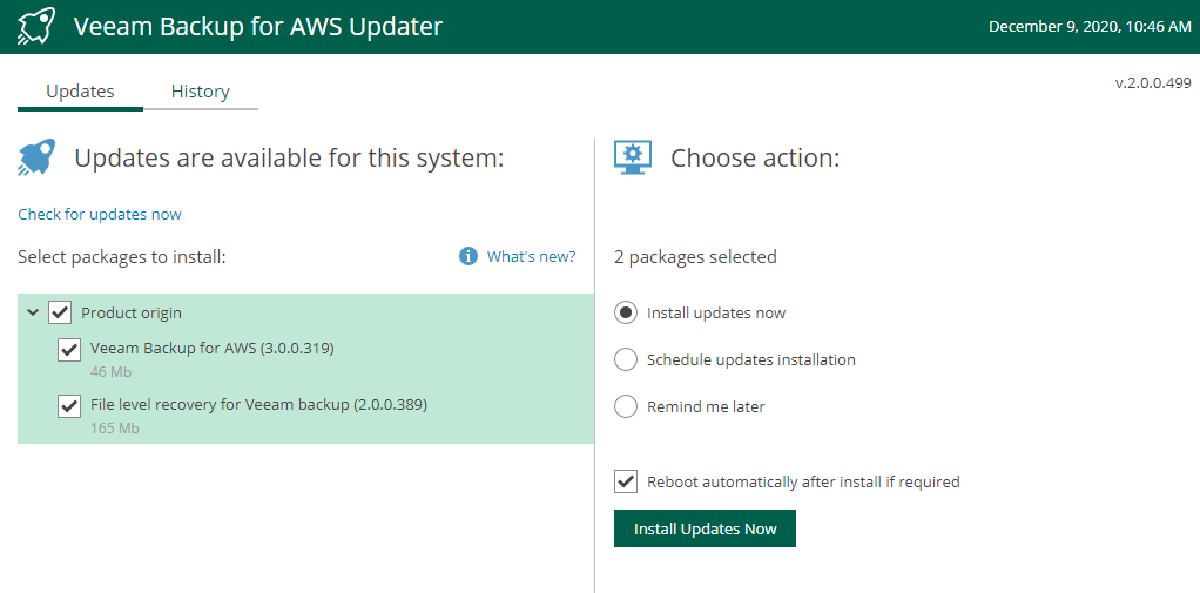
This is very straightforward. If this is your first time using Veeam Backup for AWS v3, you just need to install it from the AWS marketplace. If you already have version 2, go to “Configuration” and then “Support Information”:

Then click “Check and view updates” and a page will open showing the details of the update.

Next, select version 3, install the updates, and let it restart automatically if needed by clicking “Install Updates Now”.

Then we log in again and see the following:

And that completes the upgrade. Veeam Backup for AWS v3, pretty easy right? :)
Before you start using the new features, it’s important to note that Veeam Backup for AWS v3 always lets you check the permissions the role has to run the backup, whether for EC2, RDS, or VPC. So as a tip, whenever you create a new protection policy, always check the permissions and you’ll see something like this:

Clicking “Grant” will request a temporary credential with administrative permissions to assign whatever is needed.

And after clicking “Apply”, you’ll see the permissions correctly assigned.

Amazon RDS Support#
This feature is key, since many of us need to back up databases running on Amazon RDS, and with Veeam Backup for AWS we can protect them. First, click “Policies” and you’ll see the following:

As you can see in the image above, there are options for EC2, RDS, and VPC. Selecting EC2 lets you back up every instance that exists and that you have permission to access. Something key here is that it lets you take application-consistent backups of your instances and, if needed, run pre- and post-backup scripts.
With RDS you can back up the databases you have in the Amazon RDS service. In this case I’ve configured a MariaDB database and an existing MySQL snapshot, so we’ll click RDS and then “Add”.

After entering the policy name, we’ll select the role to use, the region, and which resources to protect (always remember to check permissions, as we covered earlier).

Next, whether or not to replicate the snapshots. In this case I won’t configure it, but as we know, it’s very simple. We then continue to “Schedule” and set the execution schedule.

Then we see the cost. This feature is beautiful, because you can know how much the backup will cost before running it, so you won’t run into surprises. And when it comes to using cloud resources, you should always keep an eye on the budget.

Then the retry settings, and finally we finish creating the backup policy.

We’ll run the backup by selecting the policy and clicking “Start”.

And we’ll see it run successfully.
Amazon RDS Recovery#
We now have a backup, so let’s recover our database in Amazon RDS. First I’ll delete my db24xsiempre database.


Then we go back to Veeam Backup for AWS, click “Protected Data”, and select RDS to see our databases.

We select the database, in this case db24xsiempre, and click “Restore Instance”, which lets us choose the restore point for that database.

Then we click “Next” and select the role we’ll use to recover. Always remember to check permissions, then move to the next screen, which asks where we want to restore.

And finally we see a summary of what will be done.

Then we can track the recovery status in “Sessions Log”.

And if we check the AWS console, we can see:

The Amazon RDS MariaDB instance is being created as part of the recovery we requested. If you looked closely, the instance name is temporary for the recovery. After a few minutes we’ll have:

And in the Amazon RDS console:

Backing Up the VPC Configuration#
In this case, Veeam Backup for AWS automatically creates a backup policy for the entire VPC and keeps it disabled, so that whenever a backup is needed you just enable it and the entire VPC configuration is backed up.

So we need to enable it by selecting the policy and clicking “Enable”.

The policy is now enabled. Next we edit it to assign more VPCs from other regions or just protect the current one. Clicking “Edit”, we’ll see:

Clicking “Next” lets us send the backup to our Veeam Backup for AWS repository on Amazon S3. We enable it, select our repository, and then click “Next”.

Here we’ll set the retention for the VPC configuration backup according to each organization’s needs.

And finally we’ll see a summary of the configuration.

Now we run the policy and see the statistics.

And we now have our backup of the VPC configuration :)
Recovering the AWS VPC Configuration#
Before recovering, as I mentioned earlier, there’s an extremely valuable feature for AWS administrators. Because the VPC configuration is backed up, Veeam Backup for AWS lets you compare the existing configuration in AWS against the one stored in the backup. You just click “Compare”.

You can choose to show only the attributes that have changed, or it will tell you there are no differences between production and the backup. And finally, if you want to export the configuration or restore it, excellent!
Now let’s look at how to restore the entire configuration or just some elements of the VPC configuration. We select the VPC we want to recover and click “Restore”.

If you select “Selected Items”, you’ll be able to recover your VPC configuration granularly.

Or, in my case, I’ll perform a full recovery of my VPC configuration.

Then we select the role we’ll recover with. Always check the permissions.

We restore to the original location or to a new one.

And finally the summary.

To wrap up, the recovery status.

An excellent release of Veeam Backup for AWS v3 that lets us protect our AWS resources. Highly recommended!