
In this post we will look at how to protect Citrix XenServer or Citrix Hypervisor virtual machines with Veeam v10 and its agents, recovering them on the same hypervisor or performing instant recovery and migration to VMware vSphere.
Introduction#
We all know that the hypervisors natively integrated (so far) with Veeam Backup & Replication are VMware and Hyper-V. So when it comes to other hypervisors such as Citrix XenServer (Citrix Hypervisor), Oracle VM, or Proxmox, to name a few, we need to rely on Veeam Agents to fully protect the virtual machines.
Since we have to use agents, in this case we will use Veeam Agent for Windows and Veeam Agent for Linux. Both provide an excellent way to run a complete backup of the machines and also deliver application-consistent backups for databases or applications whenever that is required.
Of course, there are other backup options depending on the needs of each environment, which you can review here:
Veeam Agent for Windows: https://helpcenter.veeam.com/docs/agentforwindows/userguide/backup_job_create.html?ver=40
Veeam Agent for Linux: https://helpcenter.veeam.com/docs/agentforlinux/userguide/backup_job_create.html?ver=40
Installed Citrix Hypervisor / XenServer environment#
For the lab I installed a single hypervisor node and its XenCenter to run the tests. The installed versions are the latest ones I could download from the Citrix site:
https://www.citrix.com/downloads/xenserver/
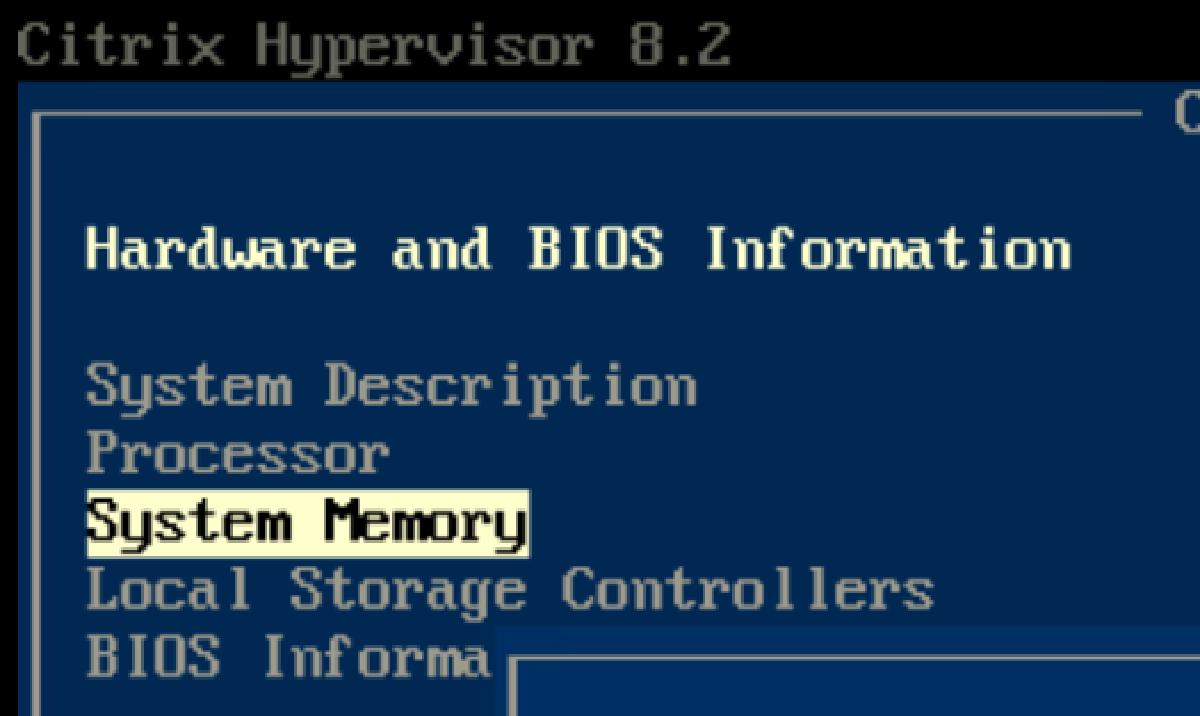
The version used for the hypervisor and XenCenter is 8.2. I then installed a Windows Server 2019 machine with Citrix VM Tools 9.0.42 and a CentOS 8 machine with Citrix VM Tools 7.20.0-1 in order to back up both machines.
Protection Group#
When working with agents in Veeam, you should always manage them through a protection group, since this lets you centralize management and organize the different servers that will run agents according to the needs of the business.

As shown in the image above, we can see both servers with their agents installed. Keep in mind that when you create the protection group, Veeam Backup & Replication installs the Windows or Linux agent automatically.

Once the installation of the agents is confirmed, whether Veeam Agent for Windows or Veeam Agent for Linux, we create the corresponding Backup Jobs. We configure them to back up the entire machine so that we later have the Bare Metal Recovery option, in case we want to fully recover the server on XenServer or on VMware vSphere.


Then we run the Backup Job for both servers and review the statistics once they complete.

XenServer Image Recovery#
Now for the important part: performing the Bare Metal Restore, whether Linux or Windows, onto Citrix XenServer / Hypervisor. If you want to review the Veeam manual for the procedure:
VAW: https://helpcenter.veeam.com/docs/agentforwindows/userguide/image_boot.html?ver=40
VAL: https://helpcenter.veeam.com/docs/agentforlinux/userguide/baremetal.html?ver=40
As you will see in the manual, for Windows you need to create the Recovery Media ISO, which you can build directly from the console and save wherever you prefer by clicking Next.


For backups taken with Veeam Agent for Linux, you need to download the Recovery ISO from the Veeam downloads page:
https://www.veeam.com/linux-backup-download.html

Then copy both ISOs to the repository you have in Citrix.

Finally, create a virtual machine in XenCenter with the same virtual hardware specifications to perform the recovery.

Then boot the virtual machine with the ISO attached to run the recovery.

Select “Network Storage” and click Next, then choose “Veeam Backup Repository”, and assign an IP address under “Configure Network Settings”.

Then we enter the details of our Veeam Backup & Replication repository.

We select the backup we want to recover.


And we choose to recover the “Entire Computer”.
Then we proceed with the recovery of the virtual machine on Citrix XenServer / Hypervisor.

Then reboot and remove the recovery ISO to watch Windows boot and confirm that the XenTools run:


And with that we complete the recovery of full machines on XenServer.
Recovery to VMware#
One of the finest capabilities in Veeam Backup & Replication is the ability to recover any backup directly to VMware vSphere, which lets us maintain a multicloud and hybrid strategy for data recovery. If you want to learn more:
https://helpcenter.veeam.com/docs/backup/vsphere/performing_instant_recovery_vm.html?ver=100
So if you want the option to recover or migrate XenServer virtual machines to VMware, you can do it with Instant Recovery straight from the Veeam Backup & Replication console.

When you click Instant VM Recovery, the wizard for recovering the XenServer machine appears, and then we select the desired Recovery Point:

After selecting the restore point, we enter the required VMware details and then click Next.

And we can choose whether to power on the machine and connect it to the network.

And we will see the status of the recovery:


It then waits so we can carry out the migration:


The machine is already running! Now we perform the migration to the production vSphere datastore, selecting the vSphere resources we will use.

Then either assign proxies or leave them on automatic.

Finally, review the summary of what will be done.

And lastly the statistics.


So with Veeam Backup & Replication you can protect your virtual machines on Citrix XenServer / Hypervisor and either fully recover them on the same Xen, or recover and migrate them to VMware vSphere.