Data protection, Kubernetes, cybersecurity and AI. Hands-on guides from the trenches: Veeam, Kasten, VMware, Oracle, cloud, and whatever I’m breaking in the homelab this week.
Table of ContentsTable of Contents
Exciting news: the release of Veeam Availability Suite version 11 brings more than 200 enhancements, including CDP snapshotless replication, Instant Recovery for NAS and databases, and the new Veeam Hardened Repository. In this post I’ll focus on installing and configuring this new repository type in detail, which lets us keep our backups immutable.
There you’ll find all the requirements for this feature. One of the most important is that backup jobs must use forward incremental mode with full or synthetic backups for immutability to work correctly.
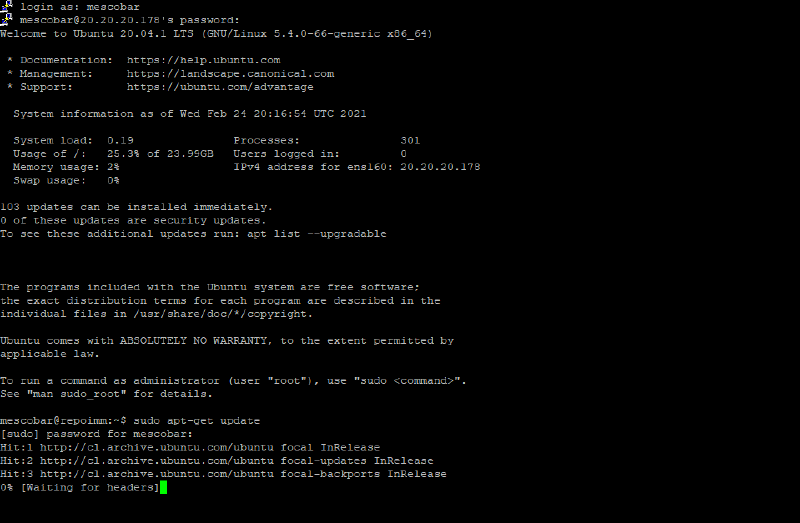
After reading the documentation, we move on to a base install of Ubuntu Linux 20.04 LTS. Once that’s done, we connect over SSH and update the operating system:
sudo apt-get update -y
sudo apt-get upgrade -y
```json
Once the update finishes, we shut the Linux server down with:
```bash
sudo poweroff
```bash
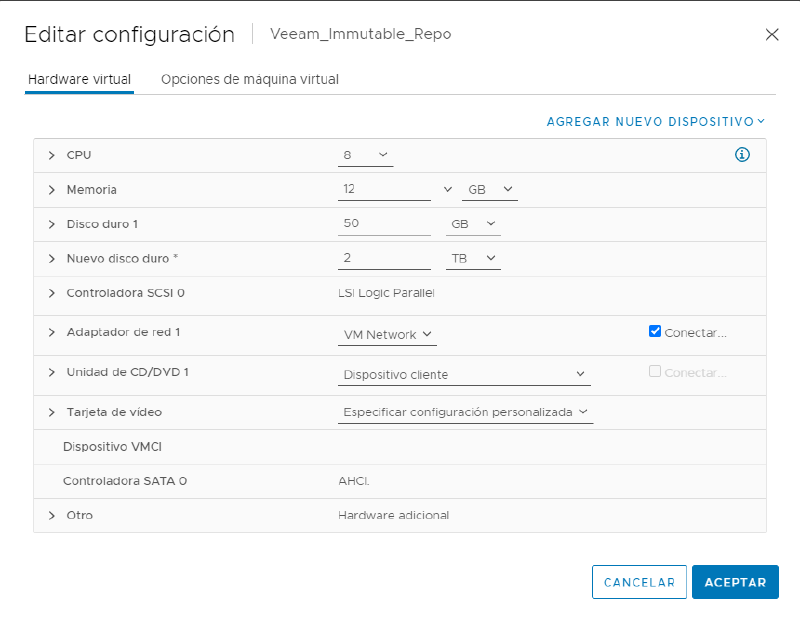
In my case, since this is a virtual machine, I'll add a disk of the appropriate size to use as the repository. So we edit the VM settings, add a disk (for this lab I'll add a 2 TB disk), and then power the machine back on:
## Veeam Repo ManagerWe connect over SSH again, and this time we'll use a great tool, Veeam Repo Manager, to make configuring the Veeam immutable repository even easier. It's available on the GitHub of Timothy Dewin, Solutions Architect at Veeam:
https://github.com/tdewin/veeamhubrepo
This tool lets us configure every requirement visually to get the repository set up correctly, so let's go ahead and install it.
## Installation and configuration
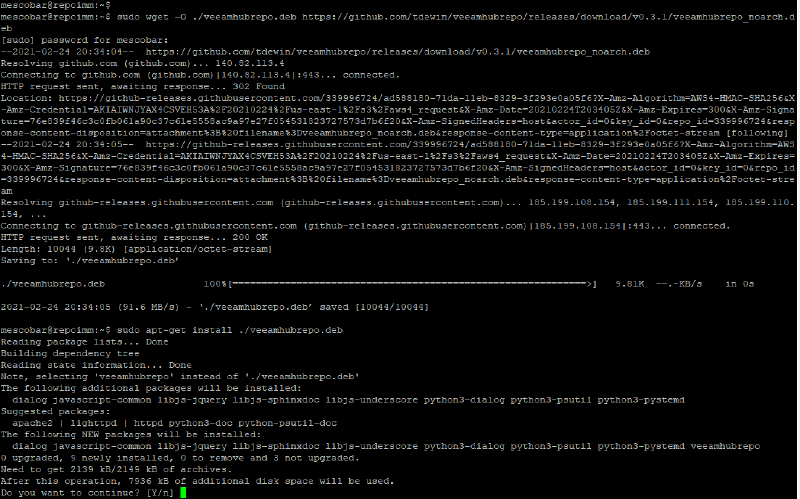
Since we're already connected over SSH to the Ubuntu 20.04 LTS server and we've added a disk to store the backups, we run the following:
```bash
sudo wget -O ./veeamhubrepo.deb https://github.com/tdewin/veeamhubrepo/releases/download/v0.3.1/veeamhubrepo_noarch.deb
sudo apt-get install ./veeamhubrepo.deb
sudo veeamhubrepo
```bash
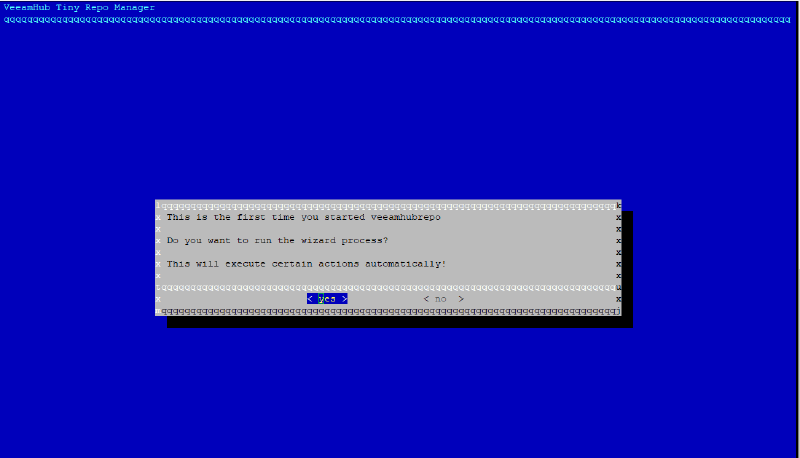
That last command, `sudo veeamhubrepo`, launches the tool's wizard:
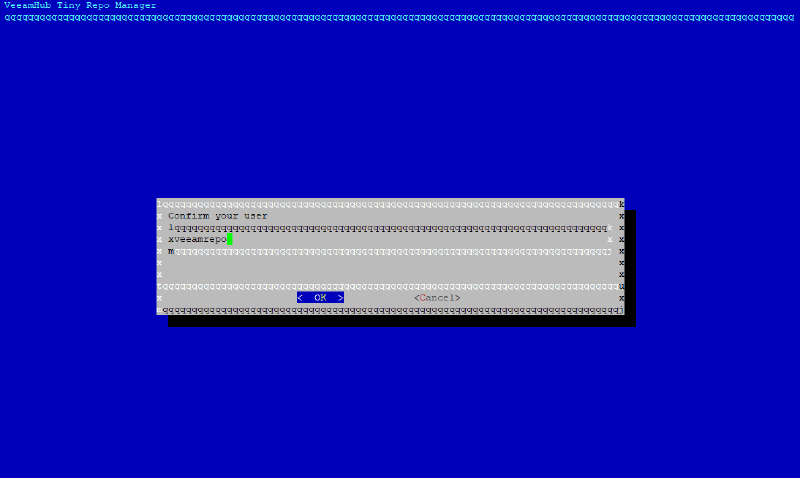
We select"Yes" by pressing "Enter", then enter the username that will hold the temporary privileges used for immutability. The default is "veeamrepo": change it to match your own user naming convention if you like, or just leave the default:
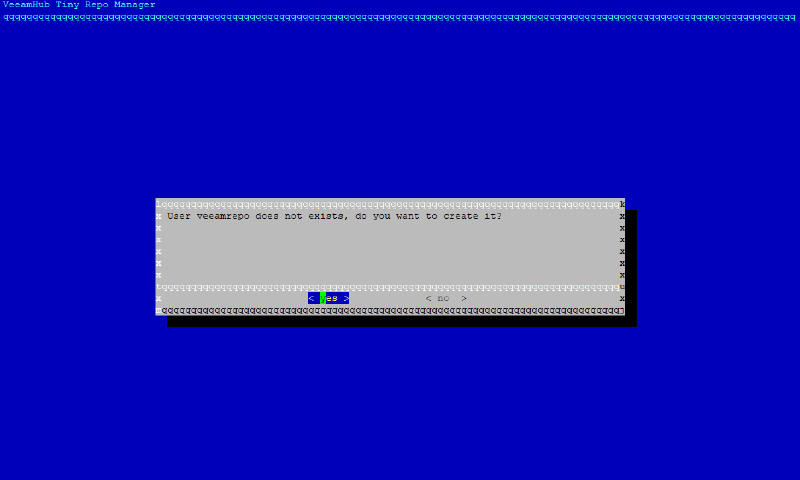
Then we select"OK" when it reports that the user does not exist and confirms it will be created:
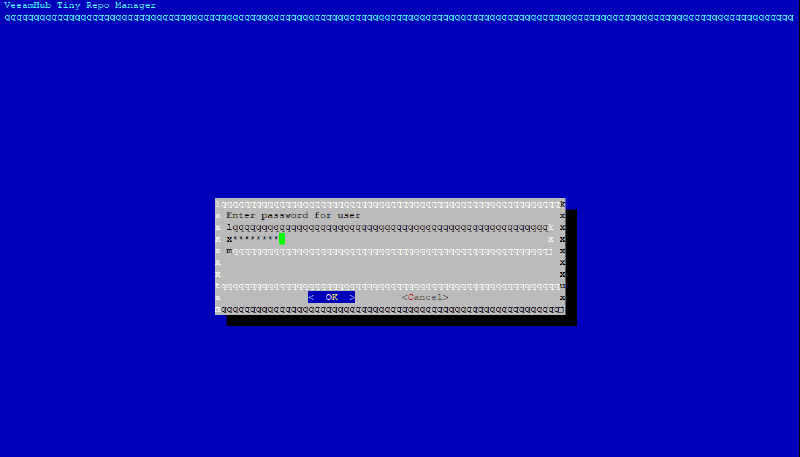
We select"Yes" and enter the password for this user:
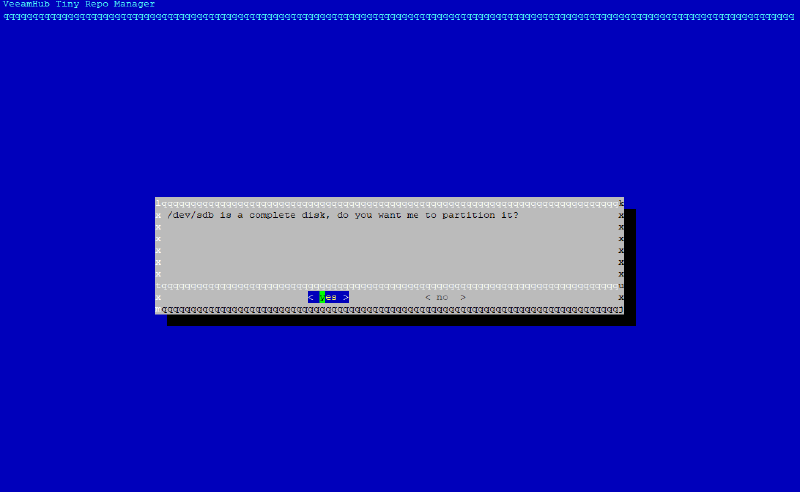
It then confirms that the user was created, and we select"OK" to move on to partitioning the disk we added:
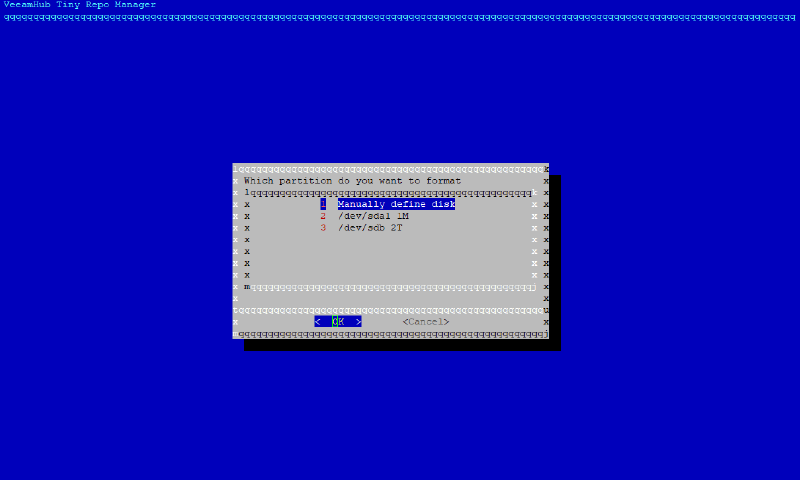
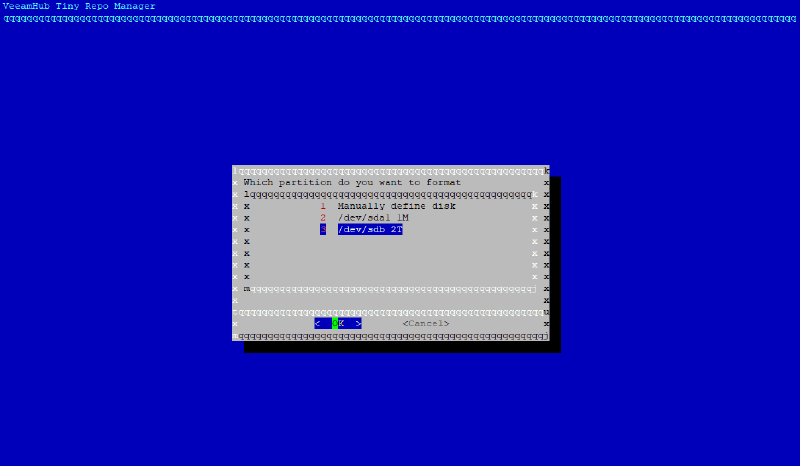
In this lab I need to select disk number "3", the extra 2 TB disk we added, using the keyboard arrows and then pressing "Enter". In your case, select whichever disk you added:
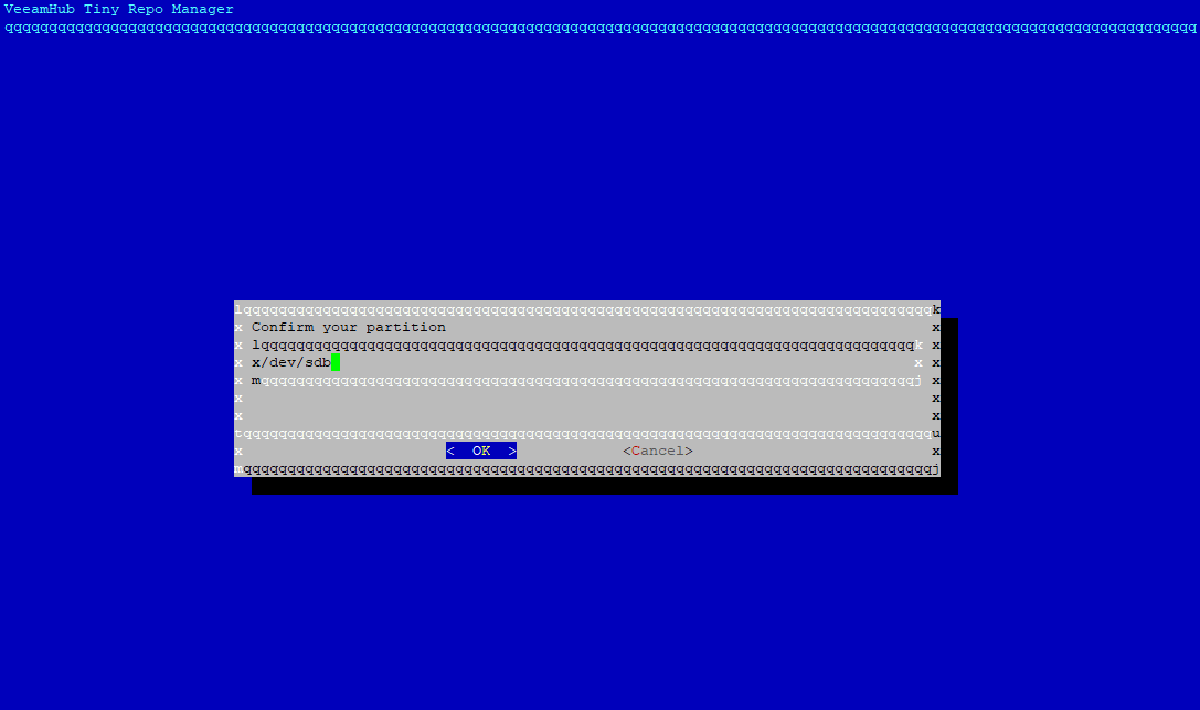
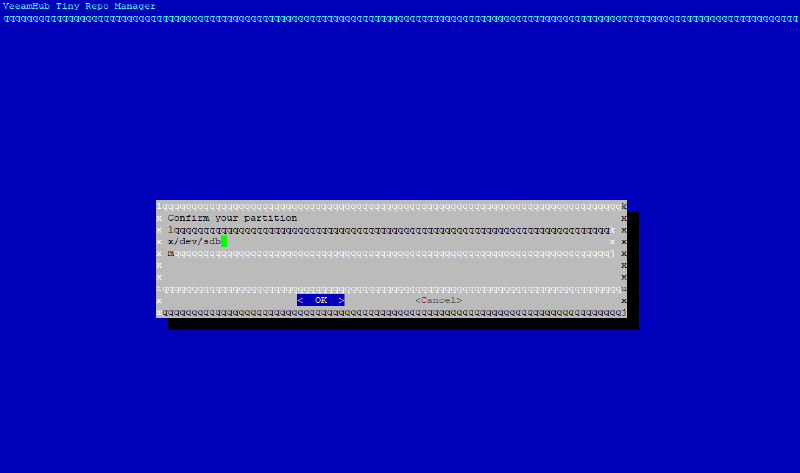
We confirm the selection and then click "OK":
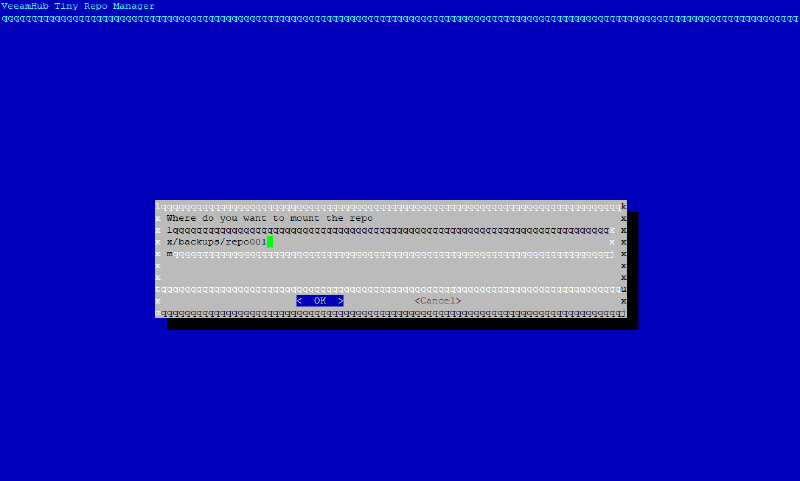
After confirming and applying the changes, it shows the path where the disk will be mounted:
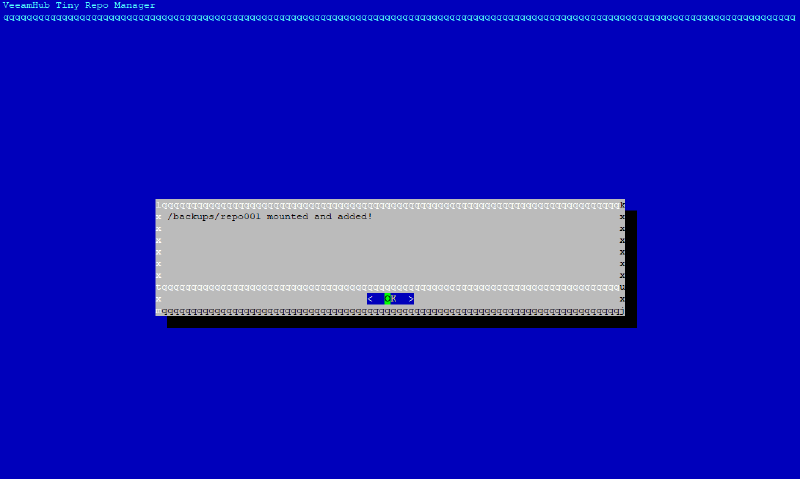
You can edit the mount path if you want to change it. In our case we'll leave the default of /backups/repo001 and select "OK" to confirm the creation and mount:
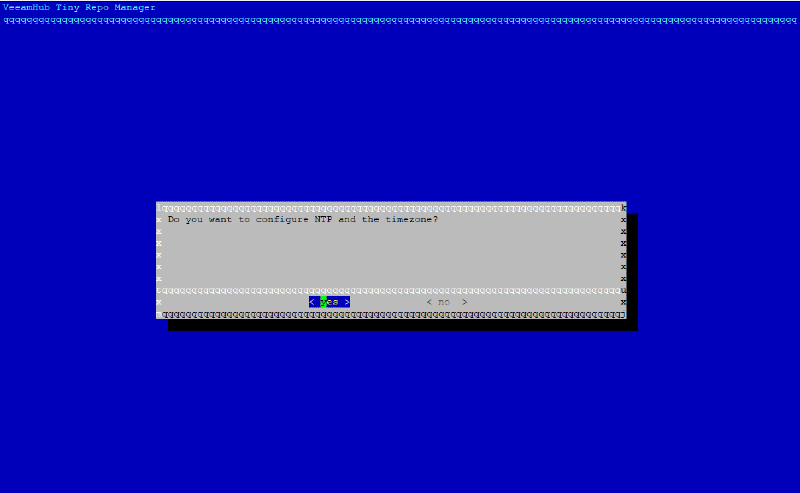
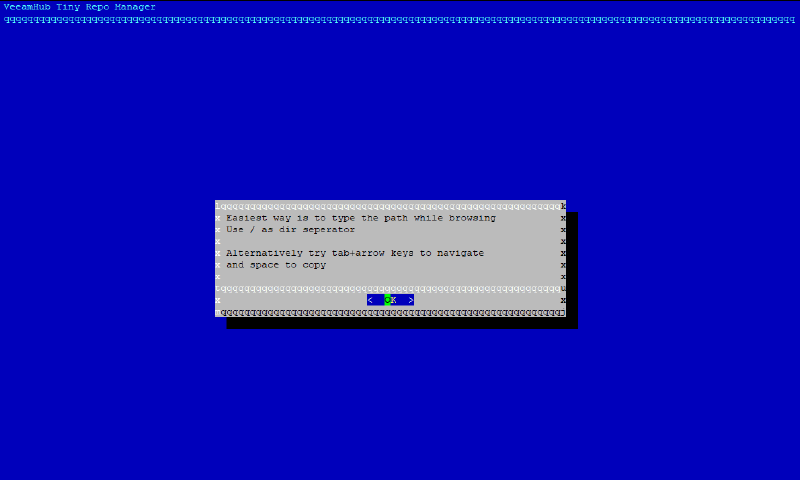
After configuring the disk where the immutable backups will be stored, there's a very important step: setting the time and time zone. We select"Yes":
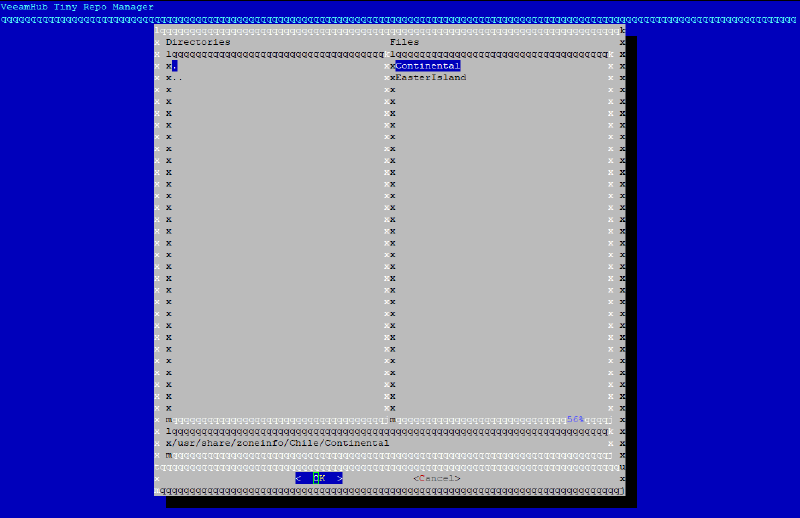
In my case I'll select:
```text
/usr/share/zoneinfo/Chile/Continental
```json
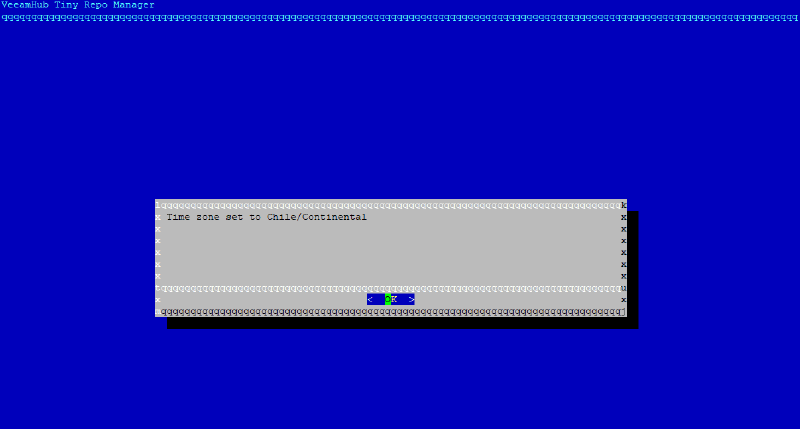
Selecting it and pressing Enter on "OK" confirms the configuration:
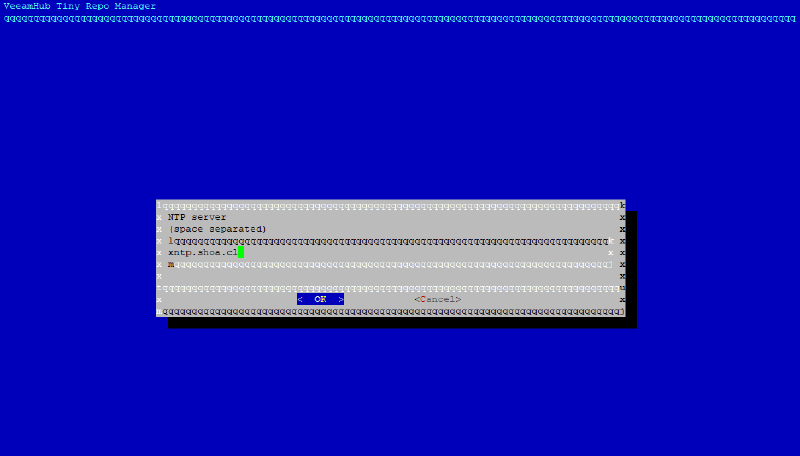
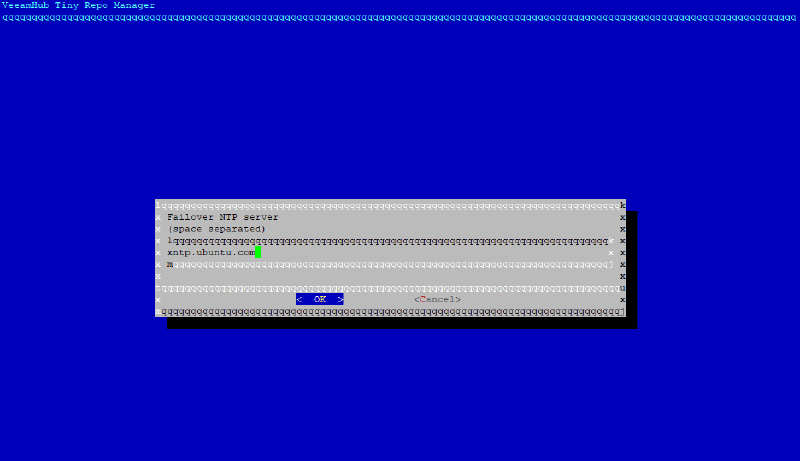
Then, after we select "OK", it asks about our NTP service, which can be local or over the internet:
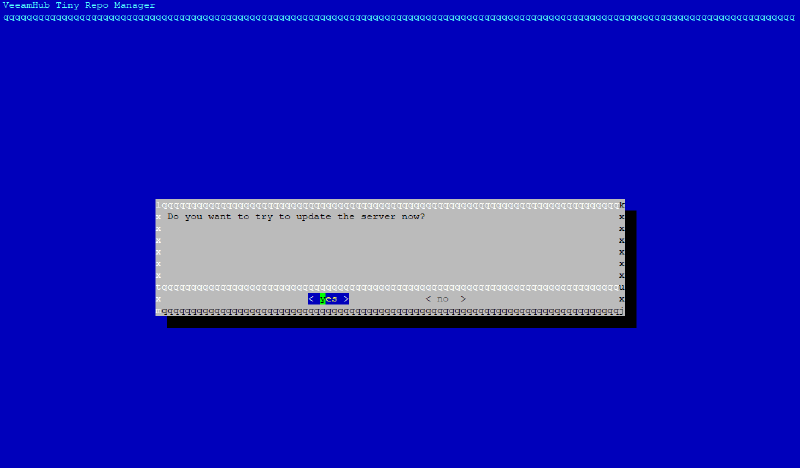
Next it asks whether we want to apply the update:
At this point you'll lose the connection to the server, so we reconnect through the vCenter web console and run:
```bash
sudo veeamhubrepo
We go ahead and register our new repository by selecting option “3”, and confirm that the SSH service should start:
It then tells us to connect from Veeam Backup & Replication using the credentials we created earlier and add it as a repository:
Creating the repository in Veeam Backup & Replication#
In Veeam Backup & Replication, we add the repository:
As shown in the previous image, we select “Single-use credentials for hardened repository…” and enter the credentials:
Then we click “Next” and confirm:
Finally, we review the configuration summary:
While the configuration runs from Veeam Backup & Replication, the Repo Manager utility detects the Veeam process:
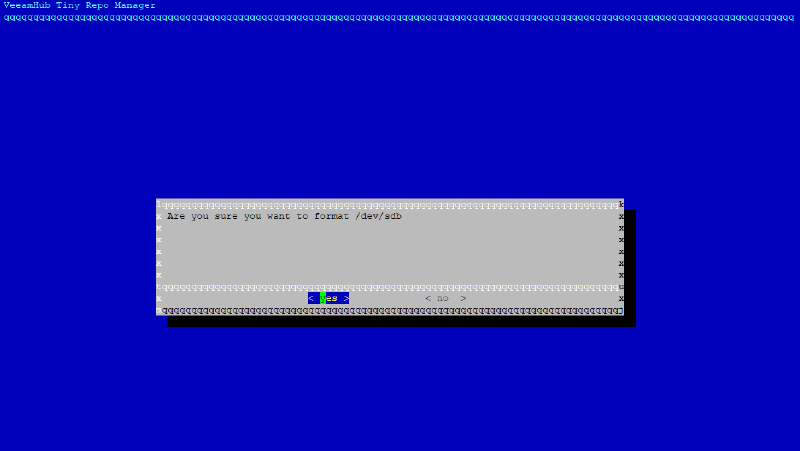
We then continue configuring the repository by selecting the partition that will host the backups:
And here’s the most important part for this type of repository: the tool formats the partition with XFS and enables reflink, so we can take advantage of its features when running a synthetic full, for example, and it also enables the option to make backups immutable for as many days as needed (the default is 7 days):
This is where the magic happens, as you can see in the previous image:
Then we kick off a new backup job to the new hardened Linux repository:
Now that we have a backup in the repository and immutability is enabled, let’s check whether backups can be deleted. In the Veeam Backup server, we go to the backup and try to delete the file:
After confirming the deletion, the operation status window shows that the backup file cannot be deleted. It even reports the date (03/03/2021 20:02) when immutability expires, since we enabled it for 7 days:
Even if you log in to the server directly, you won’t be able to delete the file, because it carries the advanced +i attribute that not even root can remove.
I know what you’re thinking right now: what if root clears the +i attribute and then deletes the file? Yes, that is possible. The key point is that this server’s credentials and access methods must be tightly restricted so that the backup files can’t be reached over the network and deleted by a malicious actor.
In addition, this solution keeps a daemon running on the Linux server to enforce the immutability logic and apply changes according to the number of immutability days you’ve configured.
That wraps up this detailed walkthrough for configuring immutability with the new repository type for Veeam Backup & Replication, the hardened Linux repository.
Which backup mode do I need for immutability to work?
Backup jobs must use forward incremental mode with full or synthetic backups. This is a requirement in the official Veeam documentation for the hardened repository’s immutability to operate correctly.
Why is the disk formatted with XFS and reflink?
XFS with reflink enabled lets you take advantage of Veeam Fast Clone, so operations like a synthetic full happen by block reference instead of copying the data. This saves space and time, and the Repo Manager tool configures this partition for you.
Can root delete an immutable backup on this repository?
While immutability is in effect, the file carries the advanced +i attribute and not even root can remove it. Technically root could clear the +i attribute and then delete the file, which is why it’s critical to tightly restrict the server’s credentials and access methods so no malicious actor can reach the backups over the network.
What are single-use credentials?
When you add the repository in Veeam Backup & Replication, you select “Single-use credentials for hardened repository”. Veeam uses those credentials only during registration and does not store them persistently, which reduces the attack surface if the backup server is ever compromised.
How many immutability days are set by default?
The default is 7 days, but you can adjust it to as many days as you need. During that window the backups cannot be deleted, and Veeam even shows you the exact date when immutability expires when you try to remove the file.
Why are the time zone and NTP service so important?
The immutability logic relies on the server’s date and time to know when each backup’s protection expires. That’s why the wizard asks you to configure the time zone and an NTP service (local or over the internet), so the clock stays in sync and the immutability windows are honored.