Data protection, Kubernetes, cybersecurity and AI. Hands-on guides from the trenches: Veeam, Kasten, VMware, Oracle, cloud, and whatever I’m breaking in the homelab this week.
Table of ContentsTable of Contents
In this post, we will walk through installing a Veeam Immutable Repository on Red Hat Enterprise Linux. In a previous post we looked at an application for Ubuntu called VeeamHubRepo, which lets you easily set up an immutable repository on Ubuntu Linux. This time we will cover how to do the configuration on Red Hat Enterprise Linux, using a small script that makes setting up the repository automatic and easy to use.
As we saw earlier in another post, there is a step-by-step guide to configuring a Veeam immutable repository on Ubuntu with a utility. You can read it here:
Now, if you are looking for an easy way to configure the same thing on Red Hat Enterprise Linux to provide backup immutability in your on-premises environment, this post is for you.
Below we will review some best practices for this type of repository, which lets us store our backups immutably on Linux:
Do not add more Veeam roles or other services. In other words, this repository should be dedicated to immutable backups only.
Preferably, use a physical server with local disks (JBOD).
Block or disable any remote administration applications or services, such as SSH (after setting up the repository), iLO, iDRAC, and so on.
Why is it not recommended to add more Veeam roles or other Linux services, such as nginx? The answer is simple: the goal is to keep the system as isolated as possible in order to reduce the risk in case of a vulnerability or unauthorized access to the server. As we all know, lately there have been multiple 0-day vulnerabilities affecting Linux operating systems and services.
Why prefer a physical server with local disks? If it is a virtual machine and the security of the virtual environment is compromised during an attack, the attacker (or attackers) could even delete the virtual machine along with all its content, or encrypt the entire virtual environment. As for the recommendation to use local disks, the goal is specifically to prevent the data stored in the repository from being deleted in the event that the storage or SAN is compromised.
Finally, block or disable any type of remote administration access, so that if centralized administration credentials are compromised or the remote administration systems have vulnerabilities, it will not be possible to connect to the operating system.
The only thing that should have a connection to this server is Veeam Backup & Replication, in order to send Immutable Backups to it.
Configure Red Hat Enterprise Linux as a Veeam Immutable Repository#
In this case, I installed RHEL 8.3 as a server using the minimal or default option, with no graphical interface. We then connect via SSH as root:
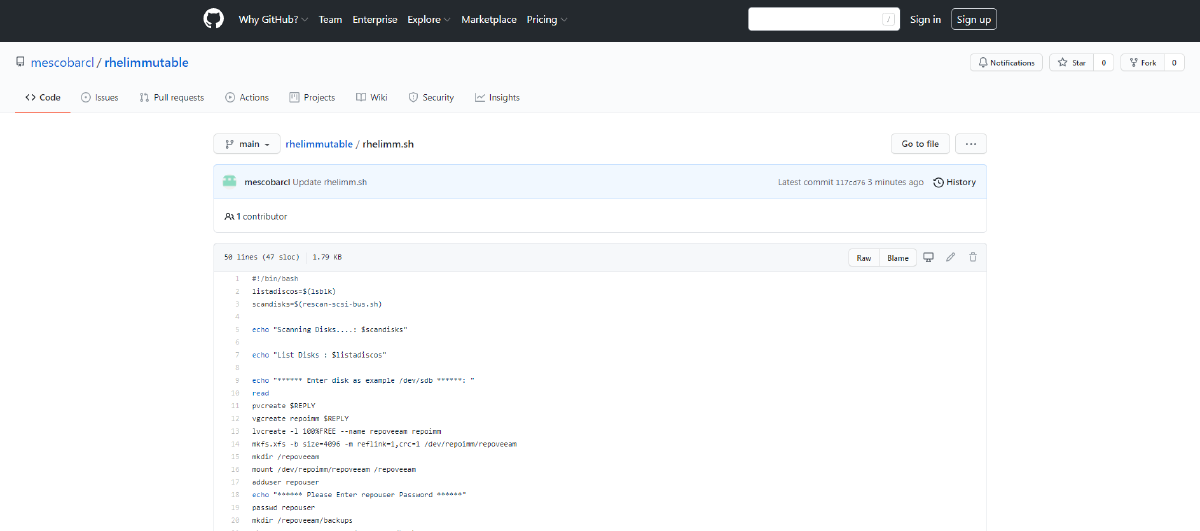
If it is a physical server that already has the disks installed, we can go ahead and run a script that you can download from:
We open the file “rhelimm.sh” to view its contents and copy them:
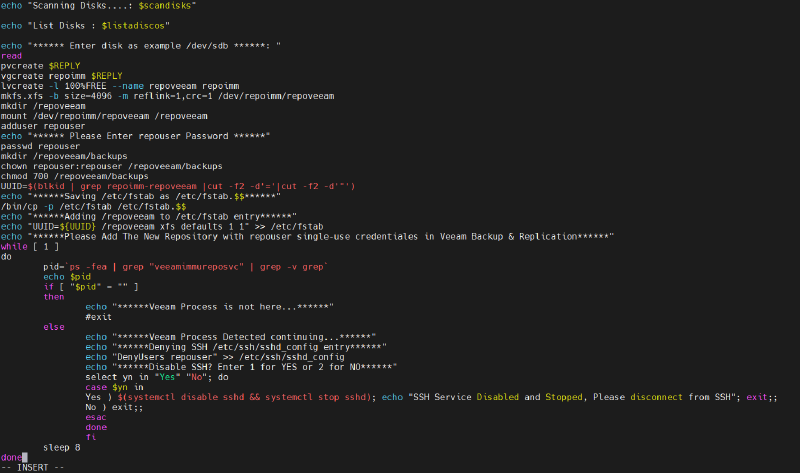
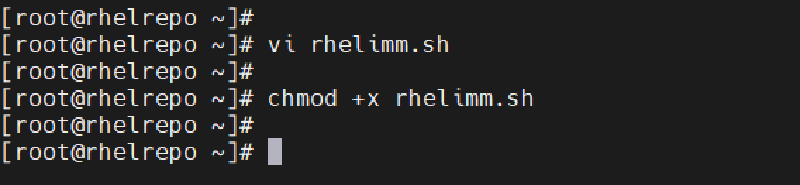
After copying the contents of the file, we go back to the SSH session we have open. We will create a new file with the “vi” editor, so in the SSH session we run:
vi rhelimm.sh

```bash


We press "i" to allow entering or pasting text into the file:


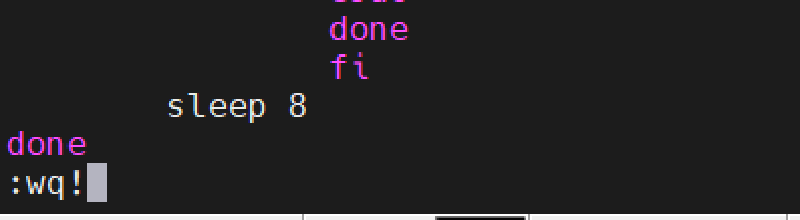
Then we exit the file by pressing "ESC :", type "wq!", press Enter, and return to the command line.


Now we will grant execute permissions to the file with the following command:

```bash
chmod +x rhelimm.sh

```json


And now we run the script with the command:

```text
./rhelimm.sh
We press “Enter” to run the script, which will prompt us for information.
Now that we have run the script in the previous step, the first thing it does is scan for new disks present on the server. It then lists the disks it found and asks whether we want to use just one disk or several of the disks available on the server.
For this demonstration, I added four 50 TB disks. Note that it is possible to use multiple disks or just one, depending on your hardware configuration. The script will therefore ask us to enter the disks in “/dev/sdb” format, and if you use multiple disks, just add a space after each one as you enter them:
As shown in the previous image, the disks appear as " /dev/sdb/dev/sdc /dev/sdd /dev/sde". I enter them in the required format and press “Enter” to run the operation:
When the disks are entered, the physical volumes, the volume group, and the logical volume for LVM management are created. Finally, the logical volume “repoveeam” is formatted with XFS. During formatting, “Reflink” is enabled to support “Fast Clone” on this type of repository.
After formatting, the script prompts us for the password of the connection user. The script creates a user named " repouser", and we enter the password:
Configuring the Immutable Repository in Veeam Backup & Replication#
Now the script tells us that we need to add the new repository in Veeam Backup & Replication using the " repouser" credentials. We connect to VBR and add the RHEL server under “Managed Servers”, selecting “Linux Server” to enter the server’s IP address or DNS name:
After clicking “Next”, VBR asks how authentication with the new RHEL server should be handled:
We select “Single-use credentials for hardened repository….” to enter the credentials. We use the user created by the script, " repouser", with the password entered during the script steps. Very importantly, we also select " Elevate account privileges automatically" and " Use su if sudo fails", enter the “root” password, press “OK”, and then “Next”:
The usernames and passwords we are entering will only be used for this connection. Afterward, the credentials are not stored in the Veeam Backup & Replication database. Now we select “YES”:
We can then watch the installation of the component required by Veeam Backup & Replication:
We select “Apply” and see the installation complete:
We click “Finish” and return to the SSH session. The script had been waiting for the required Veeam component to install, checking for its process, and then asks us whether we want to disable SSH completely:
We enter 1 to disable and stop the SSH service, and then disconnect with the “exit” command. After that, we can confirm that it is no longer possible to connect via SSH, even following a reboot. Note that the script adds the volume to " /etc/fstab" so that the disks are mounted automatically in case of a restart.
Now we go back to Veeam Backup & Replication to finish configuring the Immutable Repository.
In the VBR console, we go to “Backup Repositories”, then right-click and select “Add Backup Repository”, followed by “Direct Attached Storage”, then “Linux”, to enter the information Veeam requests:
We click “Next” and select our new RHEL Linux server, where we also click “Populate” to view the disk or mount point where the backups will be stored:
We select “/repoveeam” and click “Next”:
Here we enable “Use fast cloning on XFS volumes…” and “Make recent backups immutable for”. You can leave the backup immutability at its default of 7 days, or enter whatever value in days you need. Then click “Next”:
We select the “Mount Server”, then “Next”, and then “Apply” to see the configuration status:
VBR then asks whether we want to change the location of the configuration backup, and we select “No”.