Data protection, Kubernetes, cybersecurity and AI. Hands-on guides from the trenches: Veeam, Kasten, VMware, Oracle, cloud, and whatever I’m breaking in the homelab this week.
Table of ContentsTable of Contents
Great news! With the acquisition of Kasten by Veeam Software, Veeam extends its data protection capabilities into modern data centers running containerized workloads on Kubernetes (or k8s). In this post we’ll walk through the installation, configuration, and recovery of containers with Kasten on a Kubernetes cluster based on Tanzu Kubernetes Grid.
By now, more than a few of you are probably wondering: what exactly is Kasten? In short, Kasten is the leader in backup and disaster recovery for Kubernetes. One of its key strengths is that it’s remarkably easy to use, built specifically for Kubernetes and designed around a cloud-native architecture.
That’s why Kasten can help protect your containers with application-consistent integration across both public and private clouds, for example Google Kubernetes Engine, AWS Elastic Kubernetes Service, Azure Kubernetes Service, IBM Kubernetes Service, VMware vSphere, and Red Hat OpenShift, among others.
It also integrates with a wide range of storage technologies, such as:
On top of that, it lets you migrate containers between different container services in the event of a disaster, a change of provider, testing, or simply to maintain a hybrid architecture.
If you’d like to learn more about Kasten, you can visit their website and their documentation site:
Now that we have a sense of what Kasten is, let’s start by detailing the environment I’m using to host my containers: Tanzu Kubernetes Grid 1.1.3 on vSphere 7 Update 1. Keep in mind that this can be used from vSphere 6.7 Update 3 onward.
Here the management cluster uses a production plan, and for the application cluster I also chose the production plan so I could take advantage of multiple k8s roles. If you’d like to learn more about the plans offered by Tanzu Kubernetes Grid (TKG), visit:
And if we inspect the cluster resources, we can see:
With the command:
kubectl get pvc,pv,sc --all-namespaces
```bash
This shows the pvc (PersistentVolumeClaim) disk requests for applications, the persistent volumes provisioned either statically by the system or dynamically as pv (PersistentVolume), and the storage class offered to the cluster, sc (Storage Classes).
```bash
kubectl get pod --all-namespaces
```bash
This lists all the pods that Tanzu installs by default when creating a cluster, along with their respective namespaces, which lets us identify the project deployed in the cluster.
```bash
kubectl get node --all-namespaces
```text
And finally, we can see the number of nodes that make up the cluster and their respective roles. As shown in the previous image, we can see:
```text
kube-system vsphere-csi-controller-8c9b98f7f-tt9p6 5/5 Running 8 3h30m
kube-system vsphere-csi-node-5k2fp 3/3 Running 0 3h17m
kube-system vsphere-csi-node-5skv2 3/3 Running 3 3h11m
kube-system vsphere-csi-node-g9dpn 3/3 Running 0 3h17m
kube-system vsphere-csi-node-rptch 3/3 Running 3 3h30m
kube-system vsphere-csi-node-vgn7s 3/3 Running 3 3h17m
kube-system vsphere-csi-node-xg6mb 3/3 Running 3 3h17m
```bash
This tells us that the vSphere CSI driver is already installed. CSI stands for Container Storage Interface:
https://github.com/kubernetes-sigs/vsphere-csi-driver
This driver is the essential piece for integrating Kubernetes with vSphere, since it lets you create disks and assign them to the persistent volumes required by the applications deployed on the Tanzu Kubernetes Grid cluster.
## Storage ClassNow, one of Kasten's requirements is persistent disks, and as we saw earlier, the cluster doesn't have any Storage Class enabled by default. As a result, the application we install won't be able to create the volumes it needs to operate. To fix this, we need to run the following on the machine that manages TKG:
```bash
echo "
kind: StorageClass
apiVersion: storage.k8s.io/v1
metadata:
name: 24xs-vol
annotations:
storageclass.kubernetes.io/is-default-class: \"true\"
provisioner: csi.vsphere.vmware.com
parameters:
DatastoreURL: "ds:///vmfs/volumes/5b00a1aa-6b210381-9411-54e1ad1b3bcd/"
fstype: ext4
" > 24xs-vol.yaml
kubectl create -f 24xs-vol.yaml
```bash
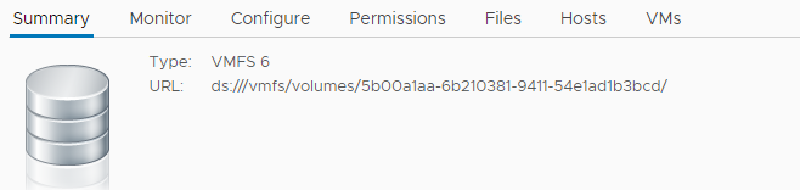
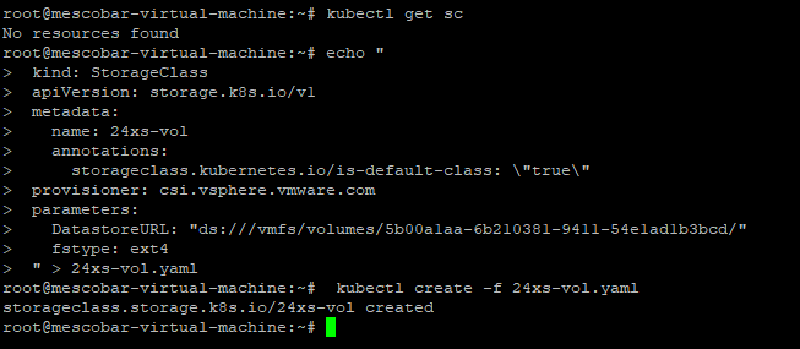
On line **5** we assign the name of the Storage Class. On line **7**, make sure the value is **true**, since this ensures it's configured and enabled by default. On line **8** we make sure it uses the vSphere CSI driver. Line **10** is key: it specifies the URL of the Datastore we'll use as the destination for the persistent volumes in vSphere (the next image shows where to find that value). Finally, we give the file a name and save it with the .yaml extension.
As we can see in the previous image, the first command shows that we don't have any Storage Class in our Tanzu cluster. We then run the file to create the Storage Class, which we can verify with the command:
```bash
kubectl get sc
```bash
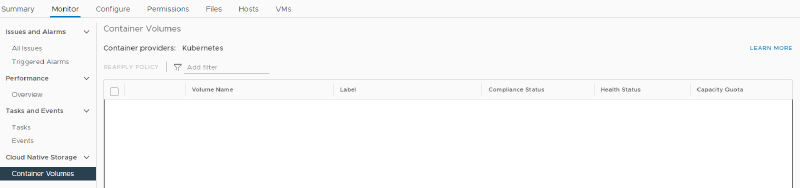
Now, if we check the monitoring for the Datastore we selected as the storage for our persistent volumes, we'll see the following in vCenter:
So now everything is ready to install Kasten K10 in its latest version, 2.5.22.
## Installing Kasten
Let's now review Kasten's prerequisites, which you can find here:
https://docs.kasten.io/latest/install/requirements.html
The first thing you need is to install Helm, a package manager that makes it easy to install applications:
https://helm.sh
Installing Helm is very simple. We just download the file from GitHub and move it to the executables folder on the server you're using to manage Tanzu Kubernetes Grid (TKG):
```bash
wget https://get.helm.sh/helm-v3.3.4-linux-amd64.tar.gz
```json
```bash
tar xvzf helm-v3.3.4-linux-amd64.tar.gz
```json
```text
cd linux-amd64/
```bash
And finally, we move it to the executables folder:
```bash
mv helm /usr/local/bin/
```bash
If we run the command`helm version`, we'll see the Helm version:
As the Kasten manual indicates, the next step is to add the Kasten repository to Helm with the following command:
```bash
helm repo add kasten https://charts.kasten.io/
```bash
Then we create the project name, or namespace, with the command:
```bash
kubectl create namespace kasten-io
```bash
Next we'll proceed with the installation as described here:
https://docs.kasten.io/latest/install/vmware/vsphere.html
The first command to run is:
```bash
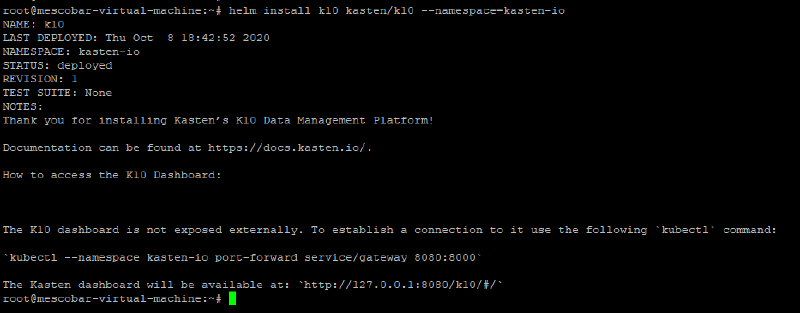
helm install k10 kasten/k10 --namespace=kasten-io
```bash
Which shows us:
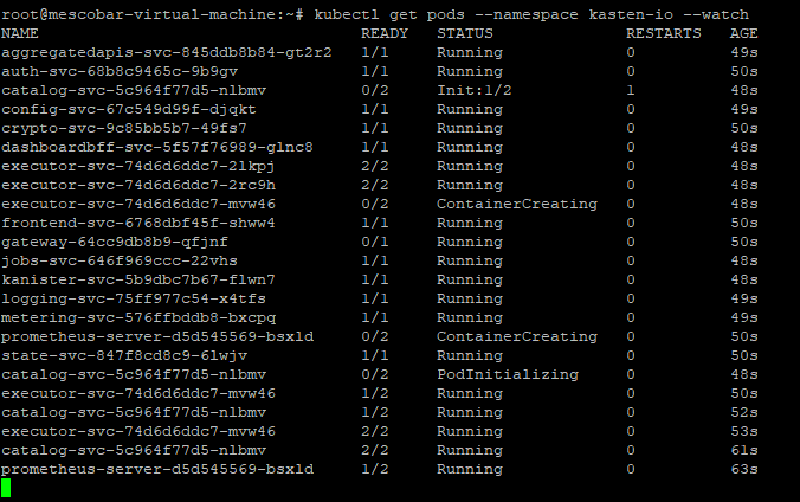
And then, with the following command, we can watch the installation progress:
```bash
kubectl get pods --namespace kasten-io --watch
```bash
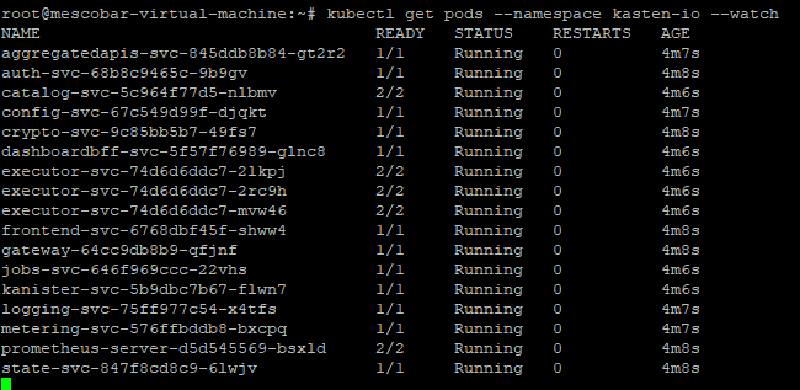
And we can see:
We need to make sure all pods are in the **Running** state, because only then will we be able to access the Kasten console.
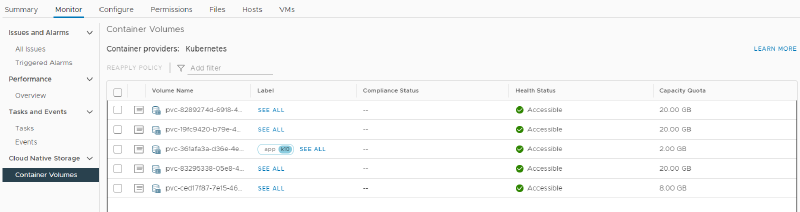
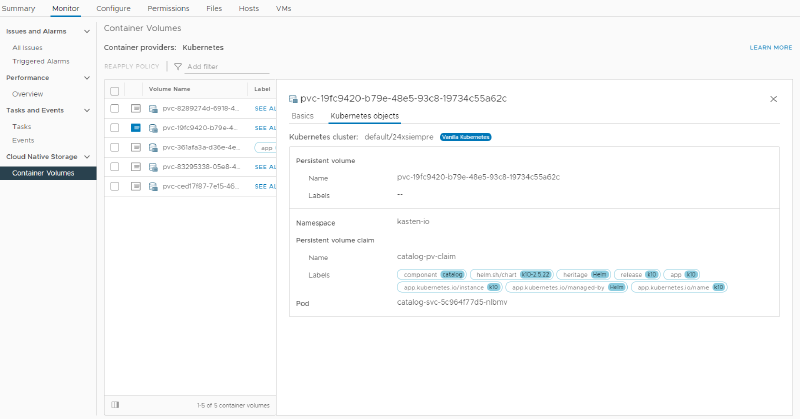
If we check the Datastore that previously had no persistent volumes and refresh it, we can see:
It lists the volumes Kasten uses to operate correctly. And once again, we make sure all the pods are in the "Running" state:
And Kasten is now installed!
## Accessing KastenAs we saw in an earlier image, Kasten indicated that to access the Dashboard we need to run a command:
```bash
kubectl --namespace kasten-io port-forward service/gateway 8080:8000
```text
And then open the URL:
```text
http://127.0.0.1:8080/k10/#/.
```bash
Obviously, if you have a GUI or Desktop installed on the Linux machine you use to manage Tanzu Kubernetes Grid, you'll be able to access it. But what if I don't have a GUI installed and I need to reach it over the network via the web?
There are several ways to access the Kasten Dashboard. Here we'll cover the simplest and fastest one, with authentication, which you can also find in the Kasten manual. In fact, we'll be referring to the following links:
https://docs.kasten.io/latest/access/dashboard.html#dashboard
https://docs.kasten.io/latest/access/authentication.html#basic-auth
```bash
https://hostingcanada.org/htpasswd-generator/
```bash
The first link describes the various ways to reach the Dashboard. In this case we'll use "**Accessing via a LoadBalancer**", and for that we'll install "metallb", a load balancer for k8s:
https://metallb.io/
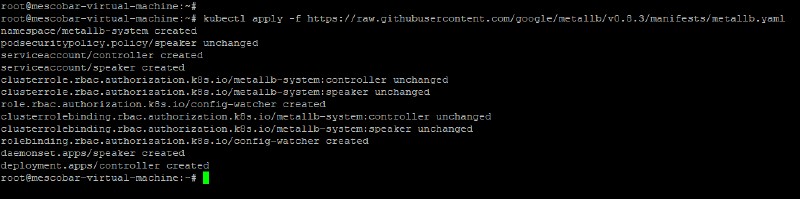
The installation is very simple. We just run the following command:
```bash
kubectl apply -f https://raw.githubusercontent.com/google/metallb/v0.8.3/manifests/metallb.yaml
```bash
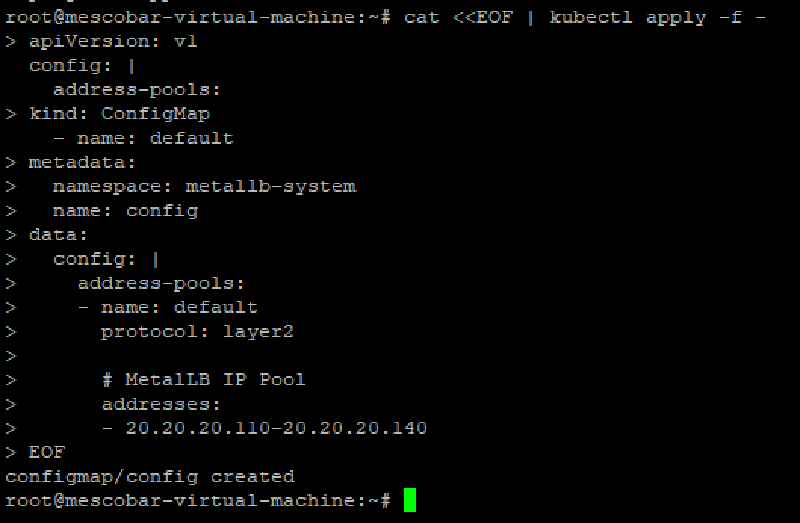
And it's installed. Now we'll configure it with the range of IP addresses we want it to use:
```bash
cat <<EOF | kubectl apply -f -
apiVersion: v1
kind: ConfigMap
metadata:
namespace: metallb-system
name: config
data:
config: |
address-pools:
- name: default
protocol: layer2
# MetalLB IP Pool
addresses:
- 20.20.20.110-20.20.20.140
EOF```bash
On line **15**, we enter a pool of IP addresses to be assigned to the services we deploy. Then we run it:
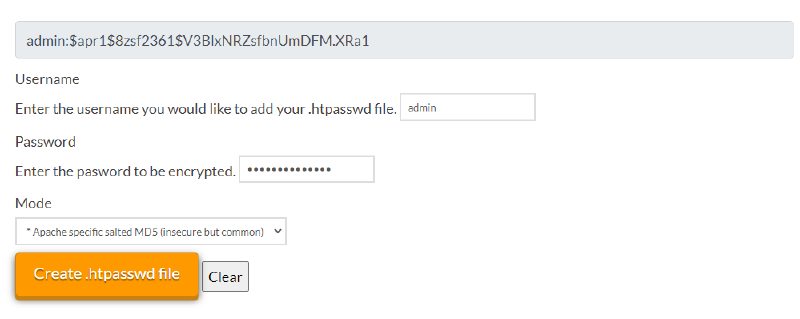
After this, we go back to the Kasten configuration. We need to generate an htpasswd password, and one of the links above points to a website that lets us do it online:
We copy the username and password and add them to the following command(if you copy and paste the encrypted password, it's 24xsiempre.com):
```bash
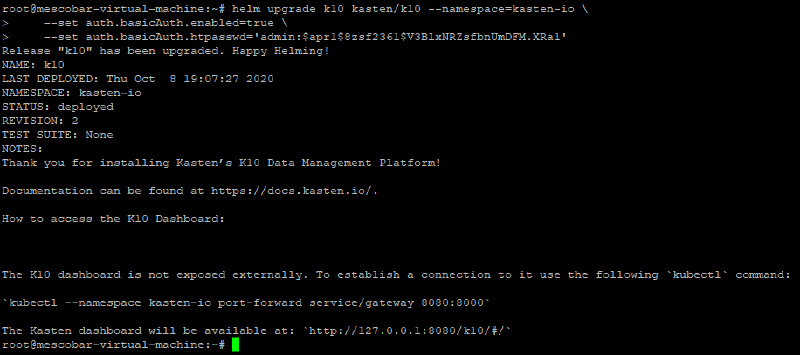
helm upgrade k10 kasten/k10 --namespace=kasten-io \
--set auth.basicAuth.enabled=true \
--set auth.basicAuth.htpasswd='admin:$apr1$8zsf2361$V3BlxNRZsfbnUmDFM.XRa1'
```bash
On line **3**, you must paste your username and password generated on the website. Then we run it:
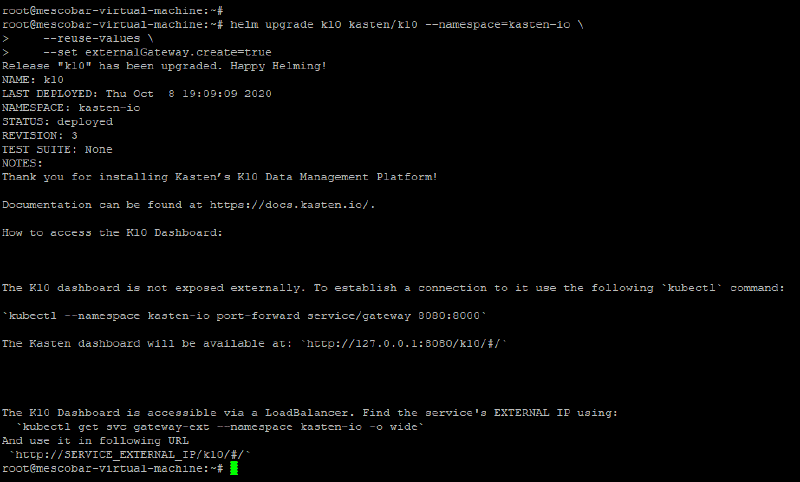
The previous command only configures the authentication mechanism. Now, with the following instruction, we'll tell Kasten to let us access it through its gateway and the load balancer:
```bash
helm upgrade k10 kasten/k10 --namespace=kasten-io \
--reuse-values \
--set externalGateway.create=true```bash
We can see the message changed, and Kasten now tells us to access the Dashboard via:
```bash
The K10 Dashboard is accessible via a LoadBalancer. Find the service's EXTERNAL IP using:
`kubectl get svc gateway-ext --namespace kasten-io -o wide`
And use it in following URL
`http://SERVICE_EXTERNAL_IP/k10/#/`
```bash
So all that's left is to find the IP address to access it, which we'll get with the following command:
```bash
kubectl get svc gateway-ext --namespace kasten-io -o wide
**It’s worth noting that I have DHCP enabled on TKG**
In my case, the access URL will be http://kastentkg.24xsiempre.cl/k10/#/, since I’ve associated the IP address with a DNS record (if you don’t access the EXTERNAL-IP directly). It will then prompt for the username and password configured earlier through the htpasswd generator page:
And we’ll see the Kasten Welcome screen, where we enter the company, email, and accept:
Kasten is now up and running, with remote access via username and password. All that’s left is to enable and configure the solution. At the bottom of the Dashboard, an important message appears: “K10 Disaster Recovery is not enabled for this cluster.”
We click on “See Settings”, where it tells us we need to complete a few configuration steps before enabling Kasten:
We click on “Locations” and create a new profile, in this case Amazon S3:
As you can see, you can use different profiles to store the containers, which can be:
Google Cloud Storage
Amazon S3
Azure Storage
S3 Compatible
Enter the requested details and we’ll see the created profile:
Then click on “Infrastructure” and we’ll create a profile for vSphere:
Just like the previous profile, we have several options:
OpenStack
Ceph
Portworx
vSphere
Now we click on “K10 Disaster Recovery” and enable Kasten by clicking “Enable K10 DR”. We select the “Location” profile and assign a password to encrypt the backups. Very important: save this password, as you’ll need it for certain recoveries.
And then, if you like, you can change the Dashboard theme in the “Dashboard” menu. We return to the start to configure the backup policies:
At the same time, I installed a WordPress instance in its own namespace to demonstrate backups of an additional application:
When a new namespace is created, Kasten automatically detects it under “Applications” and marks it as “Unmanaged”, since it has no backup policy associated with it yet:
You can trigger a “Snapshot” directly from “Applications”, run restore tasks, or “Export” whichever container you choose.
We’ll go into “Policies” and see a default Kasten policy that protects Kasten itself:
As a recommendation, we shouldn’t change it, since it will keep running with its own retention policy.
Now we’ll click on “Create New Policy” and enter the requested details:
Here we enter the name, comments, and action. For data protection, we need to select “Snapshot” and set the snapshot frequency along with its retention. If you click on “Show Advanced Frequency Options”, you can set the exact run time:
Then, if we want, we can export the backups to the S3 bucket by enabling “Backups via Snapshot Exports”:
Next we’ll select the application to back up, searching for it by “Name” or, if you prefer, by “Label”. In this case I’ll select wordpress:
And finally we click on “Create Policy”:
Now we can run the backup right away or wait for the schedule. I’ll run it to see the backup by clicking “Run once”:
And we’ll go back to the Dashboard to check the backup status:
We’ll also see the snapshot runs in vCenter:
We’ll also see all the runs we configured in the policy:
And we’re now backing up our Tanzu Kubernetes Grid with Kasten!
If we click on “Applications”, we’ll see our successful backup policy for WordPress:
At the bottom of the policy you’ll see a “Restore” button, which shows us the restore points we have available:
And if we click on a restore point:
It lets us choose where we want to recover from, either from S3 or from the local snapshot. In this case I’ll select the local one:
To confirm:
And finally we return to the Dashboard to check the status:
And we can see the successful recovery:
There are multiple recovery options that should be evaluated based on your needs, but as we saw, backups are simple, namespace detection is automatic, and configuring backup policies is very easy. The following link details all the recovery options:
Which versions of vSphere and Tanzu Kubernetes Grid does this guide use?
The environment in this post is Tanzu Kubernetes Grid 1.1.3 on vSphere 7 Update 1, with Kasten K10 version 2.5.22. That said, you can use Kasten from vSphere 6.7 Update 3 onward, since that is the minimum requirement for the vSphere CSI driver.
Why do I need to create a Storage Class before installing Kasten?
Kasten requires persistent disks to operate, and a Tanzu Kubernetes Grid cluster ships with no Storage Class enabled by default. You create one with the csi.vsphere.vmware.com provisioner, mark it as the default class, and point it at the vSphere Datastore URL you’ll use as the destination for the persistent volumes.
How do I install Kasten K10 on the cluster?
First install Helm, then add the repository with helm repo add kasten https://charts.kasten.io/ and create the kasten-io namespace. Next run helm install k10 kasten/k10 --namespace=kasten-io and verify with kubectl get pods --namespace kasten-io --watch that all pods reach the Running state before accessing the console.
How do I access the Kasten Dashboard over the network without a GUI?
The simplest way is to expose the gateway through a load balancer. This guide installs metallb, assigns it a pool of IP addresses, enables basic authentication with an htpasswd password, and creates the external gateway with --set externalGateway.create=true. You then get the IP with kubectl get svc gateway-ext --namespace kasten-io -o wide and reach http://SERVICE_EXTERNAL_IP/k10/#/.
Where can I store Kasten's exported backups?
Under Locations you can create a profile targeting Google Cloud Storage, Amazon S3, Azure Storage, or any S3-compatible destination. This guide uses an Amazon S3 bucket, and export is then enabled in the policy through the Backups via Snapshot Exports option.
How do I recover an application backed up with Kasten?
From Applications, find the application’s policy and click Restore, which shows the available restore points. When you pick a point, Kasten lets you recover from the local snapshot or from S3, and you confirm the operation to restore the application to the cluster.