Data protection, Kubernetes, cybersecurity and AI. Hands-on guides from the trenches: Veeam, Kasten, VMware, Oracle, cloud, and whatever I’m breaking in the homelab this week.
Table of ContentsTable of Contents
It is now the turn of another plugin, Veeam for SAP HANA. It is very simple to deploy and configure in SAP HANA, and in this post we will cover installation, configuration, backup scheduling from SAP HANA, and of course data recovery.
We already know that Veeam supports backing up our SAP HANA through the plugin, which is a “Backint” interface. Because it requires vendor certification, in this case from SAP HANA, for it to work correctly, we can check that certification here:
Now that we have all of the information above, we need to install the plugin on the SAP HANA server. We will mount the Veeam Backup & Replication v10a ISO and copy the plugin VeeamPluginforSAPHANA-10.0.1.4854-1.x86_64.rpm, for example with WinSCP:
After that, we connect to the server via SSH, either as the “root” user or as the application user that has sudo permissions. In my case, I will use “hxeadm”.
Always remember that Veeam plugins are installed as root and configured with the application user.
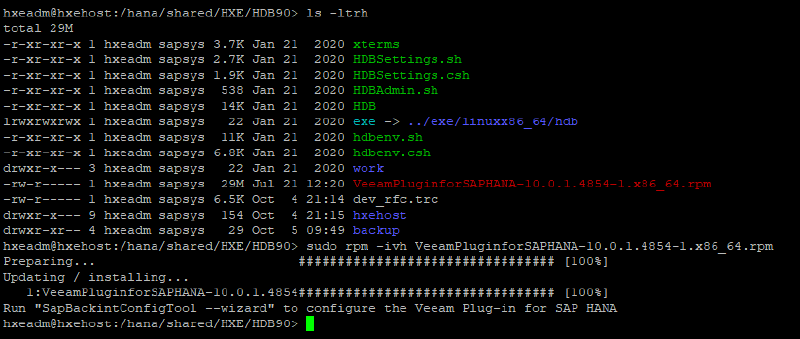
So we will install the plugin with the following command:
sudo rpm -ivh VeeamPluginforSAPHANA-10.0.1.4854-1.x86_64.rpm
```json
## ConfigurationAfter installation, the Veeam Plugin for SAP HANA will tell us to run the following command:
```text
Run "SapBackintConfigTool --wizard" to configure the Veeam Plug-in for SAP HANA
```bash
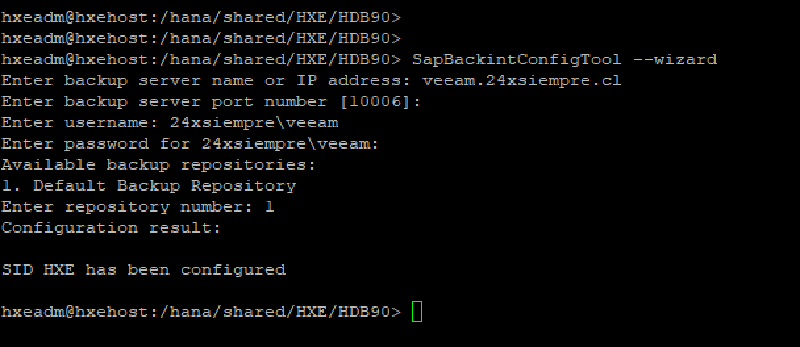
Here we run the command we were given, without sudo and as the application user, in my case hxeadm, and we enter the parameters it asks for:
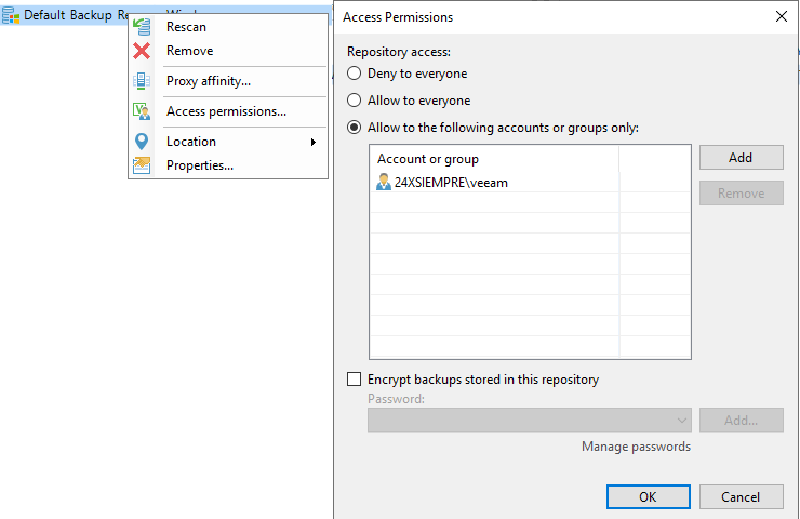
As shown in the previous image, it only asks for the details of our Veeam Backup & Replication and the repository we will use for backups. Remember that if a repository does not appear, you must grant it access in the repository properties under the "Access Permissions" menu:
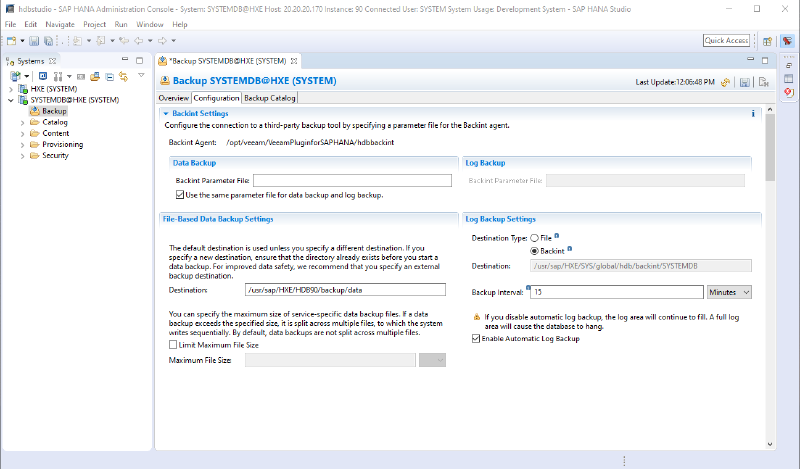
The plugin is now configured on the SAP HANA server. To validate the configuration, we can review the backup menu in SAP HANA Studio, for example:
Where we will see:
```text
Backint Agent: /opt/veeam/VeeamPluginforSAPHANA/hdbbackint
This is the path where the configuration files and the Backint interface live. In the “Log Backup Settings” section, it is recommended to set them to “Backint” rather than “File”, since this way we send both the backups and the database logs to the Veeam repository.
All that is left is to run the SAP HANA backup from SAP HANA Studio, since that is the way backups should be performed in order to keep SAP support.
We select the database we want to back up and then choose the backup type we need, Full, Differential or Incremental, and of course the destination type, which must be backint:
Then we click “Next” and “Finish” to watch the backup status, which we can also monitor in Veeam Backup & Replication:
And just like that, we are already backing up SAP HANA to the Veeam repositories through the Veeam Plugin for SAP HANA.
To answer that question, there are several ways to schedule backups, for example:
Veeam Agent for Linux schedule
Control-M
Operating system native tools
SAP HANA Cockpit
Many more…
As I mentioned before, there are several ways to schedule SAP HANA backup runs using the Veeam Plugin for SAP HANA. One of the most common is to integrate it with Veeam Agent for Linux to back up SAP HANA configuration files and run the backup script, setting it up together with a protection group as we saw in the Veeam Oracle Linux post:
Now we are going to look at another way to schedule backups, directly from SAP HANA, using the SAP HANA Cockpit tool. But before scheduling backups, let’s review some advanced SAP HANA backup settings. In the SAP HANA configuration, under the Backup section, you can change the following variables:
data_backup_buffer_size
parallel_data_backup_backint_channels
These allow the backup to run across multiple streams with the memory buffer recommended as best practice by SAP HANA. Make sure you have enough memory resources. If you want to review these parameters, the information is available in the following SAP links:
In this case we entered 4 streams and a 2048 MB buffer (512 MB per stream):
It is very important to review these points with your SAP HANA DBA or your technology partner, since they are system-level settings that need to be validated. Even so, in this post we are using information taken directly from the SAP HANA manual. Additionally, if you want to add advanced features or back up the catalog, you also need to involve the DBA.
We will now return to SAP HANA Cockpit ( link), which lets us run backups natively integrated with the Veeam Plugin for SAP HANA. To reach the SAP HANA Cockpit web interface, in my case the address is https://hxehost:51045/cockpit#Shell-home:
When we open the instance we want to back up, we will see a backups widget:
If we click on “Backup Schedules”, we can access the SAP HANA backup configuration and see a summary of the backup types already made or still pending. Then we click the " +" icon to add a backup schedule:
We select “Schedule a Series of Backups” to move to Step 2 and enter the backup name:
Moving to step 3, “Backup Settings”, we configure the backup type:
In “Backup Settings”, the key setting is the backup type, and we will use “Backint” to send our backups to the Veeam Backup & Replication repository through the Veeam Plugin for SAP HANA. Next we select how often the backup will run:
And finally, at what time and on which days we need the backup to run:
We enter the time zone, the backup run time, the days it runs, and finally when to activate the backup task. Lastly, we save the changes with “Save Schedule”:
We return to the home page, where the schedule will appear:
It will run at the time we configured:
We will also see the task run in Veeam Backup & Replication:
In SAP HANA Studio we can also see the backups that were made:
Now we will look at recovery. You can do it either from SAP HANA Cockpit or from SAP HANA Studio. In this case we will use the traditional method of recovering a database from SAP HANA Studio using the backups in Veeam Backup & Replication:
As we saw in the previous images, we can now easily recover SAP HANA databases from SAP HANA Studio. We go to the console and select the following:
SAP HANA then tells us that to recover a database, in this case SYSTEM, the services must be stopped:
We wait for the services to stop:
And then we can recover the database, for example to the most recent state:
We click Next, and when we reach the following screen, we select a backup and click “Check Availability”:
Then continue to the end:
And click “Finish” to wait for the recovery:
We will also see the recovery as a running task in Veeam Backup & Replication:
That wraps up this post on the Veeam Plugin for SAP HANA, protecting your environments using tools already available in the solution. All suggestions are welcome!